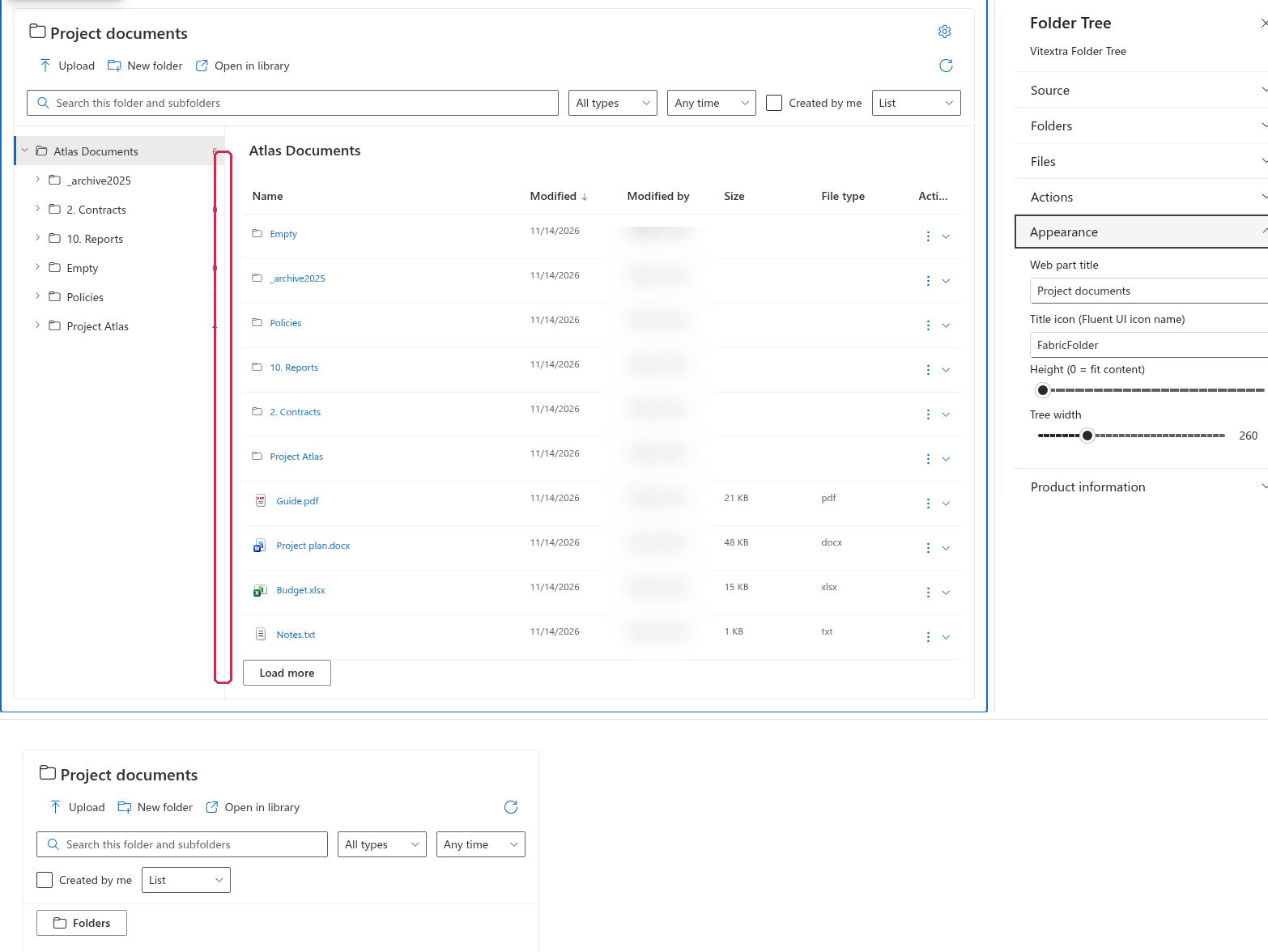
Folder Tree
Set title and dimensions
Edit the page and open Settings → Appearance. Set Web part title or leave it empty to use the library title. Title icon (Fluent UI icon name) accepts a Fluent UI icon name; the default is FabricFolder, and an empty value removes the title icon.
Set Height (0 = fit content) from 0 to 1200. A value of 0 fits the content; the default is 600. Tree width ranges from 180 to 480, with a default of 260. Save or republish the page to keep the editor's settings.
Position and resize the tree
In Folders, use Tree position to choose Left or Top / collapsible. In the top layout, use Folders to show or hide the pane. Narrow layouts also collapse the tree behind this control. The file area remains available when the tree is collapsed.
For a left-side pane, drag the separator to change its width. You can also focus the separator and press Left or Right to adjust it by 16 pixels within the 180–480 range. This interaction changes the current display, not the saved property-pane default.
Use the folder tree with a keyboard
| Key | Action |
|---|---|
| Up / Down | Move focus between visible folder nodes. |
| Right | Expand the focused folder, or move to its first visible child. |
| Left | Collapse the focused folder, or move to its parent. |
| Home / End | Focus the first or last visible folder node. |
| Enter / Space | Select the focused folder and display its contents. |
📝 Note
Moving keyboard focus is separate from selecting a folder. Folder Tree follows the site theme and supports the Teams theme; there is no separate color-palette selector in the property pane.