Policy Acknowledgement
A policy card describes a policy and points to its content. Creating or editing the card is separate from publishing a version and assigning it to employees. Open Policy Manager as an administrator, compliance manager or policy author.
Create the policy card
- Select New policy.
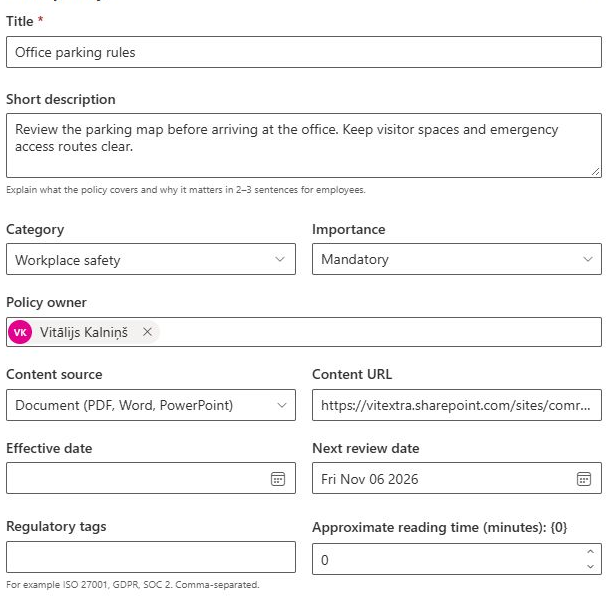
- Enter Title and Short description. The title is required.
- Select or enter Category and choose Importance: Mandatory, Recommended or Informational.
- Select one person in Policy owner. A new policy normally starts with the current user selected.
- Select Content source and enter Content URL. Use the document, SharePoint page or external-URL option that matches the content.
- Set Effective date, Next review date and any Regulatory tags. Enter tags separated by commas.
The displayed reading-time estimate describes the policy. It is separate from the minimum-time reading control.
Set reading and confirmation options
In Reading controls, choose whether opening and scrolling are required, set the minimum time and decide whether the employee must type their name. A minimum time of 0 disables that time condition.
Enter a policy-specific value in Acknowledgment text when needed. If it is empty, the reader uses the category text, then the global default, then the built-in localized text. {Policy} and {Version} insert the policy title and assigned version.
❗ Important
Reading controls do not prove comprehension. For framed documents and external content, the reader can satisfy the scroll condition after opening and waiting at least 30 seconds or the configured minimum, whichever is longer. The typed name is a confirmation control, not an electronic signature.
Fill in the card for the reader, not just the form
Use a title that helps an employee distinguish this policy from related material. The description should explain the subject and who is expected to use it; it is shown before the employee reads the source. A technically valid title alone is enough to satisfy the form's explicit required-field check, but it is not enough to prepare a useful published policy.
| Information | Decision to make before publication |
|---|---|
| Owner | Who will maintain the policy and resolve employee questions? |
| Category | Where should readers and report users find it? |
| Importance | How should the card describe its significance? |
| Source | Which maintained file or page is the authoritative reading material? |
| Effective date | When does the organization intend the policy to apply? |
| Review date | When should the owner check whether the content is still valid? |
| Confirmation statement | What exactly will the employee attest to after reading? |
Importance does not replace audience selection or create assignments. Review dates belong to owner maintenance and do not extend employee deadlines. These fields describe different parts of the process; avoid using a single date or label as a substitute for configuring the later campaign.
Work through a sample card
Suppose you are preparing an information-security policy for a pilot department. Give it a recognizable title, choose the responsible owner and select a category already used for similar policies. Point the source at the maintained document, then open that URL with a pilot employee account. If the employee cannot read it directly, solve that problem before publication.
Choose whether the category's acknowledgement statement already expresses the required confirmation. If it does, leaving the policy-specific field empty avoids maintaining the same wording in several places. If this policy needs different wording, enter its own statement and verify the placeholders in a pilot reader. Administrator-entered descriptions and statements are not automatically translated with the interface.
Set a realistic reading estimate for orientation, then separately choose the actual reading conditions. Check the source type before requiring scrolling: an inline page and a framed document are measured differently. Save the draft and reopen it to verify the owner, dates and source rather than proceeding directly to a broad campaign.
Distinguish a card edit from a controlled revision
Correcting the description or moving responsibility to another owner is a card-maintenance action. Revising the source content and requesting a fresh acknowledgement requires a publication and distribution decision. Changing the URL or confirmation wording on a live card can affect what an employee sees after reloading an existing assignment; saving does not freeze a separate historical copy of every setting.
Before editing a policy already in use, inspect its current version and outstanding assignments. Decide whether the change belongs in a new published version, and record a meaningful change summary when it does. See KB10514. How to Publish a New Policy Version and Request Acknowledgement Again for material and editorial revisions and KB10510. How to Configure Policy Categories and Acknowledgement Texts for statement precedence.
Save, find and edit the policy
Select Save. A new policy is saved as Draft. If it is not visible, change the Policy Manager status filter to Draft or All statuses. Authors see policies whose owner matches their account; changing the owner can remove the card from the original author's view.
To edit a visible policy, select it and use Edit, update the fields and save. Saving the card does not publish a new content version or create employee assignments. For first publication, continue with KB10502. How to Publish the First Version of a Policy, then create a campaign using KB10503. How to Create and Launch a Policy Acknowledgement Campaign.