Policy Acknowledgement
Publishing creates a policy version and changes the policy to published status. Before you begin, create the card, check its source URL and make sure both the publisher and intended readers can access the content. See KB10501. How to Create and Edit a Policy in Policy Acknowledgement.
Open the publication panel
- Open Policy Manager with an administrator, compliance-manager or author account that can manage the policy.
- Select Draft or All statuses in the status filter and select the policy.
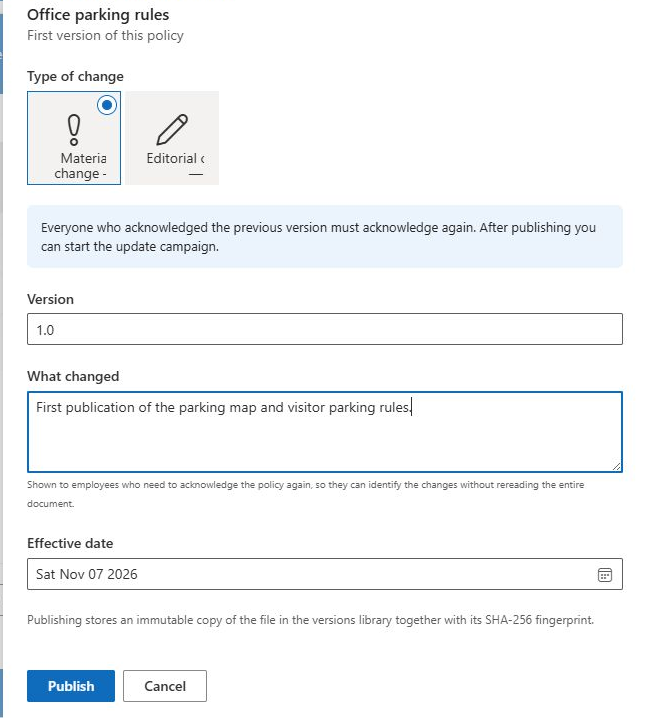
- Choose Publish a new version.
- Review Type of change and Version. The first suggested version is
1.0. - Describe the initial release in What changed and review Effective date.
The first release does not require an existing-version change summary, but a meaningful description helps readers and reviewers identify the release.
Publish and inspect the result
Select Publish and wait for confirmation. Check that the policy now has a current version and published status. Inspect its version history and the stored document snapshot where one is available.
For a document on the same SharePoint origin as the hub, publication reads the source, calculates a SHA-256 fingerprint and saves a file snapshot in PolicyVersions. SharePoint-page sources are hashed as files but do not receive the same document snapshot. External-URL sources have no content fingerprint or document snapshot.
❗ Important
The effective date is stored as policy information. This publication operation sets the policy to published immediately; a future effective date is not a scheduled-publication mechanism. Do not assume that selecting a future date keeps the policy hidden until that date.
Complete a prepublication review
Treat the first publication as a release of a maintained policy, rather than a way to make an unfinished draft visible. Reopen the source, confirm the owner and read the confirmation statement that employees will receive. Check that the title and description identify the intended material and that the selected source is the final document for this release.
Verify access with both the publisher and a representative employee. The publisher may be able to read and copy a file while the employee is denied access to the original. Since Policy Reader displays the configured source, a successful snapshot operation does not by itself prove that the employee experience works.
If the policy should not be available yet, leave it as a draft until you are ready for publication. A future effective date describes the policy; it is not a visibility barrier. Similarly, a source document may remain independently accessible through its library even while the card is a draft. Manage the content's own access according to the intended release process.
Inspect the publication as several related results
| Result to inspect | What it establishes |
|---|---|
| Published status on the card | The card has completed its state change. |
| Current version value | The policy now identifies the release used for new campaign selection. |
| Version-history entry | The release details and change description were recorded. |
| Snapshot link for a supported document | A retained file is available for separate inspection. |
| Employee source preview | The intended reader can open the configured content. |
Check the appropriate results for the source type. A page or external-source metadata record is not equivalent to a complete document snapshot. Do not classify every metadata-only version as a failed publication, and do not describe it as a full archive of a website either. The source comparison in KB10512. Policy Content Sources: Documents, SharePoint Pages and External URLs explains the distinction.
Recover from an uncertain publication result
If an error appears, first reload the policy and history. The operation calculates content evidence, creates version data, updates the policy and writes an audit event in separate steps. A failure in a later step can leave earlier results present. Repeating publication without inspecting them can make the release history harder to interpret.
Note the policy identifier, intended version, error and time. Inspect whether the version already exists and whether a snapshot was created. Avoid reusing a version number simply because the first click reported an error: file creation allows overwrite, so an identical number is not a safe retry strategy for preserving independent evidence.
Once the result is understood, verify the completed release with a pilot assignment. Publication creates the version to distribute; the next section's campaign is what creates employee work. Keep these checkpoints separate so that a published card is not mistaken for a completed rollout.
Assign the published version
Publishing the first version does not create a campaign or employee assignments. Select New campaign, choose the published policy, configure the audience and launch the campaign using KB10503. How to Create and Launch a Policy Acknowledgement Campaign.
Verify the result with a pilot employee. The reader displays the source content; opening an old assignment should not be assumed to display its archived file snapshot automatically. Use the explicit snapshot link in version history when you need to inspect the saved document version.