Policy Acknowledgement
A campaign assigns a policy version to an audience. Use Policy Manager with an account allowed to manage the policy. Publish the policy first; the campaign selector includes published policies and policies under review.
Choose the policy and campaign type
- Select New campaign.
- On Policy and type, choose the policy and confirm its version.
- Enter Campaign title.
- Select Campaign type. For an initial pilot, use One-time. The other choices are Update, Periodic acknowledgment and Always-on (new audience members).
- Continue to the audience step.
Define and preview the audience
Add groups, attribute conditions or individual employees and review the exclusions. Use Recalculate after changing the policy, version or audience so that the preview reflects the intended launch. Check both the total and the departmental distribution. Detailed selection rules are in KB10504. How to Configure a Policy Campaign Audience.
❗ Important
An audience without groups, individual users or attribute conditions starts from all directory users, then applies exclusions. Do not leave it empty when you intend to run a small pilot.
Set deadlines and reminder settings
Choose N days from the assignment and enter the number of days, or choose Fixed date and provide a date. For initial launch, the relative deadline is calculated from the launch time.
Review the settings for assignment notifications, days before the deadline, the due date, repeated overdue reminders and escalation. Those settings are stored with the campaign; automatic execution requires the separate service. A value of 0 for repeated overdue reminders means no repeated overdue reminder.
Plan a campaign around a concrete outcome
Before launching, state who should receive which version and why. A useful campaign title helps its owner distinguish the first rollout from a later update or another department's assignment operation. The title is administrative context; the selected policy version and actual audience determine the work created.
For a pilot, use a deliberately bounded population and a deadline that lets the owner investigate questions. Confirm that employees already have access to the source and reader page. An audience match creates an assignment, not source permissions. Likewise, an enabled notification preference is not proof that the separate delivery service is running.
Review version and audience together. A person who acknowledged an earlier version may need the new release, but a person with an existing nonexempt assignment for the selected version is skipped. That existing assignment may belong to another campaign. Consult KB10520. How to Review a Campaign Audience Before Launch when the preview and the expected number of new tasks differ.
Walk through a launch example
Assume a pilot preview contains 6 employees for version 1.0. Two already have nonexempt assignments for that version from an earlier campaign, and the remaining employees have none. A successful launch creates 4 new assignments. The preview was still correct about the selected population; the launch applies an additional duplicate check.
Before selecting the launch action, inspect one of the previously assigned employees as well as one new employee. This makes the expected difference explicit. After launch, verify that the new employee has a task with the intended version and deadline. Do not create another campaign merely to increase the count to the preview total.
If the owner later publishes version 2.0, that is a different version for the duplicate check. A separate update campaign can assign the new release to eligible employees. Publishing does not cancel all older open tasks, so review those assignments as part of the revision process rather than assuming the new campaign replaces them automatically.
Handle a launch error without duplicating work
The application saves an active campaign before adding its assignments. It then updates counters and writes an audit event. These are not one all-or-nothing transaction. An error can therefore leave a campaign, some assignments or completed assignments with a later logging failure.
Reload the policy and inspect its campaigns and employee assignments before retrying. Record the campaign identifier and the intended audience. Check which users already have the selected version, then determine what is still missing. A campaign status by itself does not demonstrate that every intended assignment was created.
After a successful acknowledgement, campaign counters are refreshed separately. If a summary appears stale, compare the underlying assignments rather than asking the employee to acknowledge again. The monitoring procedure in KB10523. How to Monitor and Stop Policy Campaigns helps distinguish campaign summaries from assignment-level results.
Launch and verify assignments
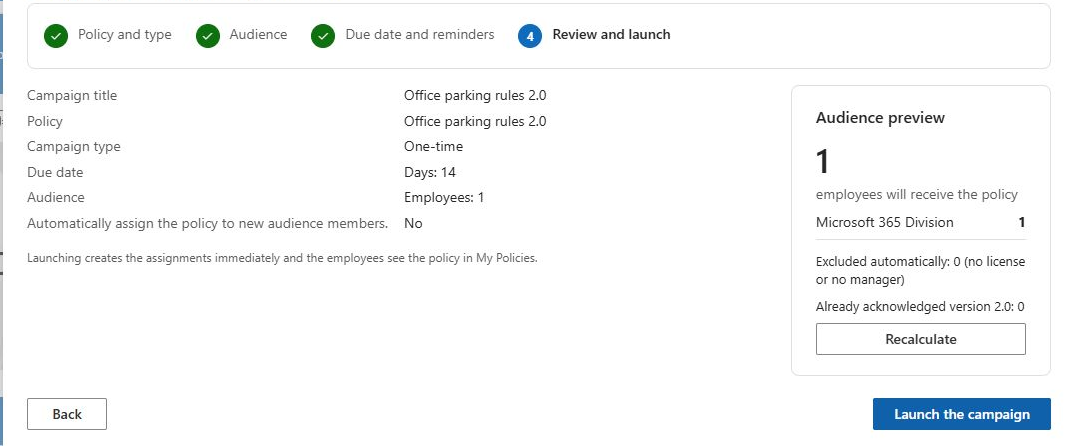
On Review and launch, review the selected policy, version, audience and due settings. Select Launch the campaign. Check the reported number of created assignments and open My Policies as a pilot employee.
The created count can be smaller than the preview. Launch skips a user who already has an assignment for the same policy version unless that existing assignment is exempt; an acknowledged assignment is also skipped. The check applies across campaigns. Consequently, selecting the periodic type does not by itself force a new acknowledgement of the same version.
Always-on processing and later audience recalculation depend on the service component. Stopping a campaign changes its campaign status but does not itself cancel its existing assignments. Do not use that action as an assignment-revocation procedure.