Policy Acknowledgement
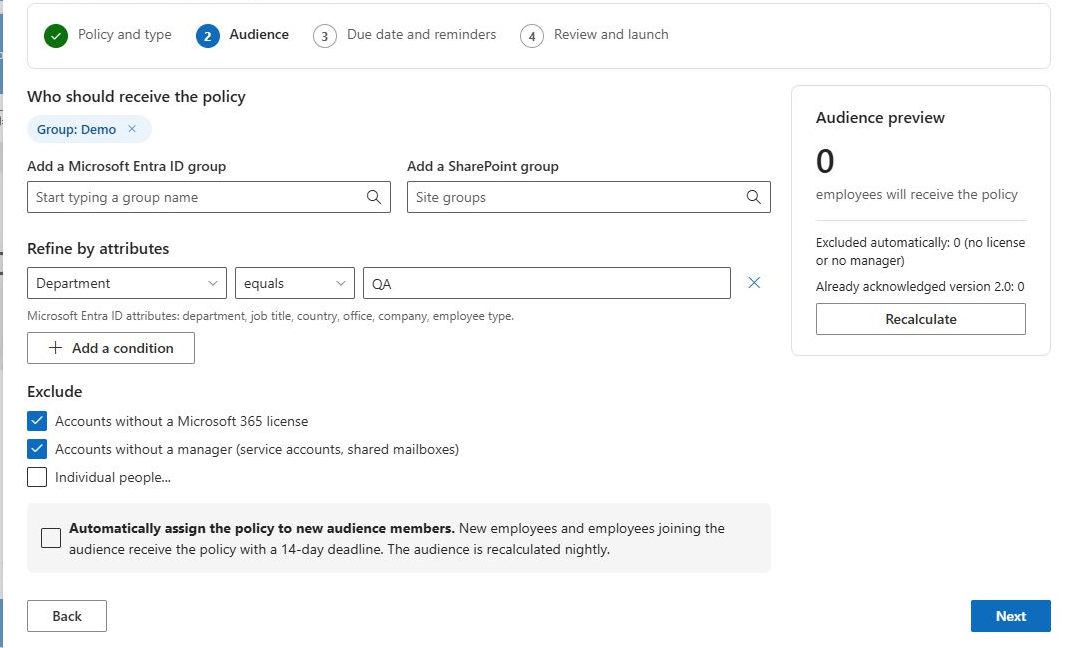
Configure the audience in the campaign wizard before launching assignments. Audience membership selects who receives the campaign; it does not grant access to the policy source or replace product roles.
Select the candidate population
Use Add a Microsoft Entra ID group or Add a SharePoint group to include groups. Multiple groups are combined, and duplicate users are removed. SharePoint groups are resolved on the policy hub site and matched to directory users.
Directory candidates are enabled Member accounts; this lookup does not include guest accounts. Entra group membership includes transitive members.
Select Individual people... to show the individual user pickers, then use Add these people to include named employees. With no groups and no attribute rules, a nonempty individual list limits the candidates to those users. With no groups and with attribute rules, the rules are evaluated against directory users, with the named users added as exceptions to attribute matching.
❗ Important
If groups, individual users and attribute rules are all empty, the starting population is all directory users. Automatic and explicit exclusions still apply. Review the preview before launching.
Refine by attributes
Select Add a condition and choose Department, Job title, Country, Office, Company or Employee type. Enter values separated by commas.
| Condition | Matching behavior |
|---|---|
| equals | The attribute equals one of the supplied values. |
| does not equal | The attribute equals none of the supplied values. |
| contains | The attribute contains at least one supplied value. |
Matching is case-insensitive. Separate condition rows are combined with AND. A condition with no nonempty values does not restrict the audience. Users added individually bypass attribute conditions, but still undergo exclusions.
Apply exclusions
Review Accounts without a Microsoft 365 license and Accounts without a manager (service accounts, shared mailboxes). Both are enabled in a new campaign by default. Disabled accounts are excluded regardless of those switches. Use Exclude these people for explicit exclusions.
Explicit exclusion takes precedence over individual inclusion. An individually added employee can also be removed by the no-license or no-manager rule. If someone is missing, check these rules and the directory profile before adding the person again.
Build rules with an explicit logical meaning
Separate attribute rows are combined with AND, while multiple values within an equality row offer alternatives. For example, put Finance and Operations in the same department condition to select either department. Add a separate country condition when members must also match that country. Two separate department-equality rows for mutually exclusive values would require the same account to satisfy both and can produce an empty result.
Group selection supplies candidates; attribute rows then narrow those candidates. With several selected groups, membership in any of them can contribute a person, and duplicate accounts are removed. A department condition does not cause the resolver to fetch people outside the selected candidate groups simply because they share that department.
When no groups are selected and attribute rules exist, the starting population is broader: rules are evaluated against eligible directory users. This can be useful for an organization-wide department campaign, but it also means an apparently small rule change can affect a large population. Review the resulting departments and count before launching.
Use individual exceptions deliberately
Suppose a finance campaign also needs a named reviewer from another department. Adding that person individually bypasses the department condition, provided the person is an eligible directory candidate and is not excluded. It does not bypass an explicit exclusion or an enabled automatic exclusion. If the reviewer is both included and excluded, exclusion wins.
For a pilot containing only named people, leave groups and attribute rules empty and use a nonempty individual list. Do not remove the last individual and assume that the now-empty configuration still represents an empty pilot: with all selection inputs empty, the starting population becomes the directory population before exclusions.
Treat an empty attribute value with similar care. A rule row without usable values does not narrow selection. Before accepting a preview, inspect both the chosen attribute and its entered values, especially after copying or revising a campaign configuration.
Check the directory evidence behind an exclusion
The audience's license flag is derived from whether the directory response contains assigned licences. The no-license exclusion uses that flag; it is not a test for one particular product plan or a proof that a person has every entitlement needed for their job. This audience behavior is separate from the broadly matching licensed-users role option in Policy Admin.
The no-manager exclusion uses the directory manager information. A missing manager can be incomplete profile data rather than a business decision that the employee should never receive policies. Resolve that distinction with the directory owner before disabling exclusions for an entire campaign. Use the preview to verify the resulting population, then check actual source access independently.
Recalculate and inspect
Select Recalculate and inspect the total, departmental distribution, exclusions and already-acknowledged count. Attribute nonmatches are filtered out rather than counted as automatic exclusions. The already-acknowledged count is informational: launch also skips other nonexempt assignments for the same version, so the preview total is not a promise of that many new assignments.
After verifying the audience, continue with deadlines and launch as described in KB10503. How to Create and Launch a Policy Acknowledgement Campaign.