Policy Acknowledgement
Open an assignment from My Policies to read the policy and record your confirmation. Policy Reader shows the policy, assigned version and due information. Browsing a policy without an assignment does not create an acknowledgement task.
Open and review the content
- In My Policies, select Open for the assignment.
- Check the title, version, deadline and description of changes.
- Read the displayed content. If needed, use Open in a new window to open the source separately.
- Review the checklist and satisfy the conditions configured by the policy owner.
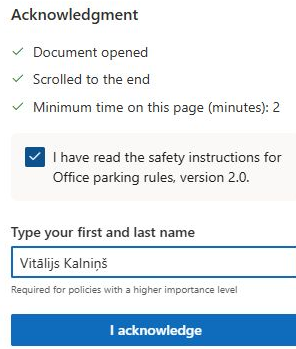
The checklist may require opening the document, reaching its end or spending a minimum time on the reader page. Time does not accumulate while the reader's browser tab is hidden. Opening the source in another tab does not automatically satisfy every condition.
Confirm your acknowledgement
- Read the acknowledgement statement and select its checkbox only when you can confirm it.
- If Type your first and last name appears, enter the name used by your Microsoft 365 profile. Matching ignores letter case and extra spaces and accepts the same name words in a different order.
- Select I acknowledge when it becomes available.
- Wait for the success receipt. If an error appears, the confirmation has not been verified as successful; report the error instead of assuming completion.
Check the receipt
The receipt identifies the policy, version, confirmation time and time zone, client, record hash and acknowledgement text. A content fingerprint is shown when one was recorded. Return to My Policies and confirm that the assignment appears under Acknowledged.
❗ Important
The typed name is a confirmation control, not an electronic signature. Reading controls do not prove comprehension. For non-page content, the reader can satisfy the scroll condition after opening and waiting at least 30 seconds or the configured minimum, whichever is longer. The reader displays source content; a displayed version label does not guarantee that an archived snapshot is being shown.
Work through the reading requirements
Start by checking which requirement is still incomplete. Opening, time, scrolling, the statement checkbox and a typed name are separate conditions. Completing one does not imply that the others are satisfied. The checklist helps identify what remains, while the source link lets you distinguish a preview problem from a permission problem.
For example, a document can open successfully in a separate tab while the reader tab becomes hidden. Reading there may not advance the reader's timer. Return to the reader, review its conditions and allow the required visible time. Do not interpret the reading estimate in the policy header as the enforced minimum; the owner configures those values separately.
For an inline SharePoint page, scroll the content area rather than only the surrounding browser page. If the full content fits in that area, the end condition can already be satisfied. For a framed document, the application cannot inspect every internal page scroll and uses its documented fallback. The detailed behavior is explained in KB10516. How to Configure Policy Reading and Confirmation Controls.
Check your account and the statement
Confirm that you are signed in under your own intended work account before submitting. A forwarded link is not permission to acknowledge on behalf of its original recipient. The reader checks the current user's assignment when an explicit link belongs to someone else; if the task is unexpected, return to your own My Policies page.
Read the exact statement next to the checkbox. It can come from the policy, its category or a global default, so policies can use different wording. If the statement is inaccurate for your situation, use the question or inability-to-acknowledge process. Entering a name or checking a box should represent your actual confirmation, not merely satisfy a technical condition.
If a name is required, use the display name associated with the current profile. A nickname, another employee's name or an incomplete name may not match. If the profile itself is incorrect, raise that issue with the responsible administrator rather than repeatedly guessing variants.
Recognize completion and preserve an error
A successful confirmation leads to a receipt. Inspect the policy and version, then return to the personal list and reload it. This verifies both the evidence display and the assignment state. Keep in mind that a completed earlier version does not necessarily satisfy a later update assignment.
If the operation fails, capture the message, time and assignment link without exposing sensitive policy content. Reopen the task to see whether a receipt or completed status already exists. A later failure in the recording sequence can occur after an earlier write, so repeated submission is not a reliable repair. Ask the administrator to investigate the specific record using KB10538. Troubleshooting Failed Acknowledgements and Missing Notifications.
If you cannot confirm
Use Ask the owner a question to submit a question. If you cannot acknowledge the policy, select I cannot acknowledge — give a reason, enter your reason and send it. The latter action moves your assignment to Needs review and prevents normal confirmation until it is resolved.
An exempt assignment or a policy without an assignment does not offer the normal acknowledgement action. In Service mode, unavailable service configuration or missing consent can also block submission. Ask your administrator to resolve recording errors. Do not change your confirmation statement merely to bypass a disabled button.