Policy Acknowledgement
Policy Manager collects questions and reports from employees who cannot acknowledge a policy. Open it with an administrator, compliance-manager or author account. Authors work with the policies they own; exemption actions are available to administrators and compliance managers.
Review the queue
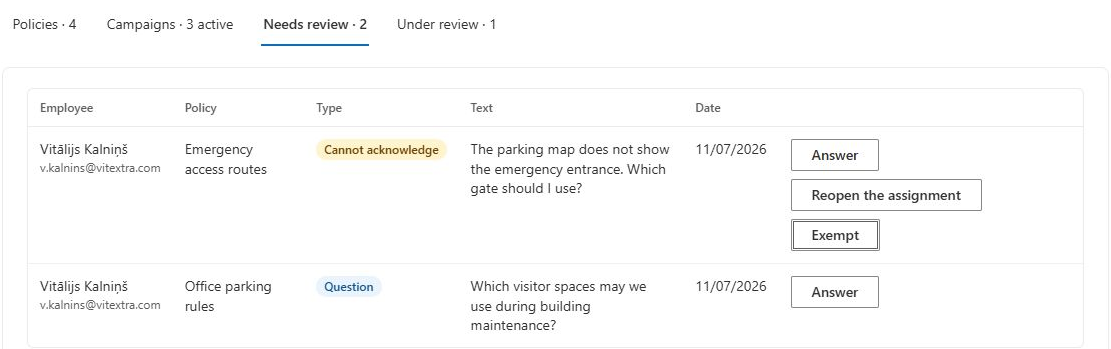
Open Needs review. The queue lists open questions with the employee, policy, type, message and creation date. A normal question and a reported inability to acknowledge are different cases.
A normal question does not automatically change the assignment status. Reporting an inability to acknowledge changes the assignment to Needs review, so the employee cannot complete the normal confirmation flow until the case is resolved.
Choose the action that resolves the case
Read the employee's message together with the policy version and assignment status. A question can request clarification while the employee's task remains active. An inability-to-acknowledge case means the normal confirmation panel is blocked until the assignment is resolved. Closing the question and changing the assignment are related but separate decisions.
| Situation | Appropriate action to consider | Result to verify |
|---|---|---|
| The employee needs an explanation and the assignment is still active | Answer the question. | The response is stored and the question no longer appears as open. |
| The obstacle is resolved and the employee should now confirm | Reopen the affected assignment with a response. | The task is assigned again and available to the employee. |
| An authorized decision says this employee need not confirm this assignment | Record an exemption with its reason. | The exemption state and its evidence event are present. |
| The policy content itself is wrong or outdated | Resolve the content and publication issue as a separate policy change. | The intended version and remaining assignments are reconciled. |
For example, an employee may report that a procedure refers to equipment they do not use. Investigate whether the audience was too broad, the wording needs clarification or the employee should be exempted from this particular assignment. Do not automatically exempt everyone who asks a question, and do not answer the question alone if the intended outcome is to enable a blocked assignment.
Write a response that supports the next step
Explain what was decided, which issue was resolved and what the employee should do next. When reopening, tell the employee to reload the personal page and open the assignment again. The original deadline remains; if it has passed, the reopened task can be overdue immediately. Do not promise a deadline extension that the action does not perform.
The response is saved to the question record. The current action does not itself send an email or provide a full employee conversation inbox. Arrange any necessary follow-up through the organization's normal communication process and verify that the employee understands the next step. The disappearance of a row from the open queue does not demonstrate that a message was delivered.
For an exemption, enter a reason that explains the decision rather than a generic “done.” The evidence describes an exemption, not an employee's acknowledgement. Keep that distinction in any report or communication so that a reduced denominator is not mistaken for more employees confirming the policy.
Answer a question
- Select Answer on the relevant row.
- Enter your response in Answer.
- Select Save.
The question becomes answered and leaves the open-question queue. Saving an answer does not, by itself, reopen an assignment that is awaiting review. Do not assume that this action sends an email: the action stores the answer in the question record.
Reopen an assignment
For a reported inability to acknowledge, select Reopen the assignment, enter a response and save. The assignment returns to assigned status, its assignment comment is cleared and the question is marked answered.
Reopening does not extend the due date. If that date has passed, the assignment appears overdue. Ask the employee to reload My Policies and open the assignment again.
Record an exemption
- Select Exempt on the inability-to-acknowledge case.
- Enter Reason for the exemption. A nonempty reason is required.
- Save and verify the resulting assignment and event.
The action sets the assignment to exempt, appends an exemption event to the acknowledgement log, records an audit entry and closes the question. It does not create an acknowledgement on the employee's behalf.
❗ Important
In the current implementation, exemption events are written directly to SharePoint even when normal acknowledgements use Service mode. The role matrix gives the compliance-manager group read access to the evidence list, so this write can fail unless the account has additional rights. If an error occurs, inspect the assignment and event before retrying: these updates are separate operations and may be only partially completed. Do not grant broad write access merely to bypass the error.