Policy Acknowledgement
Categories organize policy cards and can supply a shared acknowledgement statement. Use them when a group of policies needs consistent wording without repeating the same text in every card. Policy Admin also stores the global fallback statement and a default due period. Changing these values does not create campaigns or rewrite receipts already recorded.
Before you begin
Open Policy Admin as a product administrator on the intended hub. Decide the category names and agree the statement employees will confirm. Check a sample policy for an existing policy-specific text: that text takes precedence over any category or global change.
Keep category spelling consistent. Policy cards store category text, and category matching uses that text rather than a category-ID relationship. A rename therefore needs coordination with existing policy cards and page category filters.
Create and maintain categories
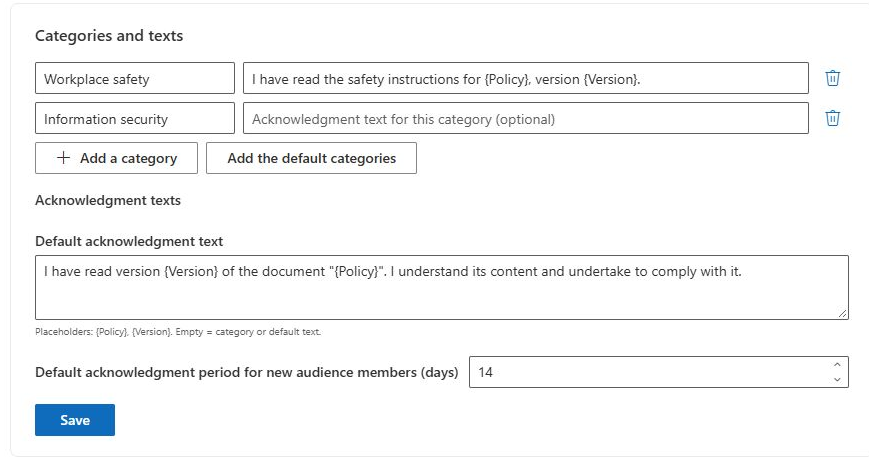
- Open Categories and texts.
- Select Add a category and enter the category name.
- Enter the category's Acknowledgment text if it needs its own statement; leave it empty to fall back to the global text.
- Repeat for the required categories, then select Save. Blank category names are skipped when saving.
- To start from the product's localized examples, use Add the default categories and review the result before saving. This adds missing names; it does not replace every existing category.
To remove a category row, use its delete action and save. Removing or renaming the category does not automatically recategorize policies that previously used its name. Update those policy cards and any category-filter settings separately, then check the library and reports.
Understand which statement is shown
| Priority | Text used by Policy Reader |
|---|---|
| First | The policy card's nonempty acknowledgement text. |
| Next | The text of the category whose name matches the policy category. |
| Next | The nonempty global default acknowledgement text. |
| Last | The built-in localized product statement. |
The placeholders {Policy} and {Version} insert the policy title and assigned version. For example, a statement can refer to the named policy and its version without hard-coding either value. Keep placeholder spelling and braces unchanged. Category names and administrator-entered statements are content: the product does not automatically translate them into each reader's language.
Set the global defaults
Edit Default acknowledgment text and save. The page also offers Default acknowledgment period for new audience members (days) with a range from 1 to 365 days. That default seeds new campaign configuration; it does not retroactively change deadlines on existing assignments or start automatic assignment processing.
❗ Important
Policy Reader resolves the statement from the current policy, category and settings when it loads. A pending assignment's wording is not a frozen copy of those settings. An acknowledgement event records the statement actually submitted. Review wording changes carefully and reload a pilot reader before asking employees to confirm.
Work through a statement-precedence example
Suppose the global text is a general confirmation of reading, while the information-security category uses a more specific statement. A policy in that category with no policy-specific text receives the category statement. Another policy with its own nonempty text receives that text instead, even if both policies share the category.
If you change the global statement and see no change in the first policy, inspect the higher-priority values before assuming the save failed. The category can still override the global text. If you clear the category text as well, the global value becomes relevant; if no configured statement remains, the built-in localized text is the last fallback.
Use {Policy} and {Version} in wording that needs to identify the release. Test the rendered result with a real pilot assignment: the version comes from the assignment context, not from manually typing a release number into a generic category statement. Do not translate or alter the placeholder names themselves.
Plan a category rename as a content change
Category names appear in more than the administration list. Policy cards store the category text, and pages can restrict their displayed policies by configured category names. Renaming only the category row can therefore leave cards or page filters referring to the previous value.
Before renaming, identify the policies using the old name and the library or report pages that restrict categories. After saving the new category name, update those cards and filters through their respective interfaces. Then inspect both the catalogue selection and a pilot reader's statement. This verifies that the intended category relationship still supplies the text.
Deleting a category also does not recategorize its policies. Decide whether the cards should move to another existing category or deliberately fall back to a broader statement. Avoid treating category deletion as a way to withdraw a policy: policy publication and archival are separate lifecycle actions.
Distinguish a wording update from a receipt correction
Changing a default affects how a later reader load resolves the statement; it does not rewrite the text already recorded in a receipt. Before a wording change during an active campaign, inspect a pending assignment and an existing acknowledgement separately. You should expect them to represent different points in the process.
If the intended attestation has changed substantially, decide with the policy owner whether a new publication and assignment process is required rather than assuming that changing a default collects fresh confirmations. See KB10514. How to Publish a New Policy Version and Request Acknowledgement Again for the version and campaign decisions. Keep administrator-entered statements understandable in the languages of the intended audience, since these content values do not automatically follow the interface language.
Verify the result
Use a pending pilot assignment with no policy-specific text to verify the category statement. Then test a policy with no category-specific text to verify the global fallback. Confirm that placeholders resolve and that the intended version is named. Check an existing receipt separately: it should continue to show its recorded statement, rather than being treated as a live preview of the new default. For policy-level edits, see KB10501. How to Create and Edit a Policy in Policy Acknowledgement.