Policy Acknowledgement
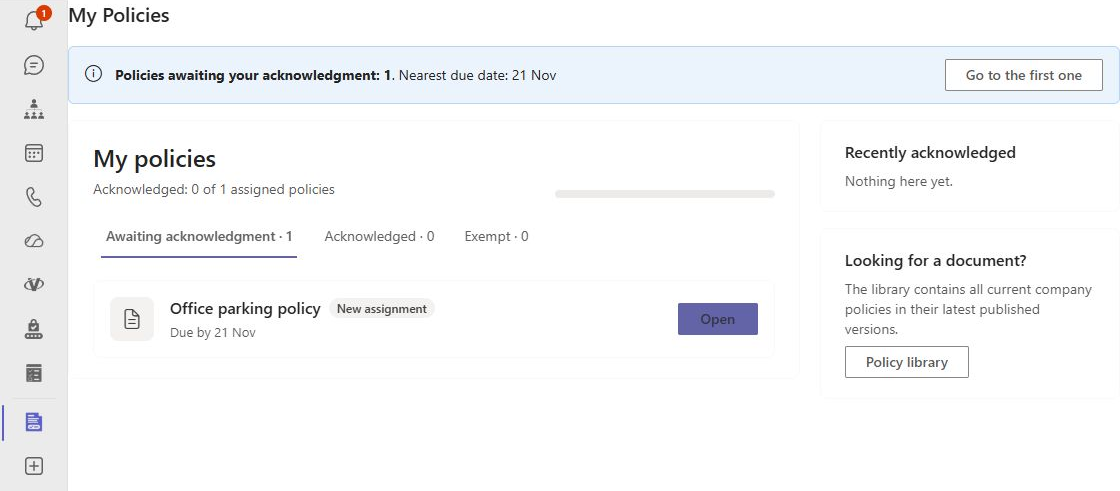
The supplied Teams package exposes My Policies as a personal app. It gives employees a Teams entry point to their policy assignments while the underlying policy records remain in SharePoint. Adding the app is separate from installing the SharePoint solution, preparing the hub and configuring background notifications.
Prepare the dependencies
Deploy the Policy Acknowledgement SPFx package and approve its requested API permissions as described in KB10035. How to Install a Vitextra Product in SharePoint Online and KB10497. Policy Acknowledgement: Requirements and Permissions. Complete hub setup and test My Policies and Policy Reader in SharePoint first. A Teams installation cannot repair missing lists, incorrect roles or inaccessible source documents.
Obtain the matching Teams application package from the product distribution. In the source project it is named TeamsSPFxApp.zip; it contains the manifest and icons. Use the packaged application, not a zip of the whole source repository. The manifest defines a personal tab called My Policies, not a configurable team-channel tab.
Make the app available
- Have the administrator responsible for Teams applications upload the supplied package through the organization's app-management process.
- Verify that the package identifies Vitextra Policy Acknowledgement and the My Policies personal tab.
- Make it available to a small pilot population using the organization's app permissions and distribution policy.
- Add or open My Policies in the pilot user's Teams account.
- Confirm that the user is signed in to the same organization and account that received the policy assignments.
Teams administrative navigation and app policies are managed outside this product. Follow the tenant's approved distribution process rather than assuming every employee can upload a custom app. The manifest's personal scope does not install the app for everyone automatically.
Verify hub and page navigation
The app uses the SPFx My Policies component and its hub-resolution behavior. If no explicit hub URL is configured, the component looks for a usable hub, including the default /sites/VitextraPolicies location. An installation on a custom hub must be verified in the actual Teams context; a working SharePoint page's property values should not be assumed to have been copied into the personal app.
Open an assignment and check that it reaches the intended reader page. Reader navigation defaults to SitePages/PolicyReader.aspx on the resolved hub unless configured otherwise. Confirm source access, the confirmation action and the receipt, then return to My Policies and reload to check the status. See KB10499. How to Create Policy Acknowledgement Pages and Connect Web Parts and KB10506. How to Read a Policy and Acknowledge It.
Distinguish installation from notifications
Policy Admin includes The Teams app has been added to the tenant on Notifications. Set it to reflect the completed deployment and save. This is a stored configuration flag; toggling it neither uploads a package nor independently discovers whether every employee has installed the app.
📝 Note
The supplied manifest defines the personal tab. It does not, by itself, prove that a notification bot or activity-feed delivery is deployed. Teams notification settings require the separately connected service and verification of its delivery mechanism. Test manual app access and automated notification delivery as separate acceptance checks.
Troubleshoot the pilot
If the app is unavailable, review Teams app policy and distribution with the tenant administrator. If it opens but shows no policies, check the signed-in account, hub and campaign audience before reinstalling. If navigation fails, test the same reader URL in SharePoint. Record the app version, user account and failing URL for support, without including sensitive policy content.