Policy Acknowledgement
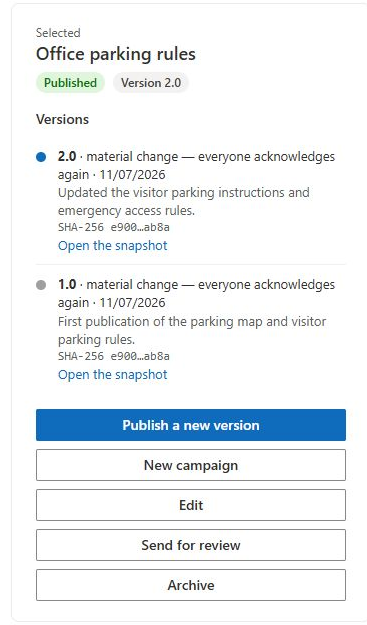
Version history helps you identify what was published and inspect the retained file where a real snapshot exists. Use it when reviewing a revision, investigating a source-change warning or comparing a confirmation's version with the policy's publication history. It is different from the employee's acknowledgement history.
Open a policy's history
- Open Policy Manager with access to the policy.
- Clear restrictive search or category filters if necessary and select the policy row.
- Find Versions in the details panel.
- Review the version number, change type, publication date and change description for each entry.
- If available, use Open the snapshot to inspect the saved file separately from the live source.
Entries are loaded in descending record-ID order, with the latest created entry first. Version numbers are labels, so do not assume a custom numbering scheme is sorted numerically. A campaign summary displayed alongside a version can show a matching campaign; it is not an exhaustive view of every campaign or employee acknowledgement for that release.
Distinguish real snapshots from metadata files
For a supported document source on the same origin as the hub, publication copies the file into PolicyVersions. Its saved file can be inspected through the snapshot link. The original source remains at its own location and can change independently afterward.
For a page or other publication without a copied document, the implementation creates a .txt file to hold version metadata. A link to that file is not a full archived copy of the SharePoint page or external website. External content does not receive a content fingerprint; page files may be hashed without a complete rendered-page snapshot.
The history can display an abbreviated SHA-256 value, with the complete value available through the associated display information. A fingerprint identifies bytes used by the hashing operation. It is not a description of changes and cannot replace opening the relevant content.
Compare a release with a receipt
Start with the receipt's policy and version, locate that version in history, and inspect its publication date, description and stored content where available. Compare the recorded content hash when both records contain one. Keep the evidence record distinct from the current assignment: editorial carry-over can move an acknowledged assignment to a newer version without creating a fresh confirmation event.
❗ Important
Opening an older assignment in Policy Reader does not automatically display its version snapshot. The reader uses the configured policy source. A version label by itself is not proof that the visible document is the exact historical content. For an investigation, open the retained file explicitly and preserve the relevant record details.
Maintain a reliable publication history
Use unique version numbers and useful change summaries. Reusing a number can overwrite a snapshot or metadata file because the publication path permits overwrite. Do not edit or replace saved evidence files merely to make a historical inconsistency disappear.
If an expected snapshot is missing, check the source type and origin, whether publication completed, and the account's access to the version library. A metadata-only file is expected for some source types; a failed copy of a document requires investigation. Continue with KB10514. How to Publish a New Policy Version and Request Acknowledgement Again for revisions and KB10526. How to View Previous Policy Acknowledgements and Receipts for employee receipts.