Policy Acknowledgement
Reading controls define the conditions that Policy Reader checks before enabling a normal acknowledgement. They help structure the employee's interaction with a policy, but they do not prove attention, comprehension or an electronic signature. Configure them to fit the source and test the resulting experience with a pilot employee.
Configure the policy card
- Open Policy Manager, select a policy and choose Edit.
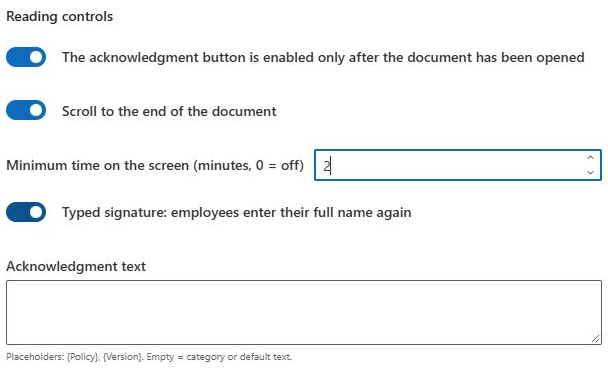
- Find Reading controls.
- Set The acknowledgment button is enabled only after the document has been opened if opening must be recorded before confirmation.
- Set Scroll to the end of the document if the end-of-content condition should apply.
- Enter Minimum time on the screen (minutes, 0 = off). The control allows 0 to 120 minutes; 0 disables the minimum-time requirement.
- Set Typed signature: employees enter their full name again if employees must enter their profile name, then save.
The approximate reading-time estimate elsewhere on the card is descriptive. It is not the minimum-time control. Setting an estimate alone does not make an employee wait before confirming.
Understand what each condition measures
| Condition | Observed behavior |
|---|---|
| Open | The viewer's load/open event or the separate-window action marks content as opened. |
| Scroll for inline page content | The reader observes its own scroll container; content that fits without scrolling can count as completed. |
| Scroll for non-page content | Opening plus elapsed time of at least 30 seconds or the configured minimum, whichever is longer, can satisfy the condition. |
| Minimum time | A page timer advances while the reader document is visible, and stops accumulating when the browser document is hidden. |
| Typed name | The input is compared with the employee's display name, ignoring case and excess spacing and accepting the same name words in another order. |
The timer is time on the reader screen, not measured reading speed or verified attention. Framed documents cannot be treated as if the product has inspected every page the employee scrolled through. For a page source whose inline preview fails, do not assume that the non-page timing fallback will behave identically.
Explain the employee action
The employee must still read and select the acknowledgement statement's checkbox. A nonempty typed name is not sufficient if it does not match the account's display name. The button also remains unavailable while a submission is in progress or when Service mode lacks required configuration or consent.
If the source opens in another tab, the reader tab may be hidden and its timer will stop. Ask the employee to return to the reader and check the displayed conditions; do not instruct them to claim understanding merely to unlock a button. The complete user procedure is in KB10506. How to Read a Policy and Acknowledge It.
📝 Note
Controls are read from the current policy card when the reader loads. Changing controls can therefore affect an existing pending assignment after reload; it is not a separate versioned control snapshot. Existing evidence retains the recorded control values from its own submission.
Choose conditions for the actual reading experience
Use the source type and employee workflow when choosing controls. Requiring a long timer on a short notice does not make its content better understood. Requiring scrolling on framed content does not provide the same observation as scrolling an inline page. Explain the purpose of the requirements to readers and keep them proportionate to the material.
The minimum is a visible-reader timer. It is not tied to the employee's actual reading speed and does not establish that another tab, printed copy or downloaded document was read. If employees usually open the source separately, test that path and explain why they may need to return to the reader before submitting.
Use the typed-name condition only with a clear understanding of its profile-name comparison. It does not accept any arbitrary nonempty signature and does not create a cryptographic signature. Test a representative account's real display name, including the organization's naming convention, rather than using the administrator's name in every trial.
Use a test matrix before assigning widely
| Trial | Expected observation |
|---|---|
| Open the reader but leave a required checkbox unselected | The normal confirmation is not ready even if reading conditions are complete. |
| Open the source in another tab | The source can be read, but hidden-reader time does not continue accumulating. |
| Display a short inline page | The end condition can be satisfied when all content fits. |
| Use a framed document with required scrolling | The documented opening/time fallback can satisfy the condition. |
| Enter a name that differs from the profile | The name condition can remain unsatisfied. |
| Load a review-required assignment | The state-specific message takes precedence over normal submission. |
For a timed example, if the minimum is 2 minutes, the timer condition requires 120 seconds. The non-page scroll fallback uses the greater of the configured minimum and 30 seconds; it does not add another 30 seconds after the minimum. Verify the reader's checklist rather than adding these intervals together manually.
After editing controls, reload a pending pilot assignment and check the new behavior. The card's current controls are used at load time, while a previous evidence event retains its recorded values. This distinction matters when comparing an old receipt with a currently configured policy.
Test before rollout
Use a fresh pending assignment and verify each enabled condition separately. Test the actual source type, including opening in a new tab, returning to the page and entering the employee's real profile display name. Confirm that success produces a receipt and failure remains visible. If the button is still disabled, diagnose the specific unchecked condition using KB10537. Troubleshooting Policy Preview and a Disabled Acknowledge Button instead of weakening every control at once.