Policy Acknowledgement
Policy review is the owner's process for checking whether published content remains appropriate. It is separate from an employee's acknowledgement deadline and from the queue of employees who cannot acknowledge. Use a review date to make periodic owner checks visible without automatically creating a new campaign.
Set a review date
Open the card in Policy Manager, choose Edit, set Next review date and save. The date belongs to the policy card. It does not extend employee deadlines, replace a campaign's due settings or schedule an automatic content approval.
For an existing published policy, identify the owner who will perform the review and confirm that the source URL is accessible. The current workflow records policy status and review actions; it is not a multi-stage approval engine with an independently enforced approver sequence.
Find policies requiring attention
- Open Policy Manager with access to the relevant policies.
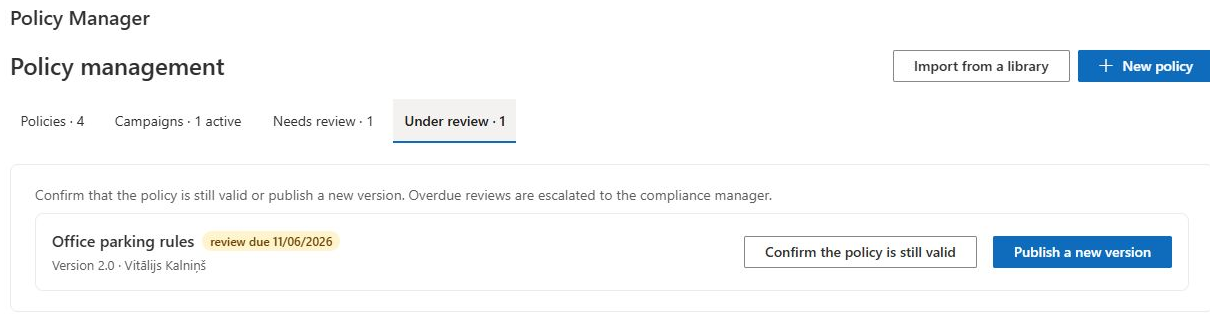
- Select Under review.
- Review published policies whose next review date is within 30 days or already passed, together with policies explicitly in the under-review state.
- Open the source and inspect the current content, change history and any source-change warning before making a decision.
The Needs review tab serves a different purpose: employee questions and inability-to-acknowledge cases. Resolving a question there is not confirmation that the policy itself has passed its scheduled owner review.
Put a policy under review
For a published card, select Send for review in its details. The operation changes its state to under review and writes an audit event. It does not send a separate approval task or automatically revise the source.
Under-review policies remain included in the library and are eligible in the campaign selector. This status is not a mechanism for hiding the content or blocking every employee interaction. If distribution must be suspended, inspect the actual campaigns and assignments rather than relying on this status alone.
Complete an unchanged review
If the content remains valid, select Confirm the policy is still valid. The operation restores published status and sets the next review date to one year from the current date. It does not advance the previous review date by a year, create a new version or request a new employee acknowledgement.
Afterward, reload the card and verify its status and next review date. If your organization's next review interval differs, edit the date explicitly after checking the saved result. Inspect the audit log if you need to confirm who performed the action.
❗ Important
Confirming continued validity does not republish changed source bytes or refresh the policy's stored content fingerprint. If the source was modified, use a new-version publication rather than this action to make the discrepancy disappear. See KB10519. What to Do When Policy Content Changes Without a New Version.
Complete a review that requires changes
Revise the source, decide whether the changes are material or editorial, and use Publish a new version. Follow KB10514. How to Publish a New Policy Version and Request Acknowledgement Again and explicitly launch a campaign when new confirmation is required. Recheck the review date: publication and the next-review date are separate concerns. A successful review should leave a clear owner, appropriate next date and an understandable publication history.