Policy Acknowledgement
A campaign deadline determines when its employee assignments become overdue. Choose a relative period when the campaign should allow a number of days from assignment, or a fixed date when everyone should complete by the same calendar date. A policy's effective or review date is a different setting.
Choose the deadline mode
- Create a campaign and complete its policy and audience steps.
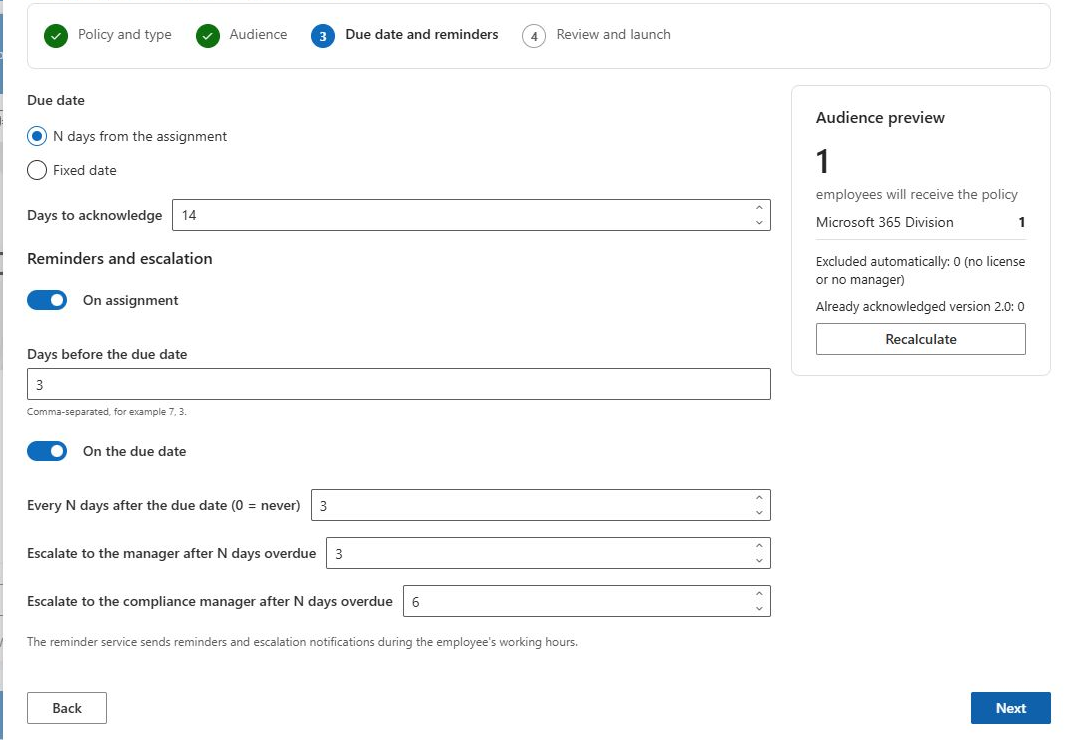
- On Due date and reminders, locate Due date.
- Choose N days from the assignment and set Days to acknowledge, or choose Fixed date and select an actual date.
- Review reminder and escalation settings in relation to that deadline.
- Confirm the displayed deadline on the final step before launch.
The relative-period control accepts 1 to 365 days. The fixed-date picker prevents selection of earlier dates in its normal UI. Do not leave a fixed-date choice without a date: when no fixed date is stored, the launch service can fall back to the relative-day value.
Understand relative periods and defaults
For initial launch, the relative due date is calculated by adding calendar days to the launch time. It is not a business-day calendar and does not skip weekends or holidays. Assignments created in that launch receive the resulting date.
Policy Admin supplies a default day count that seeds new campaign configuration. Changing that default later does not rewrite existing campaigns or assignment deadlines. Automatic later assignments in an always-on campaign depend on the external service; verify its handling of the stored day count rather than inferring it from the first batch.
For example, a campaign launched on 10 November with a 14-day period produces a date 14 calendar days later. If the organization needs a holiday-aware deadline, choose and verify a suitable fixed date or an approved external process; the web-part calculation does not provide holiday rules.
Know when an assignment is overdue
For an open assignment, the product compares the due date and the evaluation date at the start of their days. It becomes overdue when the due day is earlier than the evaluated day. The due date itself is still on time. An open assignment without a due date is not made overdue by this date comparison.
Date display and day-boundary calculations use the browser's date handling. For employees in different time zones, verify the displayed day with representative accounts rather than assuming every report is a universal UTC-day snapshot. The historical dashboard uses its selected evaluation date for the same type of comparison.
Keep the dates separate
| Date or action | Does it extend an existing assignment deadline? |
|---|---|
| Policy effective date | No; it is policy metadata. |
| Next policy review date | No; it schedules the owner's review attention. |
| Reopen an employee assignment after review | No; the stored deadline remains. |
| Change the global default due days | No; existing deadlines are not recalculated. |
❗ Important
The manager interface contains wording about automatic deadline shifts for absent employees, but that behavior is not implemented by the web parts reviewed here. Do not promise extensions based on that text alone. Verify any separate service implementation before relying on it.
Choose the deadline according to the rollout
A relative period is useful when the intended rule is a fixed number of calendar days after assignment. At the initial browser launch, the assignment date and relative deadline are calculated from that launch operation. A fixed date is useful when the selected population must meet one common target day. It can leave late entrants less time, so any later service-created assignments require a separate check of the service's actual behavior.
For example, a campaign launched on the first day of a month with a 7-day relative period produces a deadline on the eighth day under normal calendar addition. The eighth day is still within the deadline; an open assignment is overdue on the following day. The implementation does not turn the period into business days or skip weekends and public holidays.
Do not add a relative period to a fixed date. When a fixed date is supplied, that date is used for the initial assignments. Conversely, selecting the fixed-date option without actually entering a date can leave the relative value relevant to the launch path. Verify the actual saved deadline on a pilot assignment rather than relying only on which option was highlighted.
Distinguish a deadline decision from another date change
| Change | Effect to expect |
|---|---|
| Edit the global default due period | Seeds new campaign configuration; does not revise existing assignment dates. |
| Change the policy's effective date | Changes policy information; does not automatically extend assigned work. |
| Confirm the policy remains valid | Updates policy review information, not employee due dates. |
| Reopen a review-required assignment | Restores assigned state with the existing deadline. |
| Stop a campaign or archive its policy | Does not itself cancel every assignment or remove its deadline. |
If an employee reports an absence or another reason for an extension, do not promise that the manager view automatically adjusts the date. The reviewed client code does not implement the automatic absence adjustment mentioned in its guidance. Establish the organization's supported handling process and verify any separate service behavior before relying on it.
For a deadline dispute, record the stored assignment date, due date, selected report date and browser context. Reports compare calendar-day boundaries rather than reconstructing exact intraday timing. Inspect the actual record before concluding that a notification time or a displayed policy date is the employee's deadline.
Verify the result
After launch, compare the campaign summary with a pilot assignment in My Policies and the report export. Check reopened and overdue cases separately. If a deadline is wrong, identify the affected campaign and assignments before making a supported correction; launching a duplicate same-version campaign does not replace their deadlines. See KB10536. Troubleshooting Missing Policies, Employees and Assignments.