Policy Acknowledgement
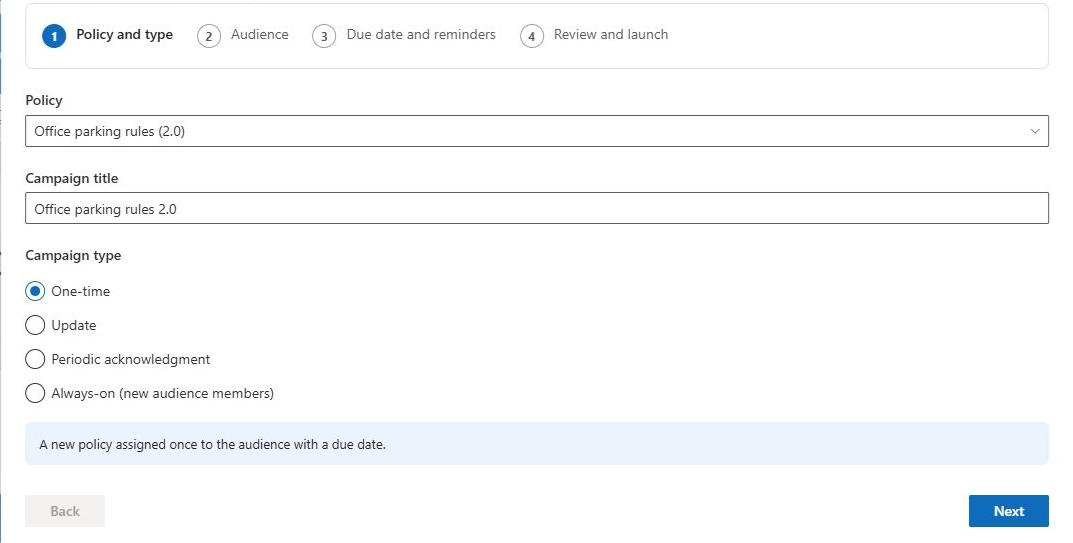
Campaign types describe why a policy version is being assigned. They influence assignment labels and the campaign configuration, but they do not override every existing assignment or independently run background jobs. Choose a type based on the intended workflow and verify the resulting records.
Compare the options
| Type | Appropriate intention | Behavior to verify |
|---|---|---|
| One-time | Distribute a policy version to a selected population now. | Creates eligible assignments for the current audience at launch. |
| Update | Ask employees to acknowledge a revised policy version. | Uses the update assignment kind, subject to same-version duplicate checks. |
| Periodic acknowledgment | Identify a recertification exercise. | Uses the recertification assignment kind; does not bypass duplicate checks or create a recurring schedule by itself. |
| Always-on (new audience members) | Include future audience members as they join the population. | Enables automatic-assignment intent; later processing requires the separate service. |
An employee who previously acknowledged another version can receive an update-labelled assignment even when a new campaign begins as a one-time campaign. The stored history and version comparison matter in addition to the selected type.
Select a type in the wizard
- Open New campaign in Policy Manager.
- Choose the policy and verify its current published version.
- Select Campaign type according to the intended exercise.
- Review the audience and the Automatically assign the policy to new audience members. checkbox separately.
- Set deadlines and review the final summary before launching.
Selecting the always-on type turns on automatic assignment. Changing from that type to another does not necessarily clear the checkbox, because the wizard preserves an already-enabled value. Inspect the checkbox rather than assuming the type switch resets every setting.
Understand same-version deduplication
Launch skips a selected employee who already has a nonexempt assignment for the same policy version in any campaign. This includes an acknowledged record. As a result, creating another periodic campaign for the identical version does not force that employee to confirm again.
An exempt record is not itself a skip condition, but another nonexempt record for that user and version can still cause a skip. Inspect the employee's existing assignments before interpreting a zero-created result as a failure. See KB10520. How to Review a Campaign Audience Before Launch.
❗ Important
Do not describe the periodic option as a complete automatic annual-recertification engine. The current launch path identifies recertification assignments but retains same-version deduplication, and no interval scheduler is provided by this wizard. Agree and verify a supported recurrence procedure before relying on it for an organizational requirement.
Separate the first batch from later processing
The browser creates the initial assignments when you launch. Future audience additions, scheduled reminders and escalations are external-service responsibilities. A saved always-on flag, an active campaign or a connected URL alone does not prove those processes are running.
Test the initial audience first. Then, if later assignment is required, arrange a controlled membership change and verify that the service creates the intended new assignment, applies the correct deadline and avoids duplicates. Service configuration and acceptance checks are described in KB10525. How to Connect the Policy Service and Configure Automatic Notifications.
Choose a practical starting point
Use a one-time pilot to verify the main workflow, an update campaign for a genuinely new version, and service-dependent modes only after their separate behavior is tested. Keep publication, campaign type, auto-assignment and deadline as distinct decisions. For detailed launch steps, see KB10503. How to Create and Launch a Policy Acknowledgement Campaign.