Policy Acknowledgement
Policy Manager lists campaigns so that owners and compliance teams can see distribution activity and stop an active campaign. Campaign status is separate from policy status and employee assignment status. Use the campaign list together with assignment reporting when deciding whether work is complete or needs intervention.
Inspect the campaign list
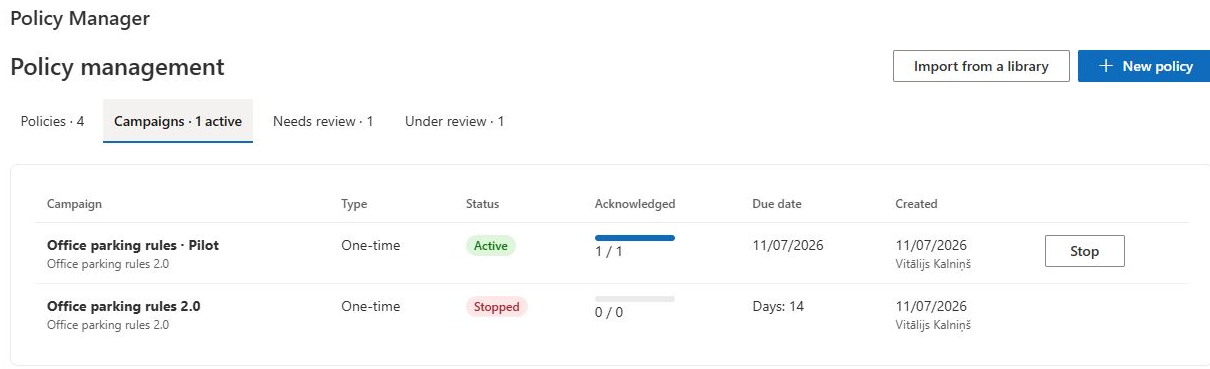
- Open Policy Manager with access to the policies you manage.
- Select Campaigns.
- Identify the campaign by its title, policy and version, not by title alone.
- Review its type, status, acknowledged/assigned counts, deadline or day period, creation date and creator.
- Note any always-on indicator, which reflects the stored automatic-assignment flag.
An author sees campaigns for policies visible through their ownership scope; administrators and compliance managers have the broader management scope. A missing campaign may therefore be an ownership or hub-selection issue rather than a deleted record.
Interpret counters and completion
The list displays stored campaign counters. Launch writes the created-assignment count, and acknowledgement processing attempts to refresh counters from that campaign's assignments. A later refresh can fail independently, so compare suspicious counts with the assignment report instead of assuming the number is a real-time transaction total.
The status enumeration includes active, completed and stopped states, but the reviewed browser launch/confirmation path does not automatically mark a campaign completed when every assignment is acknowledged. A full progress bar is not evidence that a completion-status transition has occurred. Conversely, a status label does not replace checking the underlying employee records.
For a compliance percentage, use the dashboard's defined calculation rather than equating the campaign's raw assigned count with every dashboard denominator. Exempt and paused assignments, version scope and filters can affect comparisons.
Stop an active campaign
- Confirm the campaign's policy, version and business reason for stopping it.
- Record the outstanding assignment situation before the change.
- Select Stop on the active campaign row.
- Wait for the list to reload and verify the stopped status.
- Inspect representative assignments and any separate background-service behavior.
The operation updates campaign status and writes an audit event. It does not delete assignments, mark them cancelled, remove evidence or archive the policy. The current list does not provide a matching resume action; do not assume that stopping and creating another same-version campaign will reproduce the original distribution.
❗ Important
Existing reader links and assignments are not revoked by this stop operation. Employees may still have work visible in My Policies, and manual reminders operate on assignments rather than this campaign-state transition. If you need withdrawal or cancellation, agree a supported procedure and verify it separately.
Investigate unexpected results
If the status changes but assignments remain, that is consistent with the operation's limited effect. If the status does not change, reload and check permissions and the audit log before repeating the action. If a service continues notifications, inspect how that service handles stopped campaigns; the browser status change alone does not establish its implementation.
Use KB10532. How to Export Policy Compliance Assignments to Excel to inspect assignment rows and KB10534. How to Review and Export the Policy Audit Log for audit events. When replacing a campaign, check same-version deduplication in KB10520. How to Review a Campaign Audience Before Launch and avoid using repeated launch attempts as a deadline or cancellation repair.