Policy Acknowledgement
My Policies provides access to your completed assignments and their receipts. A receipt summarizes the confirmation record associated with an assignment. Use it to check which policy and version were recorded, when the confirmation was submitted and what statement was accepted.
Find a completed assignment
- Open the organization's My Policies page under the account used for the confirmation.
- Select Acknowledged. Completed assignments are ordered with the most recent confirmation first.
- Find the policy and inspect its displayed version and date.
- Select Receipt to open the associated record in Policy Reader.
If the page editor enabled the recent-confirmations panel, it shows up to 5 recent items. When more are available, Full history and receipts switches to the full acknowledged tab; it is not a separate downloadable evidence archive. An exempt assignment belongs to the exemption view and is not a personal acknowledgement receipt.
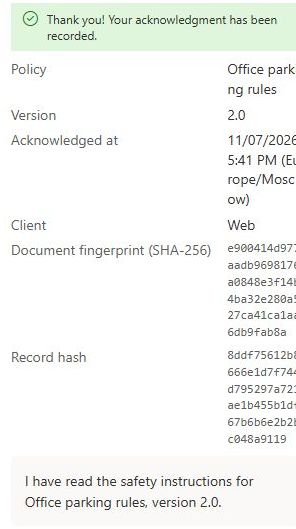
Read the receipt fields
| Field | What it tells you |
|---|---|
| Policy and version | The identifiers and labels stored with the confirmation event. |
| Confirmation time and time zone | When the event was recorded and the reported time-zone context. |
| Client | The client context reported for the action. |
| Content fingerprint | The stored content hash when one was available. |
| Record hash | The hash associated with the evidence record and its chain. |
| Acknowledgement statement | The text submitted for that confirmation. |
The interface shows a summary, not every stored evidence field. The underlying record can also retain identity, campaign, reading-control, typed-name and user-agent information. The receipt panel does not provide a dedicated PDF or full-evidence export button. An assignment export is a different report, described in KB10532. How to Export Policy Compliance Assignments to Excel.
Distinguish history from current policy state
An editorial publication can carry an acknowledged assignment to a newer version by changing its assignment fields. It does not create a new employee confirmation event. The receipt may therefore name the originally recorded version while a current assignment or catalogue card shows the carried version. Preserve that distinction when explaining the history.
Current policy text or defaults can change after confirmation. The receipt's statement is the one stored in the event; it should not be treated as a preview of today's configuration. To inspect retained document content, use version history and a real snapshot as explained in KB10515. How to Inspect Policy Version History and Document Snapshots.
❗ Important
A receipt and a hash do not independently prove that the displayed reader content was an exact archived version, nor do they make records immune to privileged changes. The reader uses the configured source, and the current protection model has limits described in KB10509. Policy Acknowledgement Data Storage: Direct and Service Modes. A typed name is not an electronic signature.
If the expected receipt is missing
Check the account, hub and acknowledged tab first. A successful confirmation should have an acknowledgement-record reference on the assignment. A missing reference, deleted or inaccessible evidence record, or a partially failed save can prevent the receipt from loading even when an assignment status looks complete.
Reload once and ask the administrator to inspect the assignment and its referenced record. Provide the policy, displayed version, approximate confirmation time and any error. Do not submit duplicate confirmations or edit the list yourself to manufacture a receipt. For diagnosis, see KB10538. Troubleshooting Failed Acknowledgements and Missing Notifications.