Announcements Carousel
Introduction
An announcements list grows over time: some news becomes outdated, some is still waiting for approval, and some is meant only for a limited time. The Announcements Carousel web part does not simply show all list items - it selects and orders them according to clear rules.
This article explains these rules and the options in the Data Source group of the property pane that control them. To learn how to add announcements to the list, see KB10228. Creating and Managing Announcements in Announcements Carousel.
How the Web Part Selects Announcements
Every time the page is loaded, the web part processes the list in four steps:
- SharePoint returns items visible to the current user.
- The query retains items with no expiration date or Expires >=
<Today />. - The web part sorts the returned items.
- The display limit is applied after sorting.
The order of the steps matters: the limit is applied last, to the already filtered and sorted set. For example, with Maximum items set to 5 and Priority sorting, readers see the first five announcements that are still active.
📝 Note
The web part also includes announcements stored in folders of the list, and it shows only the items that the current user is allowed to see. Two readers with different permissions may therefore see a different set of cards.
Expiration
When data is loaded, the SharePoint query includes items with no expiration date or with Expires greater than or equal to <Today /> (the start of the current day as interpreted by SharePoint). A date of today does not immediately hide an announcement. The web part performs no additional browser-side expiration check and does not reload data automatically at midnight; reload the page.
With the Show author and date option on, cards with an expiration date display it in the meta line, for example "Expires 10/31/2026". This tells readers how long the information is valid.
❗ Important
Expired announcements are not shown anywhere in the web part - not even in Edit mode. To bring an announcement back, change or clear its Expires date.
Sorting
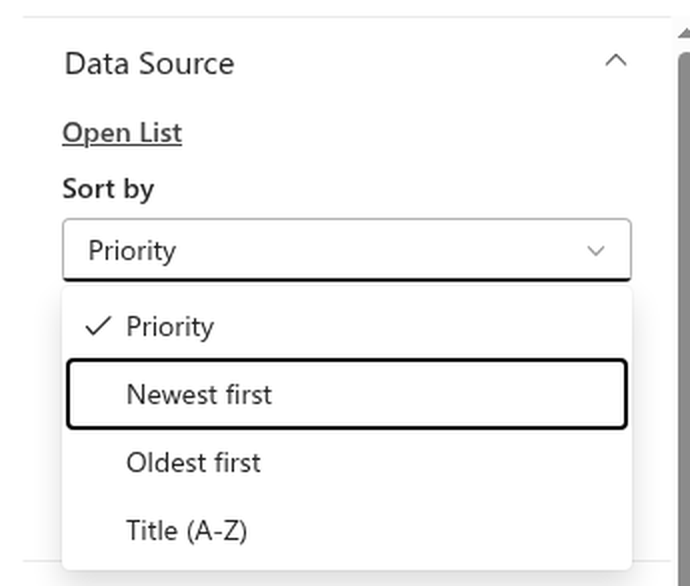
The Sort by option offers four orders:
| Option | Order of cards |
|---|---|
| Priority (default) | Priority sorts by ascending numeric VtxPriority, falling back to Order when the custom column is absent. Equal priorities are ordered newest first. Missing or invalid values follow numeric values. |
| Newest first | By creation date, from newest to oldest |
| Oldest first | By creation date, from oldest to newest |
| Title (A-Z) | Alphabetically by title |
Maximum Items
The Maximum items slider limits how many announcements are displayed: from 1 to 50, 10 by default. The limit is applied after filtering and sorting.
Choose the value based on the layout:
- in the Carousel layout, 5–10 cards are usually enough - readers rarely browse further;
- in the Stacked layout, all cards are visible at once, so a small value of 3–5 keeps the page compact.
SharePoint Draft Visibility
Visibility of unapproved items is controlled by SharePoint permissions and the list’s Draft Item Security setting. The web part does not independently filter approval status and has no Approved items only toggle. Authors and approvers may see drafts available to them; verify the result using an ordinary reader account.
For details on setting up approval and on how draft security interacts with SharePoint permissions, see KB10576. Publishing Announcements with Content Approval in Announcements Carousel.
When Nothing Is Shown
If no announcements are left after all the steps above, the web part behaves differently depending on the page mode:
- Read mode - the web part hides itself completely, so the page has no empty block;
- Edit mode - the message "There are no items to display" is shown in place of the carousel.

If you expected an announcement to appear but it is missing, check the following:
- Expires is empty or no earlier than the start of the current day.
- SharePoint permissions and draft security allow the reader to see the item.
- The announcement fits within the display limit under the selected sort order.
- The page has been reloaded after changes to the list.
Conclusion
The web part shows active announcements in a predictable order: expired items are excluded automatically, SharePoint controls draft visibility, and the number of cards stays under control. To choose how the selected announcements are presented, see KB10577. Carousel or Stacked: Choosing the Layout, Transitions and Autoplay.