Announcements Carousel
Introduction
SharePoint content approval provides a review workflow for announcements. Configure approval, versioning and draft security in the list; Announcements Carousel displays the items SharePoint makes available to the signed-in user.
How It Works
When content approval is enabled, every list item gets an Approval Status:
| Status | Meaning | Visibility |
|---|---|---|
| Approved | The announcement has been reviewed and published | Yes |
| Pending | The announcement is waiting for review | Depends on draft security |
| Rejected | The approver has rejected the announcement | Depends on draft security |
| Draft | The announcement is saved as a draft | Depends on draft security |
A typical workflow looks like this:
- An editor creates or changes an announcement - it gets the Pending status.
- An approver reviews it and approves or rejects it, optionally with a comment.
- After approval, the item becomes available according to SharePoint permissions; reload the page.
Enabling Content Approval in the List
You need to be a list owner (have Full Control or Manage Lists permissions) to change these settings.
- Open the announcements list (for example, with the Open List button in the web part toolbar).
- Click the gear icon and select List settings.
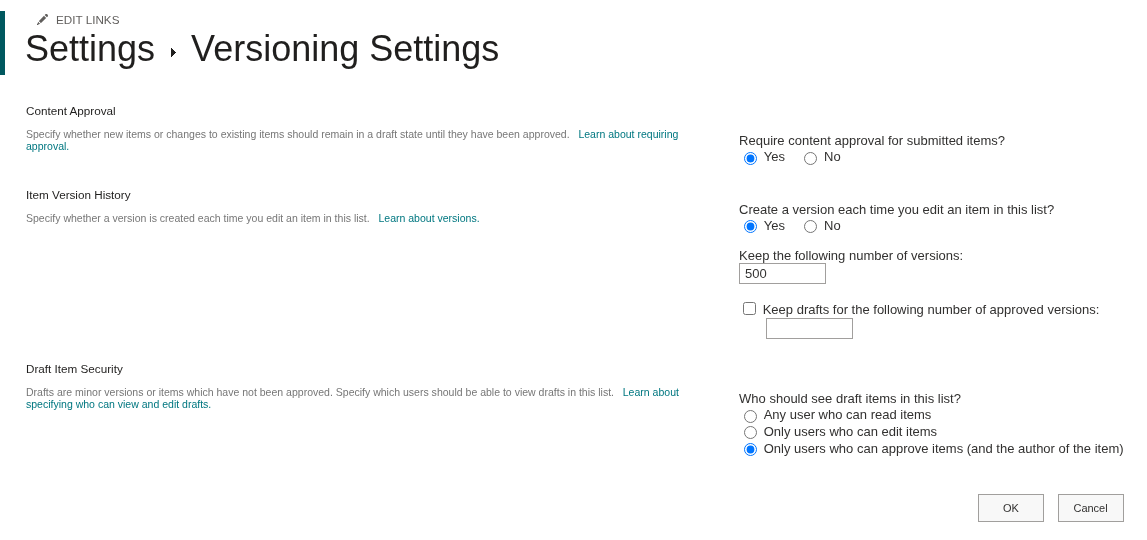
- Under General Settings, click Versioning settings.
- In Require content approval for submitted items?, select Yes.
- In Create a version each time you edit an item in this list?, select Yes. This is recommended - see the note below.
- In Draft Item Security, choose who can see items that have not been approved yet. We recommend Only users who can approve items (and the author of the item).
- Click OK.
❗ Important
When an approved announcement is edited, it goes back to the Pending status. With versioning on, readers without permission to view drafts continue to see the last approved version until the changes are approved. Without versioning, there is no approved version to fall back on, and the announcement disappears from the web part until it is approved again.
Approving and Rejecting Announcements
Approval is done by users with the Approve Items permission - by default, site owners.
- Open the announcements list.
- Select the announcement with the Pending status.
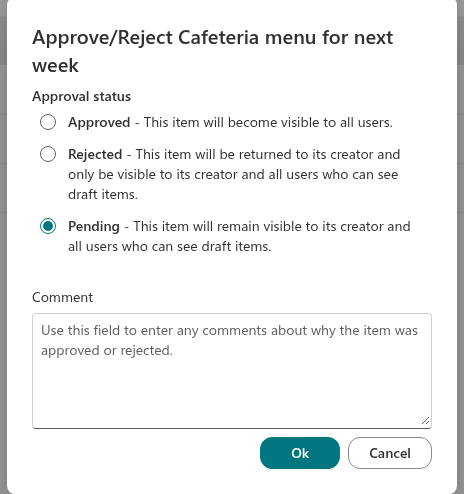
- On the command bar, click Approve/Reject (if the command is not visible, look for it under …).
- Choose Approved or Rejected, add a comment if needed and click OK.
💡 Tip
To find announcements waiting for review, add the Approval Status column to the list view or create a separate view filtered by the Pending status. You can also automate notifications to approvers with Power Automate: the SharePoint connector includes the Set content approval status action.
Draft Visibility in SharePoint
Visibility of unapproved items is controlled by SharePoint permissions and the list’s Draft Item Security setting. The web part does not independently filter approval status and has no Approved items only toggle. Authors and approvers may see drafts available to them; verify the result using an ordinary reader account.

❗ Important
If drafts are available to all readers, they may appear in the web part before approval. Restrict draft visibility in SharePoint.
📝 Note
The web part applies no independent approval-status filter.
Frequently Asked Questions
I created an announcement, but it is not on the page. If the list uses content approval, the announcement is waiting for review. Ask an approver to approve it. Also check its Expires date - see KB10575.
The web part disappeared from the page. If SharePoint returns no accessible, unexpired announcements, the web part has nothing to show and hides itself in Read mode. Open the page in Edit mode - you will see the "There are no items to display" message.
Who should be an approver? Usually it is the internal communications team or the site owner. Give approvers the Approve Items permission, and give authors Contribute permissions.
Conclusion
After configuration, verify the page as an ordinary reader and separately as an author. Reload the page to pick up list changes.