Organizational Chart
Introduction
Many employees spend most of their day in Microsoft Teams rather than on the intranet. The Vitextra Organizational Chart ships as a Teams application, so the company structure can live where people already are: as a personal app pinned to the Teams sidebar, or as a tab in a team's channel that shows that team's own branch of the organization. The data, the layouts and the navigation are exactly the same as on a SharePoint page.
This article covers the three steps involved: making the app available to Teams, adding it as a personal app or a channel tab, and saving default settings for the personal app. It assumes that the Organizational Chart package has already been deployed to your SharePoint App Catalog and that the Microsoft Graph permissions have been approved.
💡 Tip
If the product is not installed yet, start with KB10035. How to Install a Vitextra Product in SharePoint Online and KB10235. Microsoft Graph Permissions Required by Organizational Chart, then come back here.
Prerequisites
- To sync the app to Teams you need to manage the SharePoint App Catalog - typically the SharePoint Administrator role.
- To add an already-synced app as a personal app, no special permissions are needed: any user can do it from the Teams app store, as long as your Teams administrator allows custom apps built for your organization.
- To add the app as a channel tab you need to be a member of the team (and team owners may restrict who can add tabs).
Making the app available in Teams
- Open the Microsoft 365 admin center and go to SharePoint under Admin centers.
- In the SharePoint admin center, select More features, then click Open under Apps and go to the App Catalog → Apps for SharePoint.
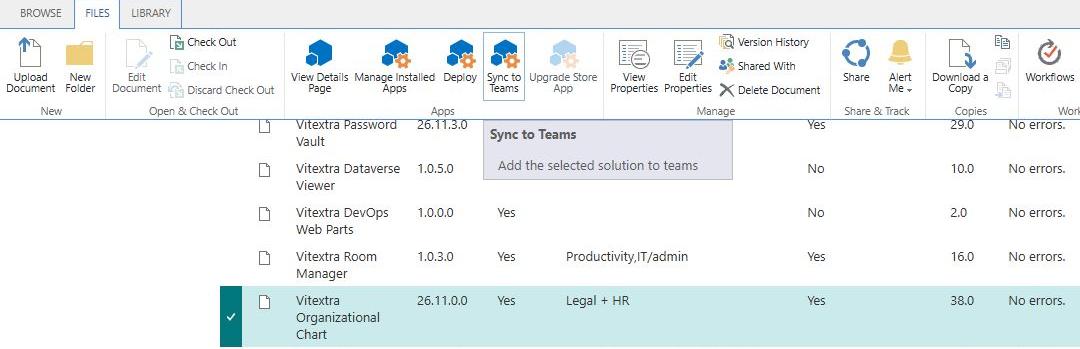
- Select the Organizational Chart package in the list, open the FILES tab of the ribbon and click Sync to Teams.
A notification Successfully synced teams solution confirms that the Teams app package has been published to your organization's app store. The Teams app is linked to the SharePoint package, so updates installed in the App Catalog apply to Teams as well.
📝 Note
Alternatively, a Teams administrator can upload the Teams app package manually in the Teams admin center under Teams apps → Manage apps → Upload new app. The package is the TeamsSPFxApp.zip file included with the product. The Sync to Teams button is the simpler route and is recommended.
Adding the chart as a personal app
- In Microsoft Teams, click Apps in the left sidebar.
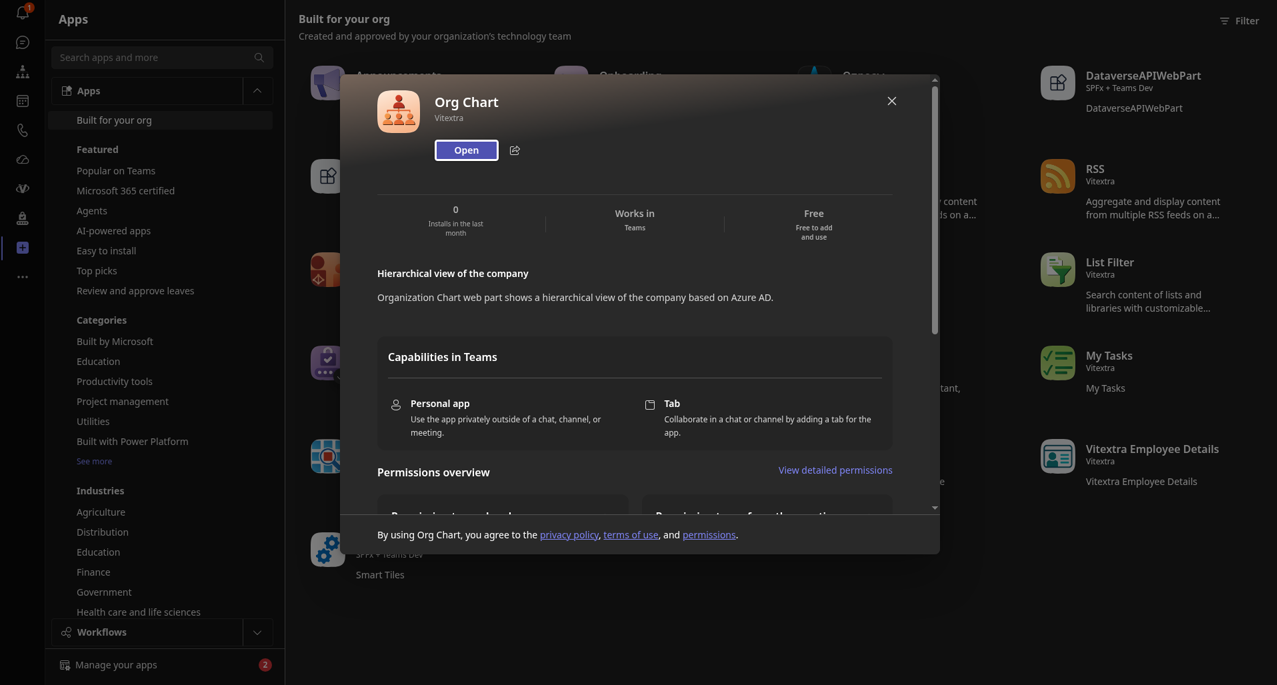
- Select Built for your org in the category list - this is where apps synced from your own App Catalog appear.
- Find the Org Chart tile published by Vitextra and click it.
- On the details page, click Add (not Add to a team).
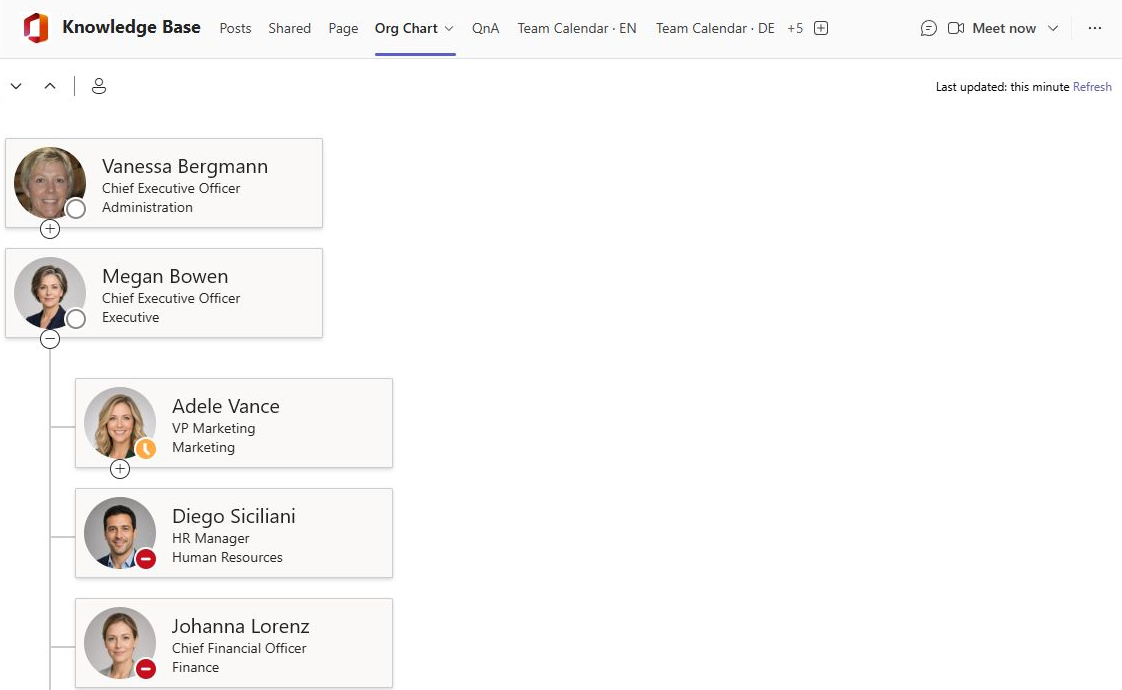
The app appears in the left sidebar. Open it and the chart of the entire company is shown immediately, with the search box, the toolbar and all navigation features described in KB10234. Organizational Chart: A Quick Guide for End Users.
💡 Tip
Adding the app this way pins it only for the person who clicked Add. To make the chart appear in the sidebar for everyone, a Teams administrator can pin it tenant-wide with an app setup policy in the Teams admin center.
Adding the chart as a channel tab
- Open the team and the channel where the chart should live and click + in the tab bar at the top.
- Find Org Chart in the list of apps (use the search box if needed) and select it.
- Click Add (or Save) in the dialog. The tab opens together with the web part's property pane.
- Configure the chart for this team - typically Chart Mode → Employees reporting to specific user with the team lead selected as the Person, so that the tab shows the team's own branch - and close the property pane.
The tab keeps its own settings, independent of the personal app and of other channels. A team owner can change them later with Settings in the tab's menu.
Saving default settings for the personal app
A personal app has no page to store settings on, so every user would see the chart with the factory defaults: the entire company, the vertical layout, three levels and the standard card fields. To give everyone a consistently configured chart, Organizational Chart lets you save a tenant-wide default for the personal app:
- Open the web part's property pane inside Teams - for example, from a channel tab you have configured the way the personal app should look.
- Scroll to the Microsoft Teams group, which appears only when the web part runs in Teams.
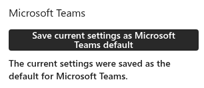
- Click Save current settings as Microsoft Teams default. The message The current settings were saved as the default for Microsoft Teams confirms the operation.
From then on, every user who opens the personal app gets the saved configuration: chart mode and root person, layout, levels, card size and fields, filters and exclusions, and export formats. The saved default does not affect channel tabs or SharePoint pages, each of which keeps its own settings.
❗ Important
The default is stored per tenant and is shared by all Teams users, so it should be saved by an administrator who owns the chart configuration. Saving it again overwrites the previous default. Users need to reopen the personal app to pick up a new default.
Themes and mobile
The chart follows the Teams theme automatically, including dark and high contrast modes. In the Teams mobile apps the chart is available too; the Vertical layout is the better choice there, as it fits a narrow screen without zooming.
💡 Tip
A complete description of the settings available in the property pane - the same in Teams and on SharePoint pages - is in KB10233. How to Add and Configure the Organizational Chart Web Part.
Learn more about the product: https://vitextra.com/en/products/org-chart