Organizational Chart
Introduction
The Vitextra Organizational Chart has no data of its own: it draws the hierarchy from the user profiles in Microsoft Entra ID, and it is exactly as accurate as those profiles. That is its great strength - directory changes appear after data is refreshed, without redrawing the chart - but it means that a clean chart begins in the directory, not in the web part settings.
This article explains which attributes the chart uses, where to maintain them, and which conventions keep the chart with a single root, complete branches and meaningful cards. It is written for the people who look after the directory: Microsoft 365 administrators, identity administrators and HR teams working with them.
The attributes the chart uses
| Attribute (Entra ID) | Used for |
|---|---|
| Manager | The hierarchy itself. Every reporting line on the chart is a Manager value in a user profile. This is the one attribute the chart cannot do without. |
| Display name | The default card header and the sort order of siblings under a manager |
| Job title | A default card field; accounts with a blank job title are excluded by default |
| Department | A default card field and the most common filter attribute; accounts with a blank department can be excluded |
| Office location, City, State/Province, Country/Region, Postal code, Street address | Optional card fields and filter attributes |
| Email, Mobile phone | Optional card fields; the business phone is shown on the Microsoft 365 profile card |
| Employee ID, User principal name, First name, Last name | Optional card fields and filter attributes |
| Photo | The picture on the card |
| Account enabled | Disabled accounts are excluded by the Microsoft Graph request |
| Assigned licenses | Unlicensed accounts are excluded by default |
| User type | Only Member accounts are loaded; guests are never shown |
All of these are standard attributes of a Microsoft Entra ID user. No schema extensions, custom attributes or additional systems are required.
Where to maintain the data
Where you edit the attributes depends on where your identities are mastered.
Cloud-only accounts
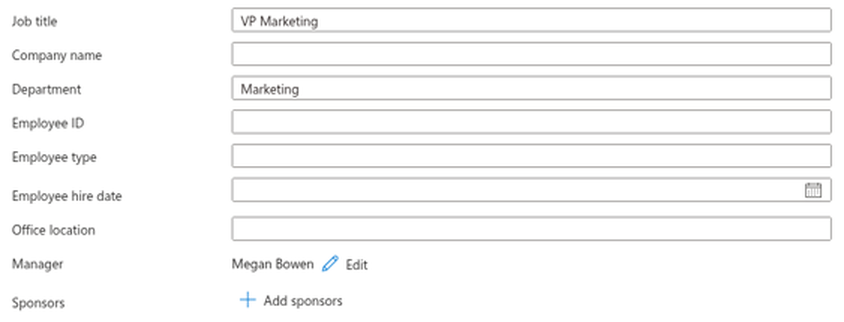
For accounts created directly in Microsoft 365, edit the profile in the Microsoft Entra admin center: go to Users → All users, open the user, click Edit properties and fill in the Job information section - Job title, Department, Manager, Employee ID, Office location - and the Contact information section for phone numbers and the address. The same fields are available in the Microsoft 365 admin center under Users → Active users → the user → Manage contact information and Manage manager.
Accounts synchronized from Active Directory
If users are synchronized from an on-premises Active Directory with Microsoft Entra Connect or Cloud Sync, the on-premises directory is the source of truth and the cloud attributes are read-only. Edit the user in Active Directory Users and Computers: the Organization tab holds Job Title, Department, Company and Manager, the General and Address tabs hold the contact details, and Employee ID is the employeeID attribute. Changes reach Microsoft Entra ID with the next synchronization cycle - every 30 minutes by default for Entra Connect Sync; Cloud Sync uses its own schedule.
❗ Important
Make sure the manager attribute is included in the synchronization. It is part of the default attribute set, but organizations that trimmed the synchronized attributes sometimes leave it out - in which case every synchronized user appears in the cloud without a manager and the chart shows them all as roots.
HR-driven provisioning
Organizations that provision users from an HR system such as Workday or SAP SuccessFactors already have the reporting structure in that system. Map the HR manager field to the Entra ID Manager attribute in the provisioning configuration, together with job title, department and location, and the chart will follow every organizational change made in HR automatically.
Keeping the hierarchy clean
One root
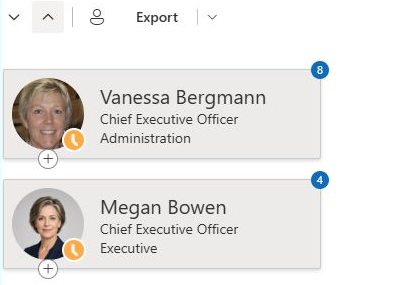
In the Entire Company mode the chart starts from the accounts that have no manager. Ideally that is exactly one person - the chief executive - so that the chart has a single root. Every other employee, including the executive team, should have a manager set.
Run through the employees who currently appear at the top level of the chart: each of them either is a genuine top of the hierarchy or is missing a Manager value. The Entire Company mode of the chart is the quickest audit tool for this - the extra roots are visible at a glance.
No gaps in the chain
A reporting line is only drawn when both ends are on the chart. If a manager is excluded - because the account has no license, no job title, is disabled or is a guest - everyone below that manager disappears from the chart along with them. Managers therefore deserve particular attention: their profiles must be complete and licensed. The same holds for the person selected as the root in the Employees reporting to specific user mode.
No loops
An account whose manager is itself is treated as a root. Two accounts that are each other's manager, or a longer loop, cannot be rendered as a tree: the chart stops at the depth limit, and the people in the loop end up in a confusing position. Loops are rare and almost always result from a manual editing mistake; the fix is to set the correct manager for one of the accounts.
Service accounts and shared mailboxes
Accounts that are not people - shared mailboxes, meeting rooms, service accounts, test users - should stay off the chart. The simplest convention is to leave their Job title empty and assign no license: the web part's default exclusions then hide them without any configuration. If such accounts must be licensed, give them a recognizable department (Service accounts, for instance) or a naming pattern in the user principal name, so that a filter condition can exclude them.
Making the cards meaningful
The card fields are only as useful as the data behind them:
- Consistent department names. Filters compare attribute values as text, so Sales, Sales Department and Sales EMEA are three different departments. Agree on a naming convention and apply it everywhere; the department filter on a department site relies on it.
- Job titles that say something. The job title is the second line of the default card. Senior Engineer tells a colleague more than Employee.
- Office location and city. For organizations with several sites, these two attributes make the chart far more useful: they go on the card and support filters such as "the Riga office".
- Photos. Users can upload their own photo in their Microsoft 365 profile or in Teams; administrators can upload photos in the Microsoft 365 admin center, and hybrid organizations can synchronize the
thumbnailPhotoattribute from Active Directory.
📝 Note
A newly uploaded photo can take some time to appear across Microsoft 365, and the chart caches employee data in the browser for up to 12 hours. After a round of directory updates, click Refresh above the chart to see the result immediately.
A maintenance routine
Directory data drifts: people move between teams, managers change, new hires arrive with half-filled profiles. A light routine keeps the chart trustworthy:
- Onboarding. Make the Manager, Job title and Department fields mandatory in the account creation process - whether a form, a provisioning rule or a checklist.
- Org changes. When a manager changes or a team is restructured, update the Manager attribute at the same time as the announcement is made; the chart updates itself.
- Monthly check. Open the chart in Entire Company mode and look at the top level for unexpected roots, then search for employees with a blank department or job title and complete them.
- Offboarding. Disable the account of a person who leaves; the Microsoft Graph request excludes them from the chart - and their reports disappear with them until a new manager is assigned, which is a useful reminder to do so promptly.
💡 Tip
If an employee is missing from the chart despite correct directory data, work through the checklist in KB10236. Why Is Someone Missing from the Organizational Chart?. The web part settings that decide which accounts are shown are described in KB10233. How to Add and Configure the Organizational Chart Web Part.
Learn more about the product: https://vitextra.com/en/products/org-chart