Base de conocimiento
Artículos destacados
Estos son algunos de los artículos más útiles. Es posible que uno de ellos sea el que busca.
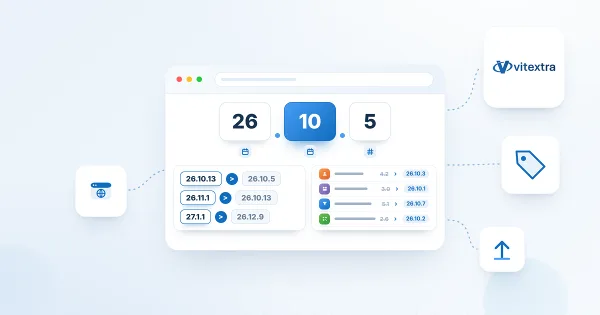
Vitextra Product Versioning: How to Read Version Numbers
Reference for the unified year.month.build versioning scheme used by Vitextra products for Microsoft 365 since October 2026, with a table of old and new version numbers for every product.
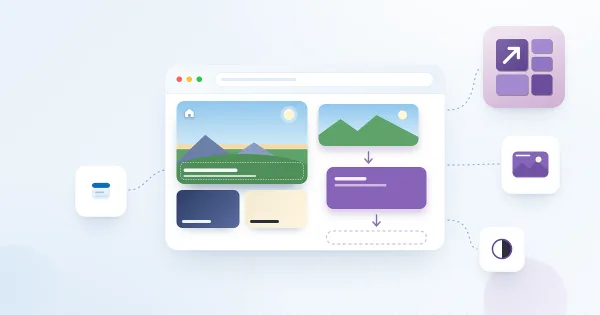
Setting a Background Image for a Tile
How to use a picture as the background of a tile in the Vitextra Smart Tiles web part: the Background image option, entering a URL or picking an image from a site library, how the image is cropped and scaled, keeping the title readable, the color fallback, the YouTube thumbnail and removing the image.
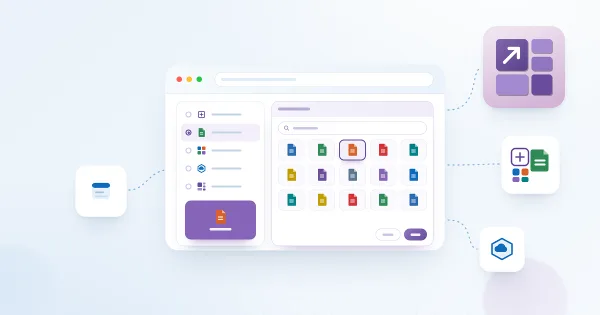
Choosing Icons for Tiles: Standard, File Type, App, Azure and Vitextra Icon Sets
The five icon sets of the Vitextra Smart Tiles web part - Fluent UI standard icons, file type icons, Microsoft 365 app icons, Azure service icons and Vitextra product icons - how to pick an icon in the icon panel, how icon color, size, indent and shadow work, and when to use a custom image instead.
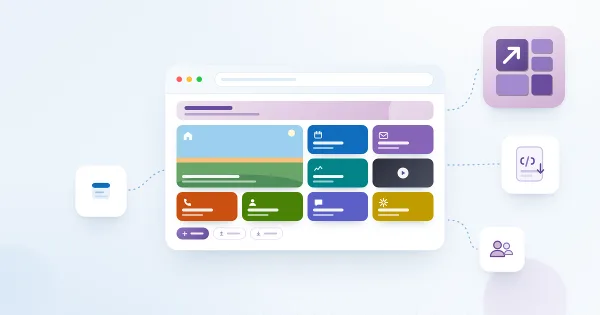
Smart Tiles: Solution Overview
What the Vitextra Smart Tiles web part is and what it offers: tile-based navigation for SharePoint Online pages with six icon sources, theme and predefined colors, background images, descriptions, hover effects, audience targeting, import and export of tiles, and support for 44 languages.

Filtros rápidos de Employee Directory: Mi departamento, Mi equipo, Personas con las que trabajo y Favoritos
Descubra qué muestra cada filtro rápido de Vitextra Employee Directory, qué datos utiliza, dónde se guardan los favoritos y por qué puede faltar una pestaña. Incluye la configuración para administradores.

Announcements Carousel: primeros pasos con el elemento web de anuncios para SharePoint
Introducción al elemento web Vitextra Announcements Carousel para SharePoint Online: funciones principales, incorporación a una página, selección o creación de la lista de anuncios y gestión de anuncios en Microsoft Lists, incluida la automatización con Power Automate.
Licencias y cuenta de Vitextra: cómo comprar y activar una licencia
Guía sobre las licencias de Vitextra: prueba gratuita de 14 días, elección del producto y del período de suscripción, compra de una licencia, asignación a su inquilino de Microsoft 365 y comprobación del estado de la licencia. Una licencia cubre SharePoint Online y Microsoft Teams.
Configurar el elemento web List Filter Online
Configure Vitextra List Filter Online para SharePoint Online: origen de datos y columnas, formatos, carpetas, límite de elementos y paginación, ordenación, agrupación y totales, Query Builder, panel de filtro con filtros en cascada y recordados, barra de comandos, apariencia, herramientas de desarrollo y licencias.
Cómo configurar los permisos de las respuestas de Quick Poll
Permita que los usuarios con acceso de solo lectura al sitio participen en sondeos y encuestas de Quick Poll: objetos protegibles, permisos por función y acceso de contribución a la lista de respuestas, también en Teams.

Descripción general de Employee Directory: elementos web, SPFx y Microsoft Graph
Conozca Vitextra Employee Directory para SharePoint y Microsoft Teams: sus tres elementos web, SharePoint Framework, permisos de Microsoft Graph, orígenes de datos, diseños, filtros rápidos, favoritos, búsqueda por aptitudes, hora local, disponibilidad y filtros de Entra ID.

Cómo exportar los resultados de Employee Directory a Microsoft Excel
Aprenda a habilitar y configurar la exportación de resultados de Employee Directory a Microsoft Excel (versión 4.0.0 y posteriores): active la opción de exportación, elija las columnas y exporte desde el área de búsqueda. Conozca también sus limitaciones.

Cómo mostrar atributos personalizados de Entra ID en el elemento web Employee Directory
Muestre atributos personalizados de usuarios de Microsoft Entra ID en Vitextra Employee Directory y Employee Directory (Entra ID), en SharePoint y Teams: extensiones de directorio, extensionAttribute1–15 sincronizados desde Active Directory local y otras propiedades.
Cómo mostrar atributos personalizados de Entra ID en el elemento web Employee Directory
Muestre atributos personalizados de usuarios de Microsoft Entra ID en Vitextra Employee Directory y Employee Directory (Entra ID), en SharePoint y Teams: extensiones de directorio, extensionAttribute1–15 sincronizados desde Active Directory local y otras propiedades.
How to Filter a SharePoint List or Library by Date Range with List Filter
Learn how to filter a SharePoint list or document library by date range with the Vitextra List Filter web part: add DateTime columns to the filter panel, choose the Date range control and set begin and end dates without creating extra views.
Number Generator: Numbering Schemes, Formulas and Samples
Reference for Vitextra Number Generator, which automatically generates numbers and names in SharePoint lists and libraries: activating the site collection feature, creating numbering schemes, formula syntax with columns and sequences, and five ready-to-use samples.
Cómo exportar los resultados de Employee Directory a Microsoft Excel
Aprenda a habilitar y configurar la exportación de resultados de Employee Directory a Microsoft Excel (versión 4.0.0 y posteriores): active la opción de exportación, elija las columnas y exporte desde el área de búsqueda. Conozca también sus limitaciones.

Cómo implementar y configurar Short URL Online
Aprenda a implementar Vitextra Short URL Online en un inquilino de Microsoft 365: los dos paquetes .sppkg, su implementación en el catálogo de aplicaciones de SharePoint y la activación de la extensión de la barra de comandos en cada sitio para acortar vínculos a documentos y carpetas.
Descripción general de Employee Directory: elementos web, SPFx y Microsoft Graph
Conozca Vitextra Employee Directory para SharePoint y Microsoft Teams: sus tres elementos web, SharePoint Framework, permisos de Microsoft Graph, orígenes de datos, diseños, filtros rápidos, favoritos, búsqueda por aptitudes, hora local, disponibilidad y filtros de Entra ID.
Vitextra List Filter: Filtering Controls and Supported Column Types
Reference for all 14 filtering controls of the Vitextra Filter web part for SharePoint, including Text, Autocomplete, Date, People Picker, Taxonomy Term, Slider and Number Range, with the SharePoint column types each control supports and a compatibility matrix.
How to Automatically Fill the Title Column with the File Name
Learn how to use Vitextra Document Auto Title to populate the Title column of a SharePoint document library with the file name when a document is uploaded or edited: activate the site feature and turn on auto-population in the library settings.
Cómo configurar los permisos de las respuestas de Quick Poll
Permita que los usuarios con acceso de solo lectura al sitio participen en sondeos y encuestas de Quick Poll: objetos protegibles, permisos por función y acceso de contribución a la lista de respuestas, también en Teams.

How to Export SharePoint List Data to Excel with List Filter
Learn how to export a SharePoint list to a Microsoft Excel file with the Vitextra List Filter web part: enable the Export button, export the complete list and understand which columns, filters and permissions apply.
Cómo agregar y configurar el elemento web Smart Tiles
Guía paso a paso para agregar Vitextra Smart Tiles a una página de SharePoint Online: implementar el paquete, encontrar el elemento web, los mosaicos de ejemplo, el título, todos los ajustes de Apariencia, el grupo Acerca de y las secciones de ancho completo.
Cómo crear una página de aplicación única con Vitextra Employee Directory
Aprenda a crear una página de aplicación única de SharePoint con Vitextra Employee Directory: seleccione Nuevo > Página > Aplicaciones, cree la página, indique un título, ajuste el elemento web y guarde los cambios. Solo disponible en la interfaz moderna.
List Filter Online: A Quick Guide for End Users
How to work with the Vitextra List Filter Online web part on a SharePoint Online page: filter with the filter pane and column headers, clear filter chips, browse folders, open, preview, download and manage items from the context menu, select items, page through results, save filters and export to Excel.
Employee Directory (Entra ID): Filter Editor Reference
Reference for the filter editor of the Vitextra Employee Directory (Entra ID) and New Employees web parts: available fields, operators, value types, groups and AND/OR logic, user roles, how the filter relates to Microsoft Graph, limitations and ready-to-use examples.
How to Add the Absence & Coverage Web Parts to a Page and Select the Site
Step-by-step guide to adding the My Absences, Team Absence Calendar and Substitutions web parts to a SharePoint page, selecting the site that stores the absence lists, what is created automatically, and the property pane settings with their default values.
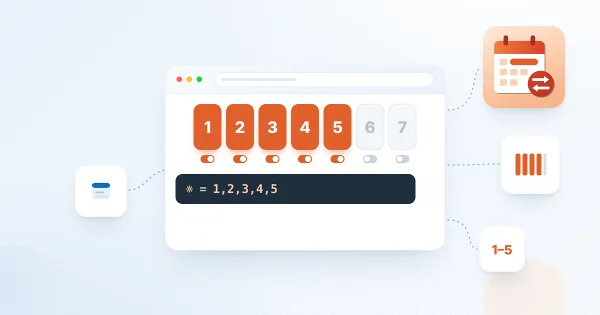
How to Set the Working Week
Define which days of the week count as working days in Vitextra Absence & Coverage: add the WorkDays row to the Settings list, choose the weekday numbers, see how the setting changes the working-day count of requests and the shading of the Team Absence Calendar.
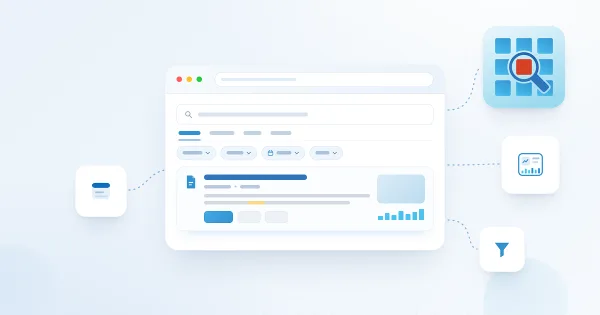
Smart Search. Solution Overview
Vitextra Smart Search is a configurable search web part for SharePoint Online and Microsoft Teams. Learn how it works: search source tabs, a refinement panel with date filters, a customizable result layout with view analytics, document preview and video playback, and shareable search links.
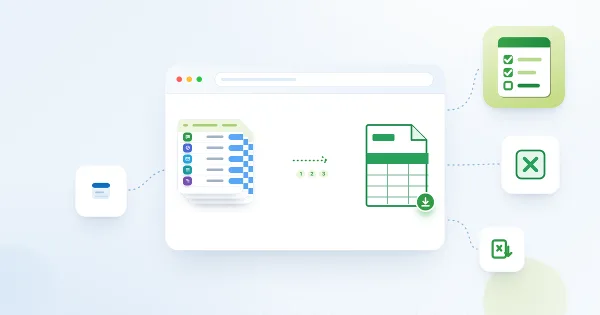
How to Export My Tasks to Excel
How to export your task list from the Vitextra My Tasks web part with the Export To Excel button: what exactly is exported, the columns and the file name, why the file is a UTF-8 CSV, how to open it in Excel without broken characters or merged columns, and how filters affect the result.

Employee Directory vs. Employee Directory (Entra ID): Which Web Part to Choose
Compare the two Vitextra directory web parts - Employee Directory (SharePoint search or Microsoft Graph) and Employee Directory (Entra ID) - by data source, search, refinement panel, filter editor, exclusions, A–Z navigation, skills search and export, and find out which one fits your scenario.
How to Display Custom Entra ID Attributes in the Employee Directory Web Part
Show custom Microsoft Entra ID user attributes - directory extensions, extensionAttribute1–15 synchronized from on-premises Active Directory and other user properties - in the Vitextra Employee Directory and Employee Directory (Entra ID) web parts on SharePoint and in Microsoft Teams.
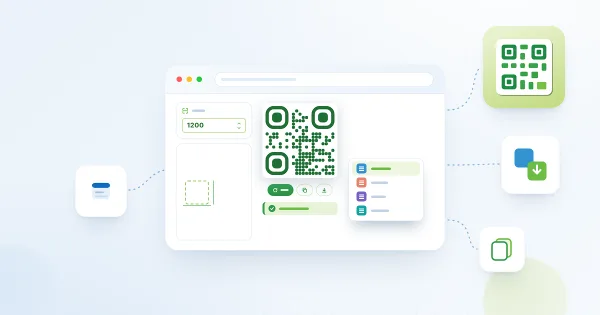
Downloading and Copying a QR Code: PNG, JPEG, SVG and WebP
How to take a QR code out of the Vitextra QR Code Generator web part: download it as PNG, JPEG, SVG or WebP, set the image size from 300 to 4000 pixels, copy the code to the clipboard and choose the right format for print, documents and the web.

Customizing the QR Code Design: Shape, Colors, Gradient and Corners
Reference for the design sections of the Vitextra QR Code Generator web part: six dot shapes, dot and background colors with transparency, linear and radial gradient, the shape and color of corner squares and corner dots, error correction levels and practical rules that keep a styled QR code readable.
Using a Custom Image as a Tile Icon
How to replace the icon of a tile in the Vitextra Smart Tiles web part with your own image: the Custom image option, entering an image URL or picking a picture from a document library of the site, image requirements, sizing, and removing the image to return to an icon.
Azure DevOps Query Viewer: Setup and Connecting a Query
How to add the Azure DevOps Query web part from Vitextra My Tasks to a SharePoint page and connect it to a saved Azure DevOps query: requirements, the Not Configured checklist, choosing the organization, project and query, supported query types, item limit, appearance and miscellaneous settings.
How to Export Employee Directory Results to Microsoft Excel
Learn how to enable and configure export of Employee Directory search results to Microsoft Excel (version 4.0.0 and higher): turn on the Export option, choose the columns, run the export from the search box area and know the limitations.

Employee Directory: Local Time, Working Hours and Availability
Learn how the Vitextra Employee Directory details pane shows a colleague's local time, time difference, working hours and today's free/busy schedule next to your own, where the data comes from, which Microsoft Graph permissions it needs and how administrators turn it on or off.
How to Display Custom Entra ID Attributes in the Employee Directory Web Part
Show custom Microsoft Entra ID user attributes - directory extensions, extensionAttribute1–15 synchronized from on-premises Active Directory and other user properties - in the Vitextra Employee Directory and Employee Directory (Entra ID) web parts on SharePoint and in Microsoft Teams.
Vitextra List Filter: Filtering Controls and Supported Column Types
Reference for all 14 filtering controls of the Vitextra Filter web part for SharePoint, including Text, Autocomplete, Date, People Picker, Taxonomy Term, Slider and Number Range, with the SharePoint column types each control supports and a compatibility matrix.
How to Manage Your Vitextra Subscription
Step-by-step guide to managing a Vitextra subscription: viewing your subscriptions, adding or removing licenses, assigning licenses to a Microsoft 365 tenant, removing an assignment and canceling a subscription, including what happens after cancellation.
How to Change the Color Scheme and Appearance of the List Filter Web Part
Learn how to restyle the Vitextra List Filter panel to match your corporate branding: register custom CSS with a Script Editor web part, use the CSS class reference and see examples for colors, labels, lists and button alignment.
How to Update a Vitextra SPFx Solution in SharePoint Online
Step-by-step guide to updating an existing Vitextra SharePoint Framework (SPFx) solution: download the latest version from the download center, replace the .sppkg package in the App Catalog, deploy it, approve API access if needed and sync to Microsoft Teams.
How to Activate On-Premises Vitextra Products with a Serial Number
Learn how to activate on-premises Vitextra products with a purchased serial number: find your activation key on the My Products page, then enter it in SharePoint Central Administration and activate the product.
How to Change the Currency for Vitextra Purchases
Learn how to change the billing currency in your Vitextra account profile, which currencies are supported (USD, EUR, GBP, JPY, CNY, CHF, AUD, CAD), what happens to items already in your cart and why the currency cannot be changed after a purchase.

How to Showcase New Hires with the New Employees Web Part
Learn how to spotlight recently hired employees on a SharePoint site with the New Employees web part from Employee Directory: add it to a page, set the look-back period (last 1–6 months) and the number of employees, filter users with the filter editor, and configure card size, card fields and actions.
Employee Details: Choosing Who Can See Your Skills, Languages and Accounts
How the Audience setting works in Vitextra Employee Details: the choices Me, Organization and Everyone, which profile items have an audience, what it does not control, and how to change it for your skills, languages, social accounts, projects, education, awards and certificates.
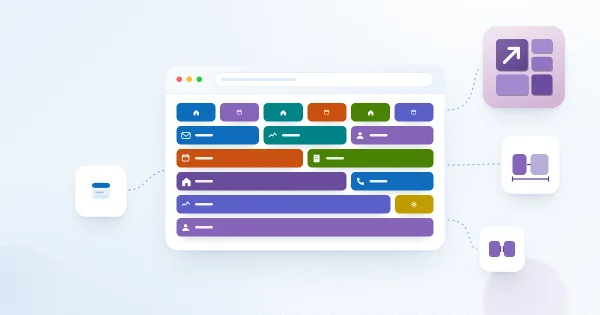
Tile Sizes and Layout in Smart Tiles
How tiles are arranged in the Vitextra Smart Tiles web part: the six tile sizes from Extra Small to Full Width and the share of the row each takes, how tiles wrap and stretch to fill rows, the Internal, Icon and External Indent settings, tile height, and layout recipes for sections, columns and full-width panels.
Compartir
Smart Search
Smart Search is a powerful, configurable search web part for SharePoint Online designed to help you quickly and efficiently find the information and documents you need. Search operators, sorting, saved searches, shareable links, a details panel and content quality indicators, together with customizable display options and advanced filtering, bring the right results to the top.
Más información