Este contenido no está disponible en su idioma.

This article describes how to automatically populate the Title column with the file name when a document is uploaded or edited.

Introduction

The Vitextra Document Auto Title product automatically populates the Title field in a SharePoint document library.

📝 Note
Auto-population can be enabled only for a document library.

Prerequisites

To use auto-population in a document library, activate the Vitextra: Document Auto Title site feature. Go to Site Settings → Manage site features and click Activate next to the feature:

Document Auto Title site feature

Document Auto Title site feature

Activate Auto-Population

Open the document library and go to Library → Settings:
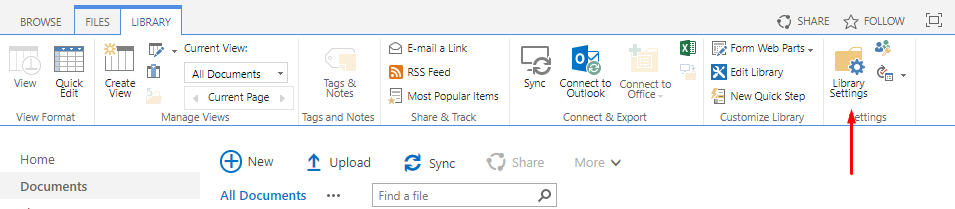
Library Settings

Library Settings

Click Document Auto Title under the General Settings heading:
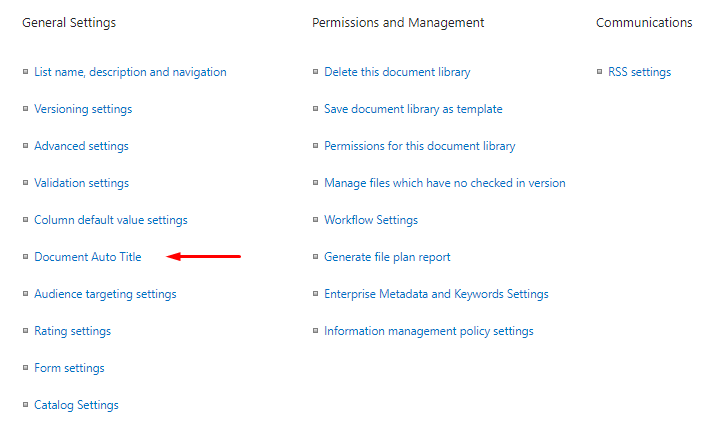
Document Auto Title menu item

Document Auto Title menu item

Settings

Select Enable to turn on auto-population. You can also choose additional options, such as excluding the file extension and updating the Title column when a document is edited:
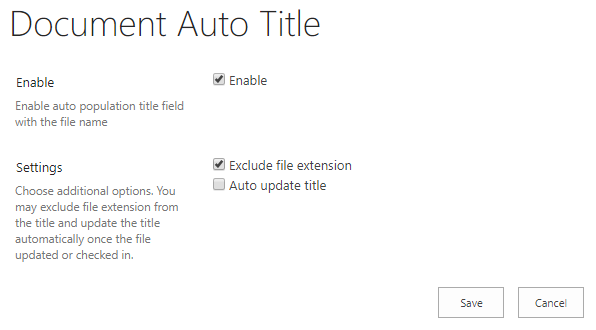
Document Auto Title Settings

Document Auto Title Settings

📝 Note
Document Auto Title is based on SharePoint event receivers and doesn't rely on the workflow engine. This improves performance and avoids creating unnecessary artifacts such as workflow tasks and history list items.

When Document Auto Title is enabled, the Title column is populated automatically as soon as a document is uploaded:
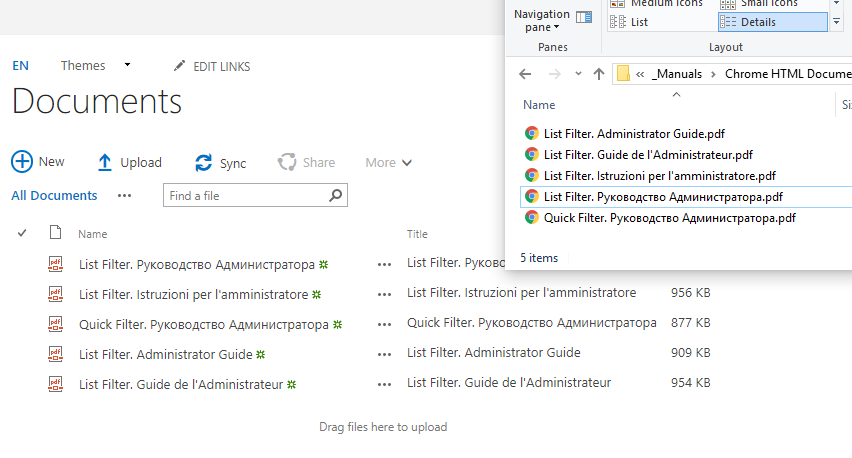
Document Auto Title

Document Auto Title

Preguntas y respuestas

Haz una pregunta sobre este artículo y recibe una respuesta oficial de nuestro equipo.

Aún no hay preguntas. Haz la primera.

Artículos destacados

He olvidado mi PIN de Password Vault: ¿qué opciones tengo?

Password Vault no ofrece ninguna función para recuperar un PIN olvidado ni omitir el PIN de una bóveda bloqueada. Ni su administrador de Microsoft 365 ni Vitextra pueden recuperarlo mediante el producto. Restablecer una bóveda bloqueada elimina sus entradas; cambiar el PIN en una sesión ya desbloqueada es una posibilidad distinta, descrita a continuación.

31 5 min
Cómo configurar los roles y permisos de Policy Acknowledgement

Asigne grupos de roles en Policy Admin, aplique permisos de SharePoint y conozca los límites del filtrado de acceso de los elementos web.

20 5 min
Cómo buscar empleados por aptitudes en Employee Directory

Encuentre compañeros por sus conocimientos con Vitextra Employee Directory: active la búsqueda por aptitudes, muestre la columna y la sección del panel de detalles, complete los perfiles de Microsoft 365 y resuelva búsquedas sin resultados.

21 7 min

Compartir