QR Code Generator
Introduction
A QR code prepared in QR Code Generator is usually needed somewhere else: in an email, on a slide, on a poster or a badge. The web part offers two ways to take the code out of the page - download it as a file or copy it to the clipboard. This article explains both, helps to choose the file format and shows how to set the size of the image. No edit permission is needed: any visitor of the page can download and copy the code.
Setting the image size
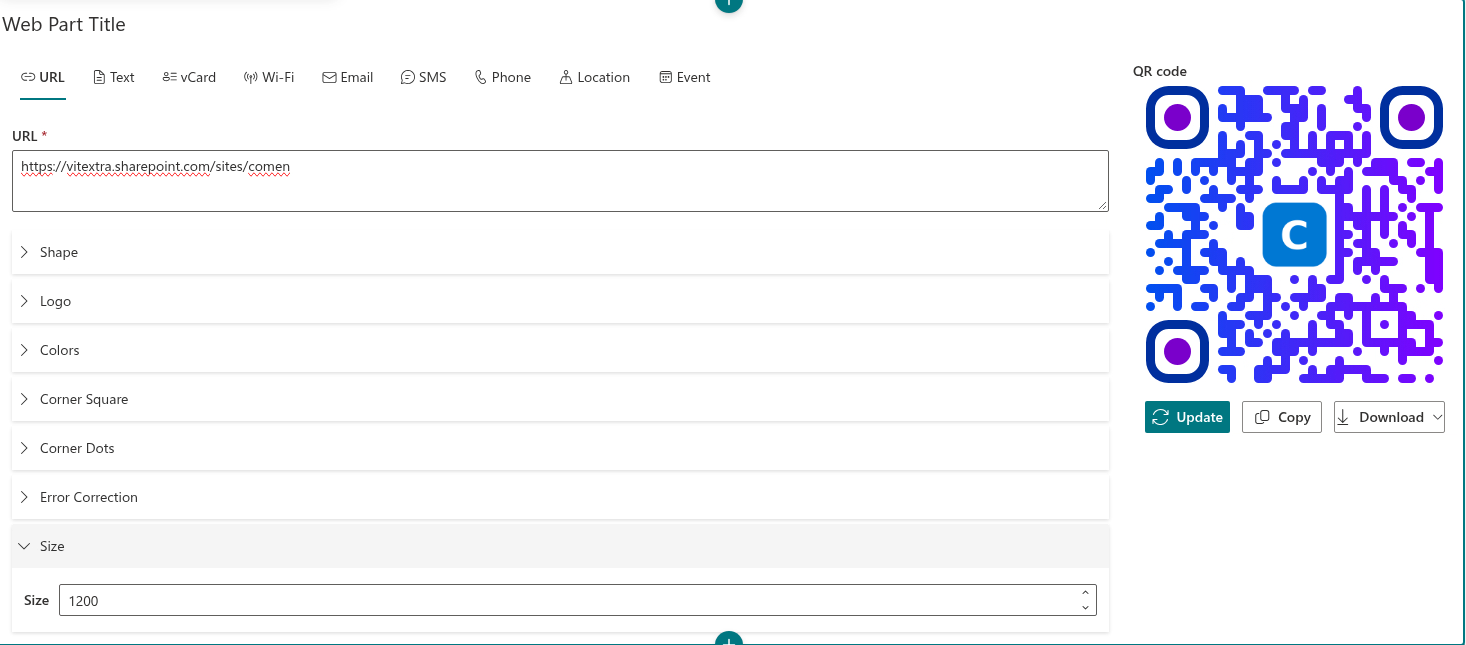
The preview in the web part is always 300 pixels wide. The downloaded and copied image has its own size, set in the Size section.
- Expand the Size section below the data tabs.
- Enter the value in the Size box or change it with the arrows, in steps of 100.
The value is the width and the height of the image in pixels; the image is always square. The allowed range is from 300 to 4000, and the default is 1200. A value outside the range is replaced by the nearest allowed one.
| Where the code is used | Recommended size |
|---|---|
| Email, chat, web page | 300 – 600 |
| Document, presentation | 1200 |
| Flyer, badge, business card | 1200 – 2000 |
| Poster, banner, roll-up | 3000 – 4000, or the SVG format |
Downloading the code
- Make sure that the preview shows the code you need.
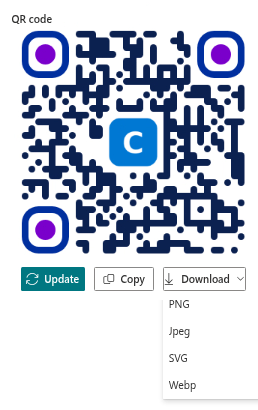
- Click Download under the preview.
- Choose the format from the menu: PNG, JPEG, SVG or WebP.
The browser saves the file to its downloads folder under the name qrcode with the extension of the chosen format, for example qrcode.png.
Choosing the format
| Format | Type | Transparent background | Best for |
|---|---|---|---|
| PNG | Raster, lossless | Yes | The universal choice: documents, presentations, email, web pages |
| JPEG | Raster, lossy | No | Systems that accept nothing but JPEG |
| SVG | Vector | Yes | Print and design layouts: scales to any size without loss of quality |
| WebP | Raster, compact | Yes | Websites, where a small file size matters |
If you are not sure, choose PNG. For anything that goes to a print shop or a designer, choose SVG: the code stays sharp on a business card and on a banner alike, and the Size value matters much less.
An embedded raster logo remains limited by its original resolution, even in SVG.
❗ Important
JPEG cannot store transparency. By default the Background Color of the code is fully transparent, and in a JPEG file such a background turns black, which makes the code unreadable. Before downloading a JPEG, set an opaque light color in Colors > Background Color.
Copying the code to the clipboard
- Click Copy under the preview.
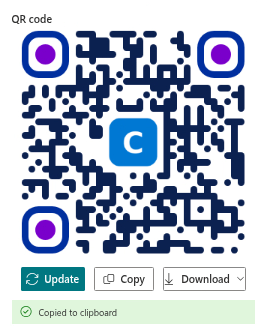
- Wait for the message Copied to clipboard. It is shown for a few seconds.
- Switch to the email, document, chat or presentation and paste the image with Ctrl+V (⌘+V on a Mac).
The code is copied as a PNG image of the size set in the Size section, with the transparent background preserved.
📝 Note
Copying uses the clipboard of the browser. If the message Copied to clipboard does not appear, the browser or the app in which the page is opened may have blocked access to the clipboard or may not support this clipboard operation. Allow the clipboard access for the site in the browser settings, or use Download instead.
When the buttons are disabled
Copy and Download are disabled while a required field of the selected tab is empty; the preview shows the message One or more required fields is empty. Check that all required fields are filled in and try again. Fill in the fields marked with an asterisk, and the buttons become available. The required fields of every tab are listed in KB10264. QR Code Data Types: URL, Text, vCard, Wi-Fi, Email, SMS, Phone, Location and Event.
Summary
Set the size of the image in the Size section, then use Download to get a PNG, JPEG, SVG or WebP file, or Copy to paste the code straight into another app. PNG suits everyday use, SVG suits print, and JPEG needs an opaque background.
💡 Tip
The file contains the code exactly as it is styled in the preview. To change the colors, the shape or the logo before downloading, see KB10265. Customizing the QR Code Design: Shape, Colors, Gradient and Corners and KB10266. How to Add a Company Logo to a QR Code.