Discussions
Overview
Discussions has no permission model of its own. Every board lives in SharePoint lists on the site where the web part runs, and every read and write is performed by the signed-in user through the SharePoint API. Who can read a board, who can post in it and who can moderate it therefore follows from the SharePoint permissions of the site - the same groups and permission levels you already manage in Site permissions.
This article explains how the web part derives its three roles from those permissions, what each role can do action by action, what guests and read-only visitors see, and what to keep in mind if you want to give the Discussions lists permissions of their own.
📝 Note
The solution requests no API permissions and never calls Microsoft Graph; nothing has to be approved in the SharePoint admin center. See KB10413. API Permissions and Admin Consent for Discussions.
Summary for administrators
| Question | Answer |
|---|---|
| Where are permissions managed? | In SharePoint Site permissions (site groups and permission levels); the web part has no role settings |
| Who can read a board? | Everybody with Read on the site (and on the page) |
| Who can post, reply, like, follow and report? | Users whose site permission level includes Add Items - Contribute, Edit, Design, Full Control |
| Who can moderate? | Users whose site permission level includes Manage Lists - Edit, Design, Full Control |
| Do guests work? | Yes, by their site permissions, with no extra setup |
| Who can create a board and the lists? | Manage Lists is required to create missing lists or the assets library. Once all four lists and the library exist, a page editor with Add Items on the boards list can create another board. |
| Who sees posts waiting for approval? | Their author and the moderators |
How the web part decides what you can do
When the page loads, the web part reads the effective permissions of the current user on the site and sets two flags:
- can write - the user has the Add Items base permission on the site;
- can moderate - the user has the Manage Lists base permission on the site.
The flags decide which commands and buttons are rendered: New topic, Reply, Follow and Report for writers; Moderation, Approve, Pinned, Featured and Locked for moderators. Everything the user then does is an ordinary request to the Discussions Topics, Discussions Posts, Discussions Subscriptions and Discussions Assets lists, and SharePoint applies the list permissions to each request. On a site with inherited permissions the two always agree.
The three roles
| Role | Needs on the site | Can |
|---|---|---|
| Reader | Read (the Site visitors group) | Open the board, switch the Recent, Unanswered, Answered, Featured and My topics views, filter by category, search, open topics and replies, download attachments, follow deep links |
| Member | Add Items - included in Contribute, Edit, Design and Full Control | Everything a reader can, plus New topic, Reply, Like, Follow a board or a topic, Report other people's posts, Edit and Delete own replies, attach and remove files on own posts, Mark as answer in own questions |
| Moderator | Manage Lists - included in Edit, Design and Full Control | Everything a member can, plus the Moderation queue (approve, reject, dismiss reports, delete), inline Approve, Pinned, Featured and Locked on any topic, Edit and Delete any reply, remove any attachment, Mark as answer in any question, see Awaiting approval and Rejected items, create boards and run Import classic board |
A moderator's own topics and replies are published immediately even on a board that requires approval; posts of members wait in the queue.
❗ Important
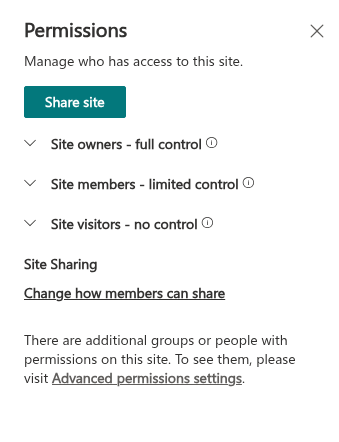
On modern team and communication sites the default Site members group has the Edit permission level, and Edit includes Manage Lists. With the defaults, therefore, every member is a moderator. To separate members from moderators, open Site permissions → Advanced permissions settings, change the permission level of the members group to Contribute, and keep the moderators in Site owners or in a group with Edit.
Action by action
| Action | Required | Notes |
|---|---|---|
| Read topics and replies | Read | Approved items only, plus the user's own items |
| View counter | - | Incremented on behalf of the visitor; the attempt silently fails for readers, so views by read-only users are not counted |
| New topic, Reply | Add Items | Goes to the moderation queue when the board requires approval and the user is not a moderator |
| Like a topic or reply | Add Items | The button is shown to readers but disabled |
| Follow / Unfollow | Add Items | Needs the Discussions Subscriptions list; see KB10404. Following Boards and Topics: Subscriptions and Digest Frequency |
| Report / Reported | Add Items | Not shown on the user's own posts; one report per user and item. A moderator can dismiss the reports, after which the same user can report again. |
| Edit a reply | Author or Manage Lists | |
| Delete a reply | Author or Manage Lists | Only a reply without nested replies can be deleted from the thread |
| Attach a file, remove an attachment | Author or Manage Lists | |
| Mark as answer, Unmark answer | Topic author or Manage Lists | Top-level replies of a question topic |
| Approve, Reject, Dismiss reports | Manage Lists | In the Moderation queue or inline in the topic |
| Pinned, Featured, Locked | Manage Lists | See KB10410. Pinning, Featuring and Locking Topics |
| Delete a topic | Manage Lists | From the Moderation queue |
| Create a board, provision the lists | Manage Lists is required to create missing lists or the assets library. Once all four lists and the library exist, a page editor with Add Items on the boards list can create another board. | — |
| Import classic board | Manage Lists + page edit rights | The command appears only while the page is in edit mode |
| Configure the web part | Page edit rights | Board, default view, page size, switches in the property pane |
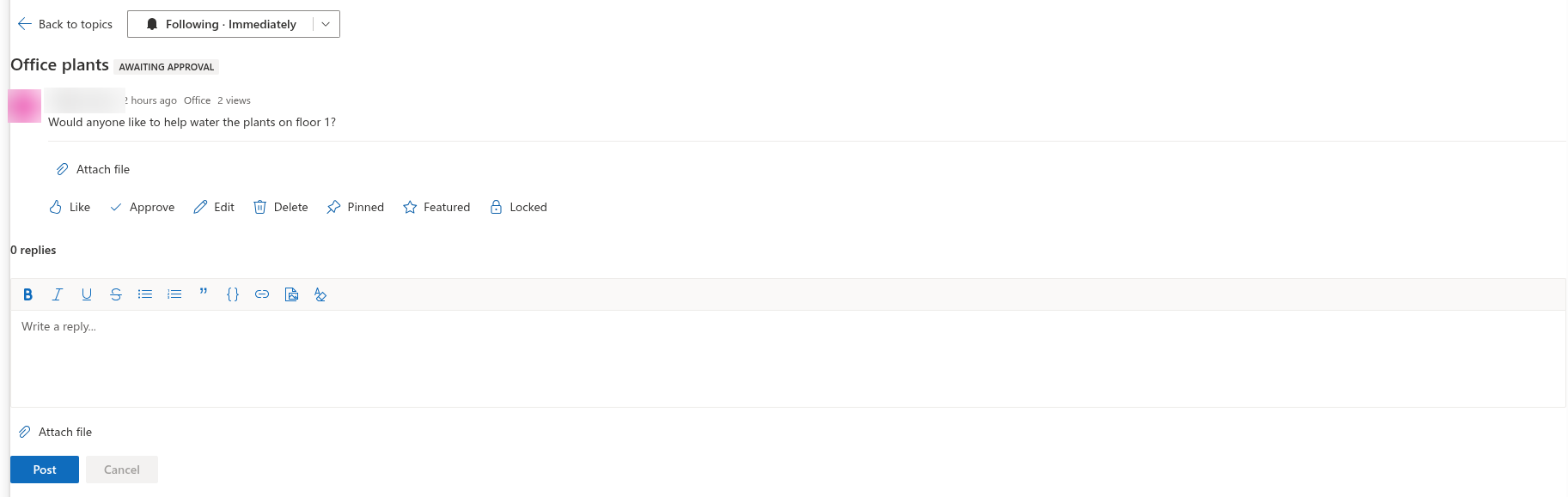
Visibility of pending and rejected posts
On a board with Require approval of new posts the web part applies one rule to topics and replies alike: a member sees approved items and their own items in any state, a moderator sees everything. A member's own pending topic carries the Awaiting approval badge, a rejected topic the Rejected badge; other non-moderator users do not see them. The Discussions Activity web part shows approved topics only, whoever is looking. Details and troubleshooting are in KB10430. Why a Post Is Not Visible: Approval, Rejection and Visibility Rules.
Guests and read-only visitors
Guest users (Microsoft Entra B2B) take part according to their site permissions: a guest in Site visitors reads, a guest in a group with Contribute posts and replies. No additional configuration is needed. A reader without Add Items sees the full board - including the Like counts and the attachments - but no reply box, no New topic and a disabled Like button; the Follow button is not shown.
The same rules apply in Microsoft Teams: the tab runs in the context of the team site, so a team member's SharePoint permission level decides the role, not the Teams role.
📝 Note
A user must have access both to the page and to the lists. If a page is shared with people who have no access to the site's lists, they see an error in the web part instead of the board.
Unique permissions on the Discussions lists
The lists are ordinary site lists in Site contents and inherit the site permissions. You may break the inheritance, but keep three points in mind:
- The buttons follow the site, the result follows the list. To show participation and moderation controls, the web part checks the user's site permissions rather than list permissions. A user with Contribute on the site and only Read on
Discussions Postsstill sees the Reply button and gets an error on posting. Keep the lists' permissions at least as generous as the site's for the same people, or change the site permissions instead. - Do not use item-level permissions. Liking, reporting, the view counter and the reply counters write to items created by other users. The advanced list setting Create items and edit items that were created by the user breaks all of them.
- All lists together.
Discussions Boards,Discussions Topics,Discussions Posts,Discussions Subscriptionsand theDiscussions Assetslibrary are used in one operation; give the same audience the same level on all five.
Because the lists are shared by every board on the site, a board cannot have an audience of its own. For a forum that only part of the organization may see, create it on a site with that audience.
💡 Tip
To check what a particular user can do, open Site permissions → Advanced permissions settings → Check Permissions and look for Add Items and Manage Lists in the result. The same two base permissions are the whole of the Discussions role model.