
Smart Search
Découvrez Smart Search, un puissant composant WebPart SharePoint Online qui améliore votre expérience de recherche de documents et d'informations.
- oct. 2026
- v26.10.9
- Langues prises en charge
- 15
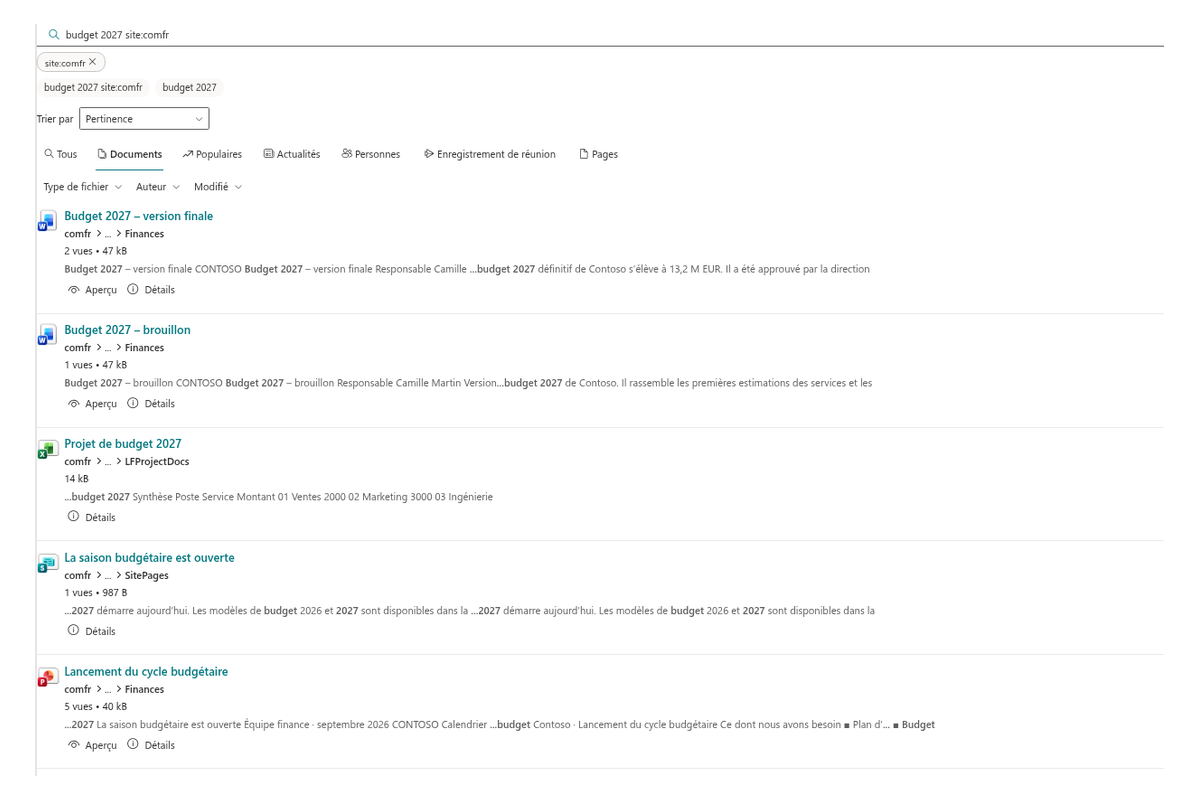
Smart Search est un composant WebPart de recherche puissant et configurable pour SharePoint Online, conçu pour vous aider à trouver rapidement et efficacement les informations et les documents dont vous avez besoin. Opérateurs de recherche, tri, recherches enregistrées, liens partageables, volet de détails et indicateurs de qualité du contenu, associés à des options d'affichage personnalisables et à un filtrage avancé, font remonter les bons résultats.
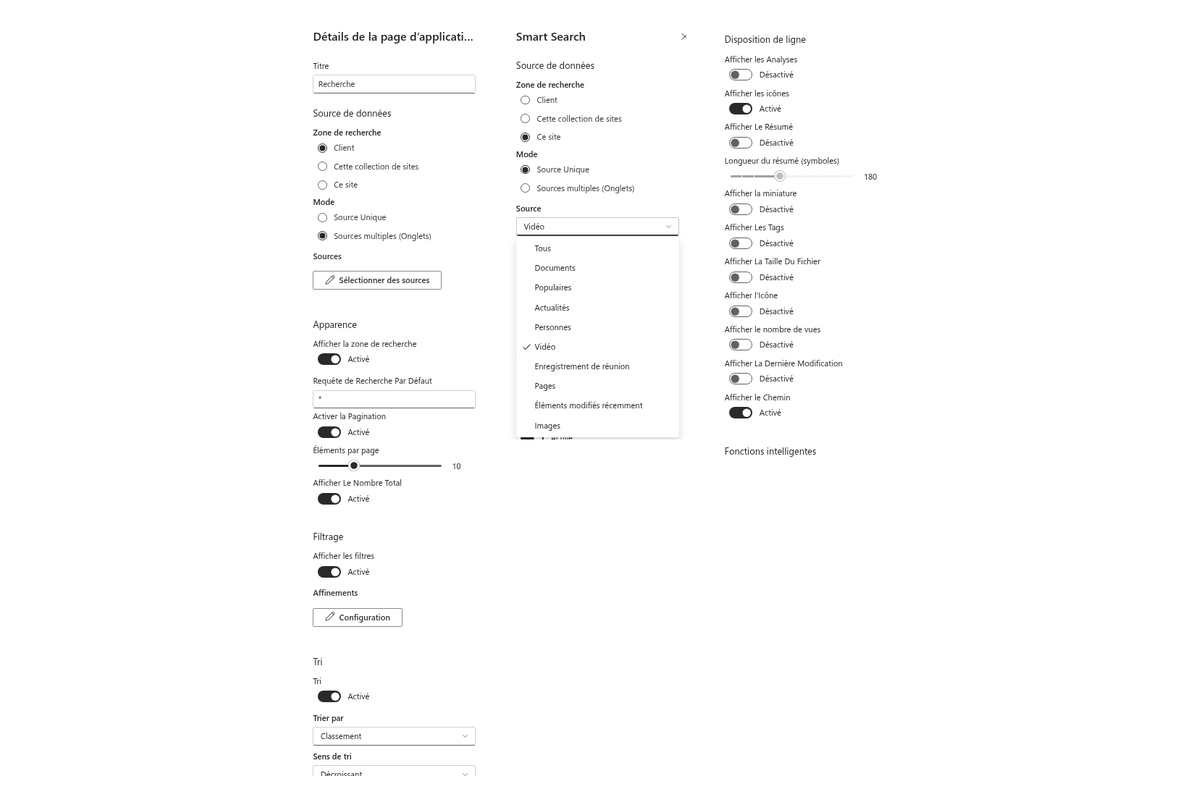
- Composant WebPart configurable avec plus de 30 paramètres
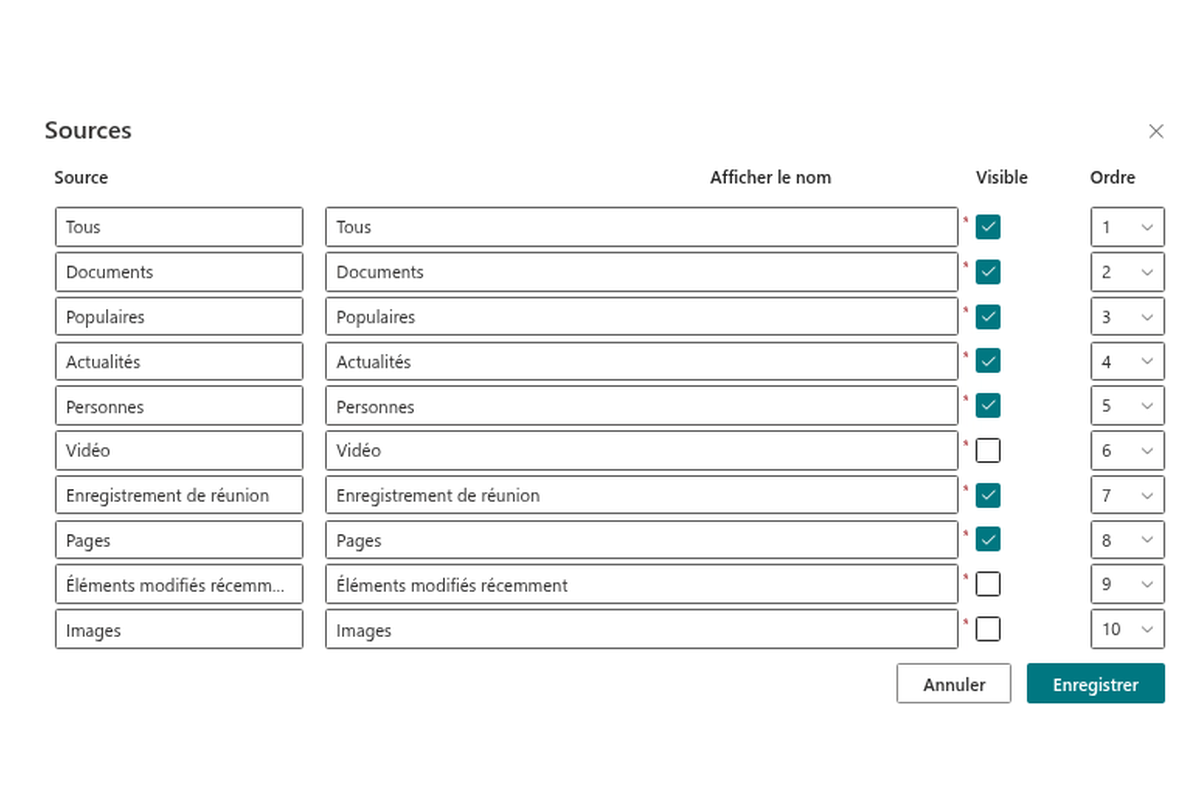
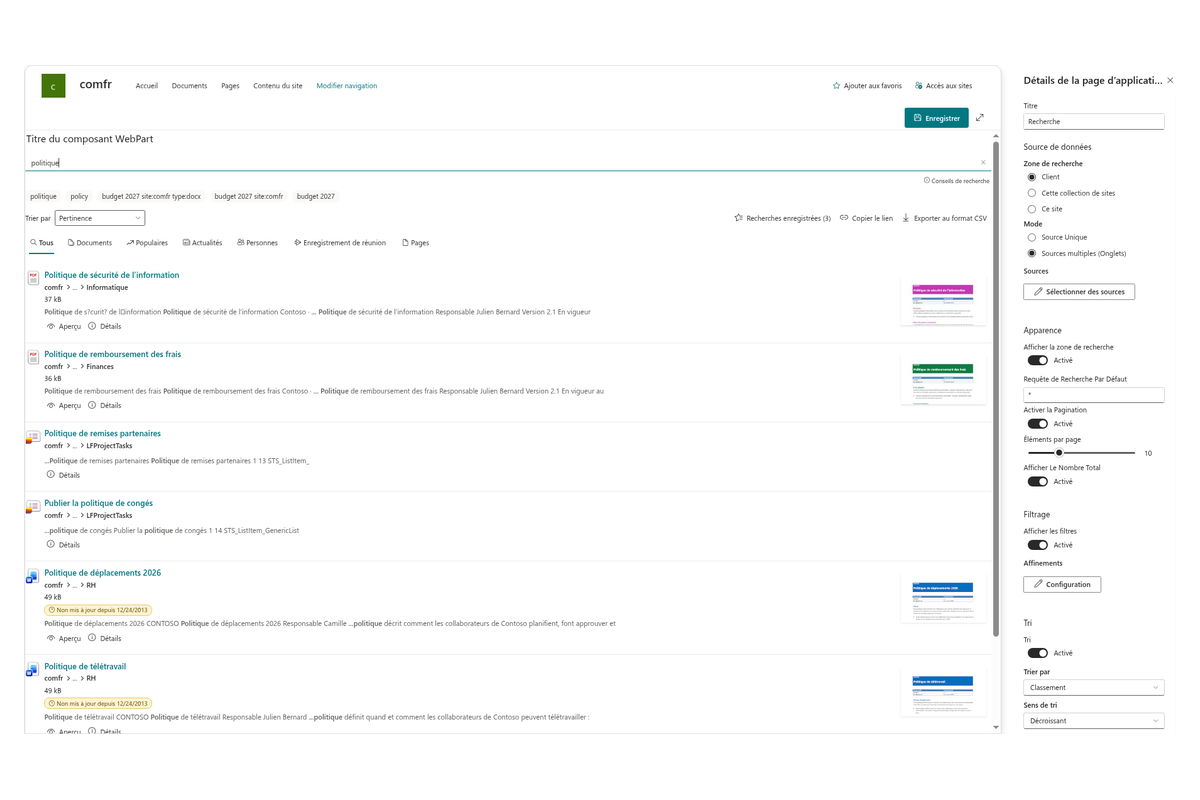
- Onglets pour basculer entre les sources de résultats de recherche
- Mise en page des éléments personnalisable
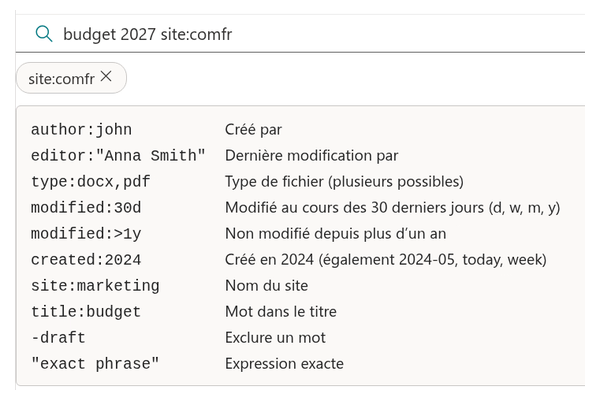
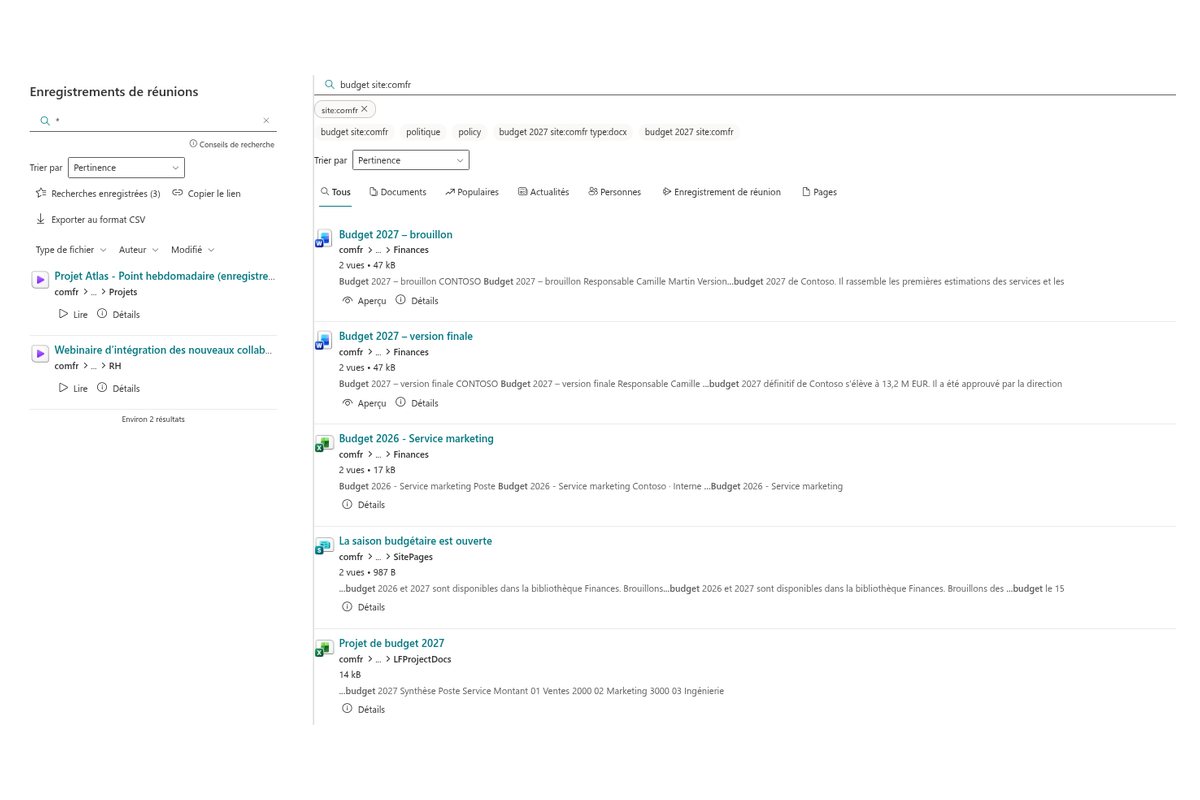
- Opérateurs de recherche directement dans la zone de recherche
- Tri, liens partageables et recherches enregistrées
- Export des résultats au format CSV
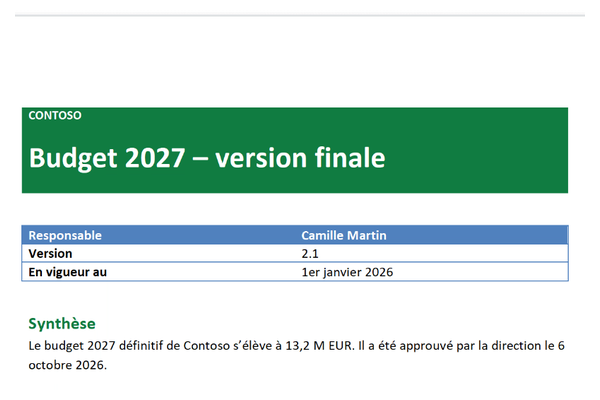
- Volet de détails : aperçu, propriétés, historique des versions
- Détection des copies de fichiers et indicateurs de qualité du contenu
- Boutons d'action
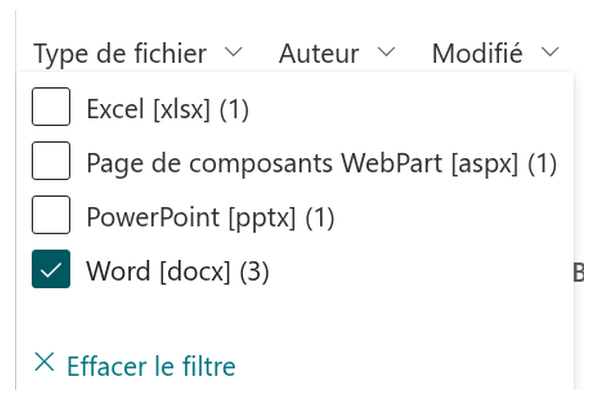
- Panneau d'affinement
- Prise en charge du SharePoint Brand Center
Vue d'ensemble
Smart Search est un composant WebPart avancé pour SharePoint Online, conçu pour améliorer votre expérience de recherche. Il offre une interface intuitive qui permet aux utilisateurs de saisir rapidement leurs requêtes et d'obtenir des résultats précis, tandis que les opérateurs de recherche, les affinements et le tri facilitent la réduction des résultats à l'essentiel.
Intégré en toute transparence à votre environnement SharePoint existant — avec prise en charge du SharePoint Brand Center —, Smart Search offre un moyen fluide, efficace et conforme à votre identité visuelle de trouver des documents et des informations dans l'ensemble de l'intranet.
Configurable
Vitextra Smart Search propose plus de 30 paramètres personnalisables pour répondre aux besoins de tout centre de recherche moderne.
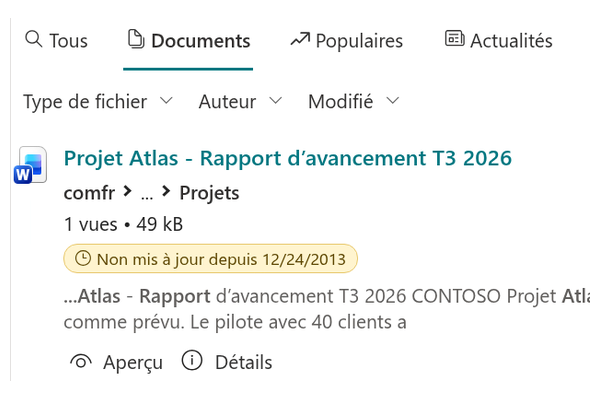
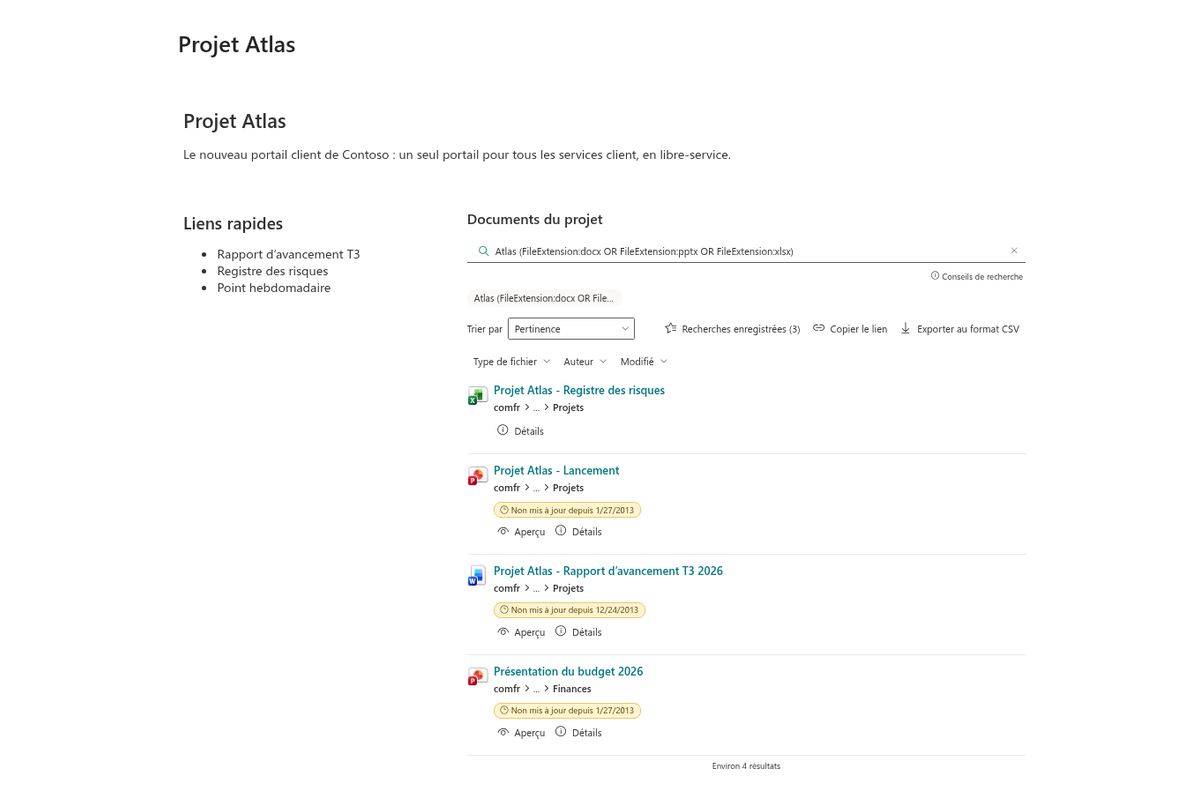
La mise en page personnalisable des éléments permet de modifier l'affichage des résultats de recherche : de la simple vue avec le titre seul à une vue enrichie comprenant un fil d'Ariane vers l'emplacement de l'élément, une miniature du document, des statistiques de consultations et de lecteurs récents, un résumé, des balises de taxonomie, la taille du fichier, et plus encore.
Sources de résultats de recherche
Smart Search prend en charge deux modes de fonctionnement :
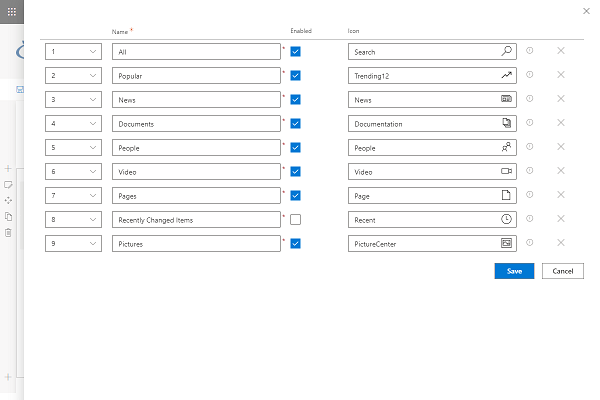
- Source unique. Choisissez l'une des dix sources de recherche intégrées (Tout, Documents, Populaire, Actualités, Personnes, Enregistrement de réunion, Pages, etc.) pour restreindre le périmètre de recherche.
- Sources multiples (onglets). Choisissez les sources de recherche disponibles et leur ordre afin que les utilisateurs puissent basculer de l'une à l'autre.
Le périmètre de recherche peut être limité à l'ensemble du tenant, à la collection de sites actuelle ou au site actuel.
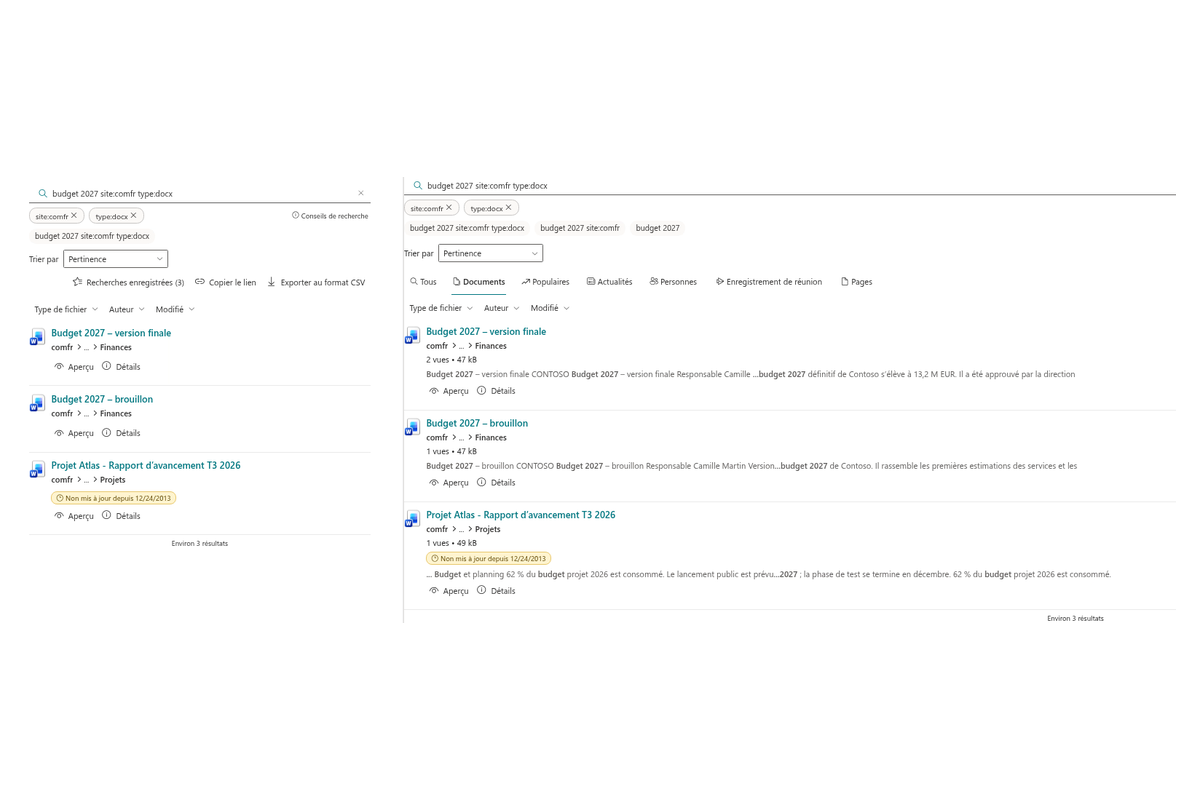
Opérateurs de recherche
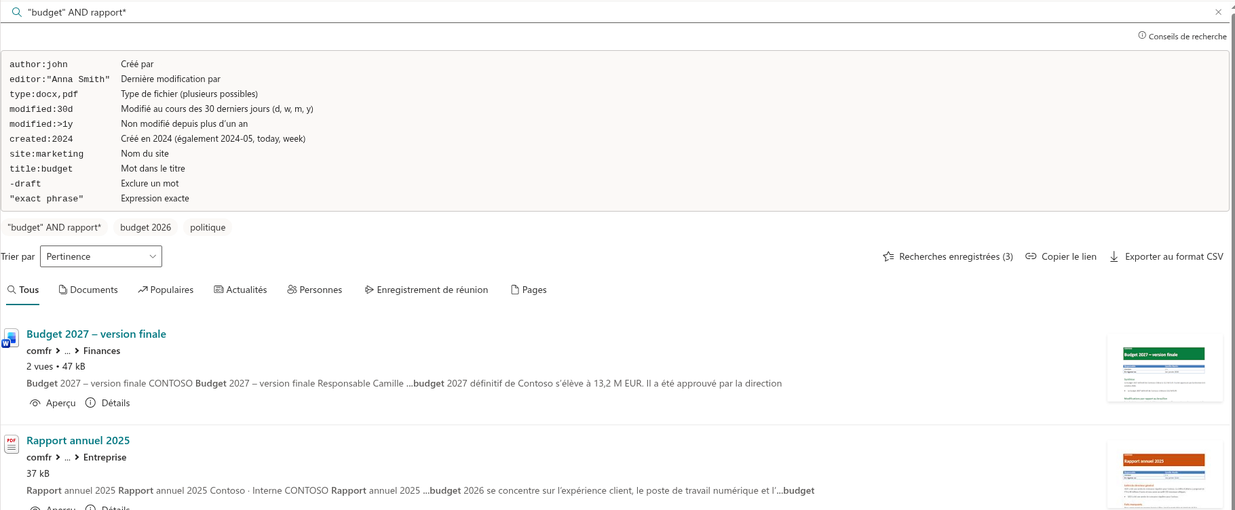
Saisissez les opérateurs directement dans la zone de recherche — inutile d'apprendre le KQL :
author:john,editor:"Anna Smith"— par auteur ou dernier éditeurtype:docx,pdf— par type de fichier (plusieurs possibles)modified:30d,modified:>1y,created:2024— par datesite:marketing,title:budget— par nom de site ou mot du titre-draft— exclure un mot ;"expression exacte"— rechercher une expression
Les opérateurs reconnus s'affichent sous forme de pastilles sous la zone de recherche et se suppriment d'un clic. Le lien « Conseils de recherche » les liste tous. Le KQL natif (par exemple FileType:docx) continue de fonctionner comme avant.
Panneau d'affinement
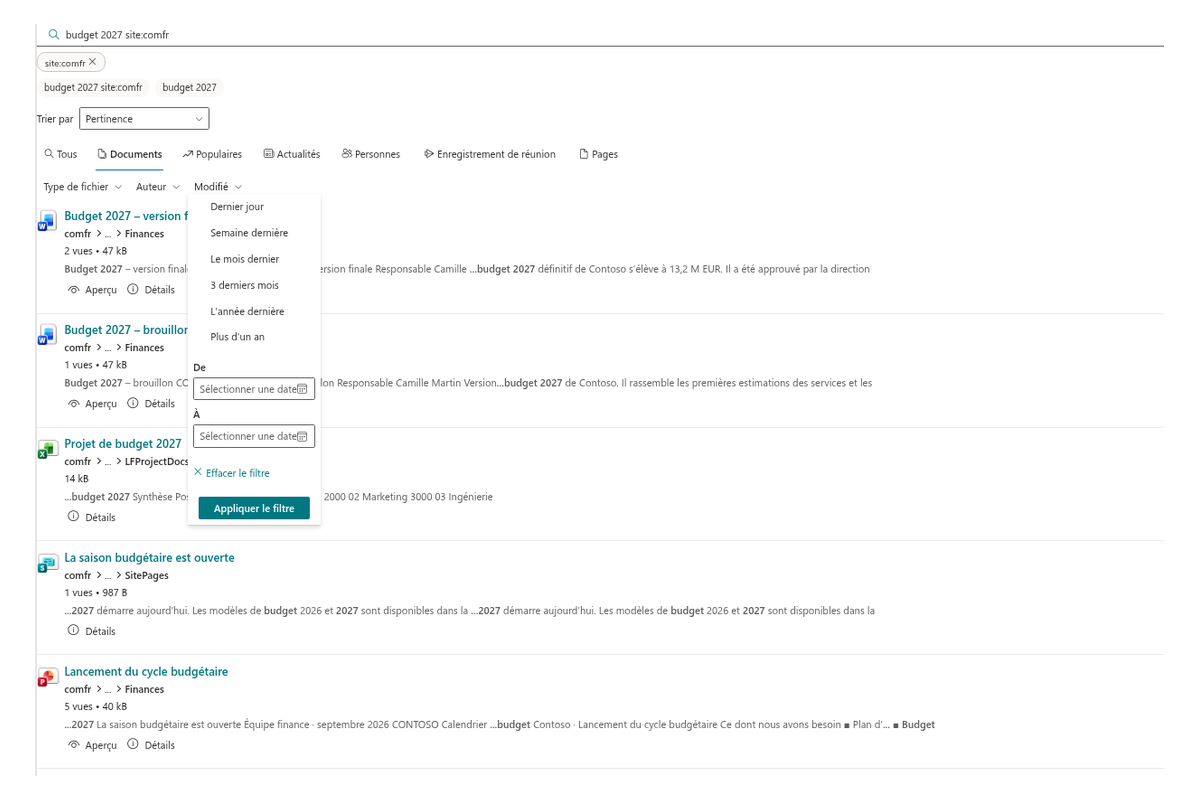
Le panneau d'affinement aide les utilisateurs à transformer une longue liste de résultats en une sélection ciblée en quelques clics. Affinez les résultats selon les attributs qui comptent — type de fichier, dates de modification et de création, auteur, éditeur, type de contenu, balises et autres propriétés gérées — sans ressaisir la requête : le panneau s'affiche à côté de la liste des résultats, le contexte de recherche est donc toujours préservé.
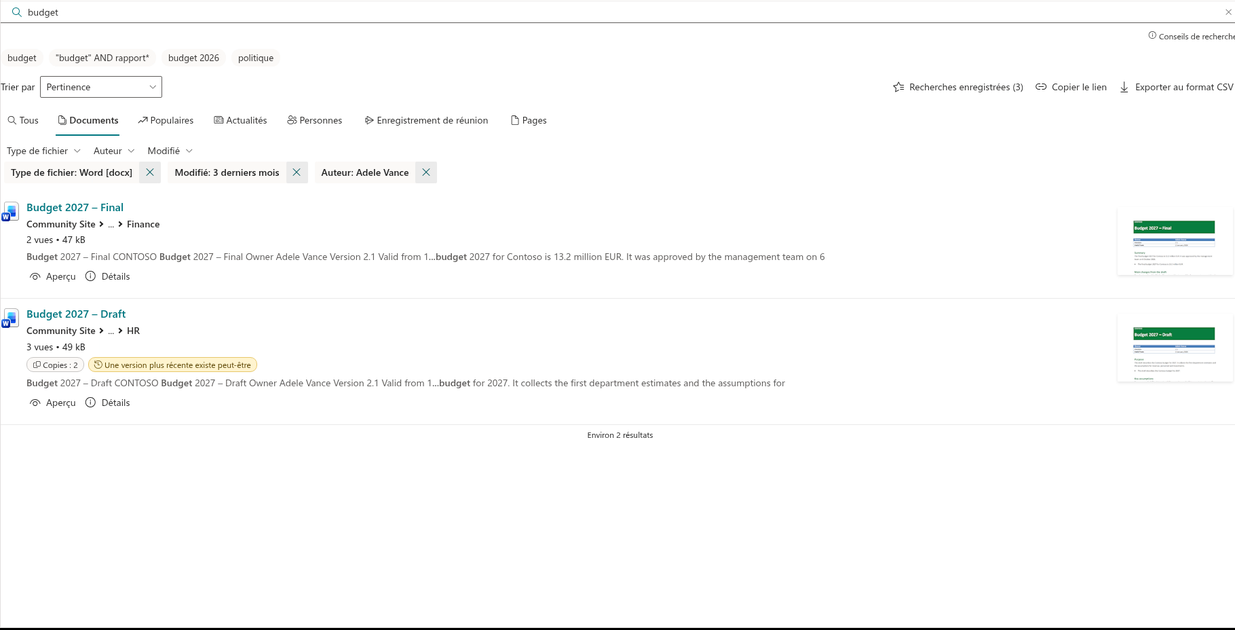
Tri
Choisissez Pertinence, Plus récents d'abord, Plus anciens d'abord, Les plus consultés, Titre (A–Z / Z–A), Plus volumineux ou Plus petits d'abord, juste au-dessus des résultats. Le choix fait partie du lien de la page : il est donc conservé lorsque le lien est partagé. Sur les onglets qui ne prennent pas en charge le tri, le sélecteur est masqué.
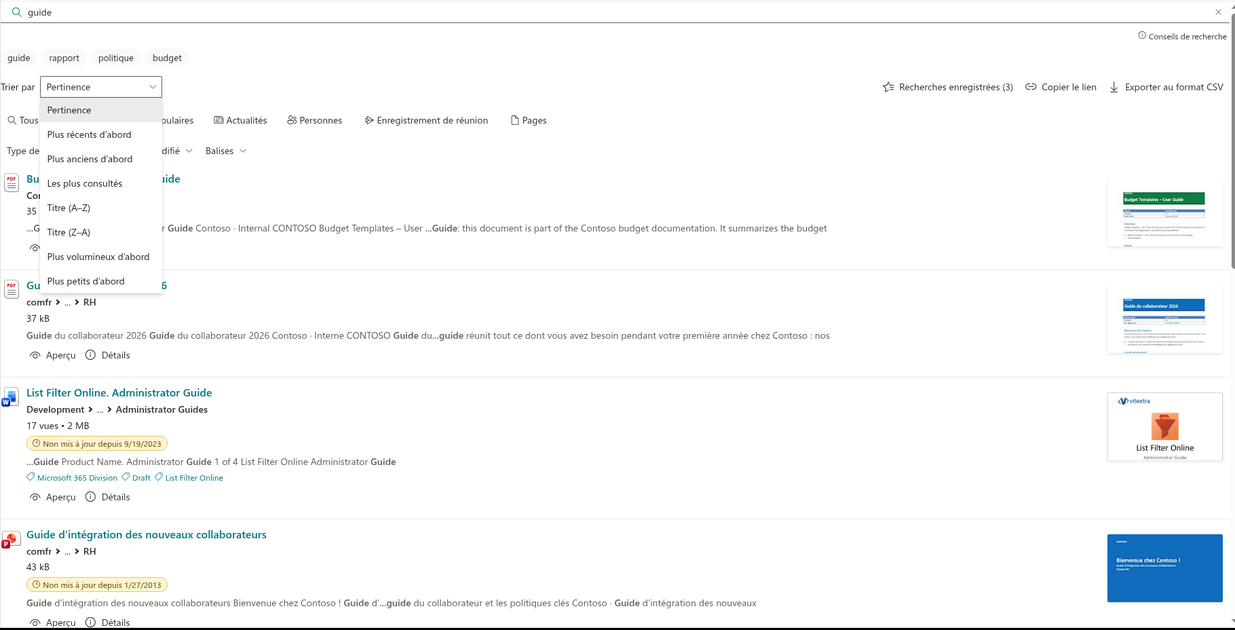
Boutons d'action
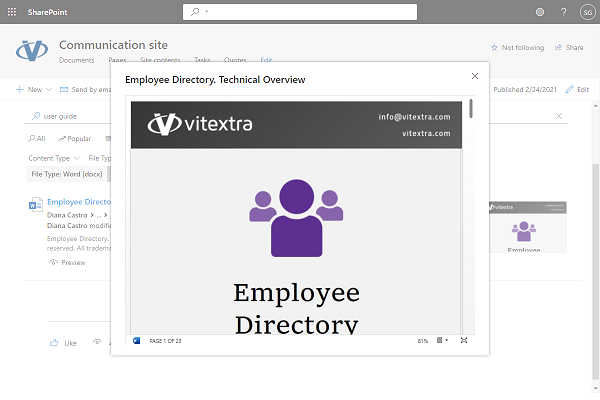
Des boutons d'action sont proposés selon le type de résultat de recherche :
- Télécharger. Lien direct vers le document pour le télécharger immédiatement
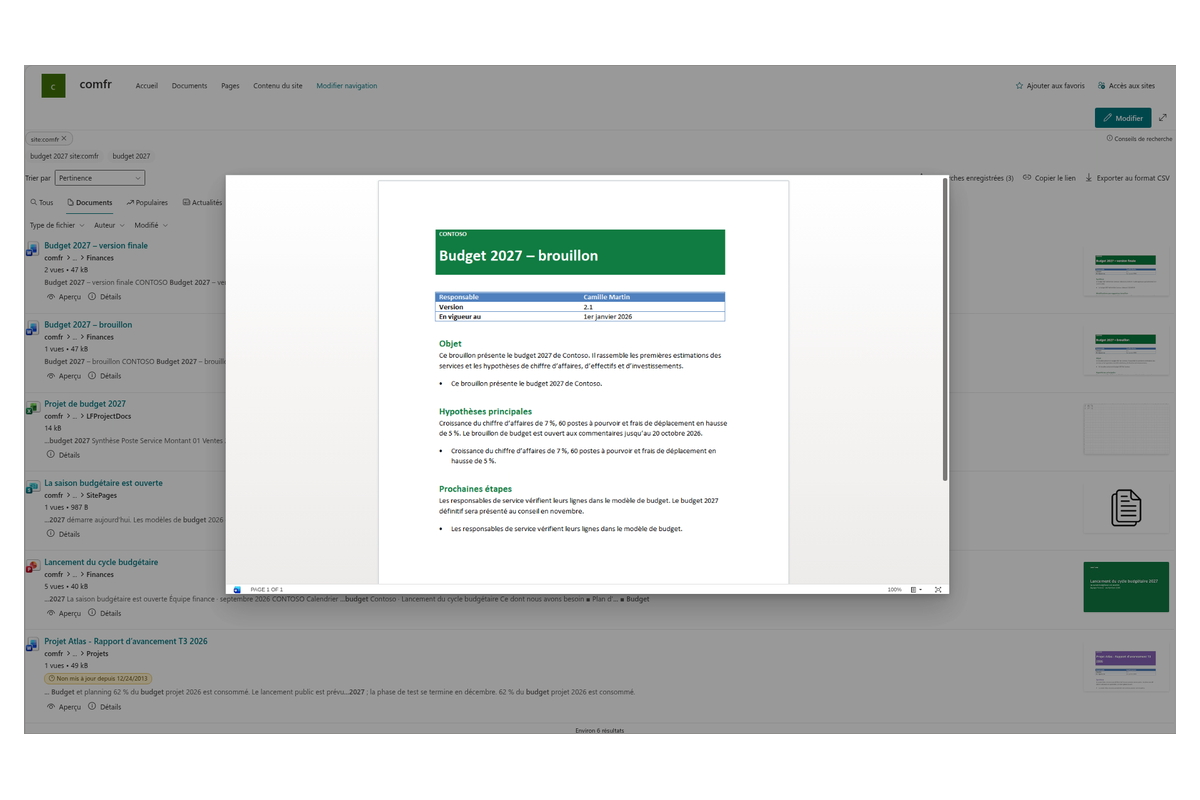
- Aperçu. Ouvrir un document Microsoft Office dans une boîte de dialogue pour en consulter le contenu
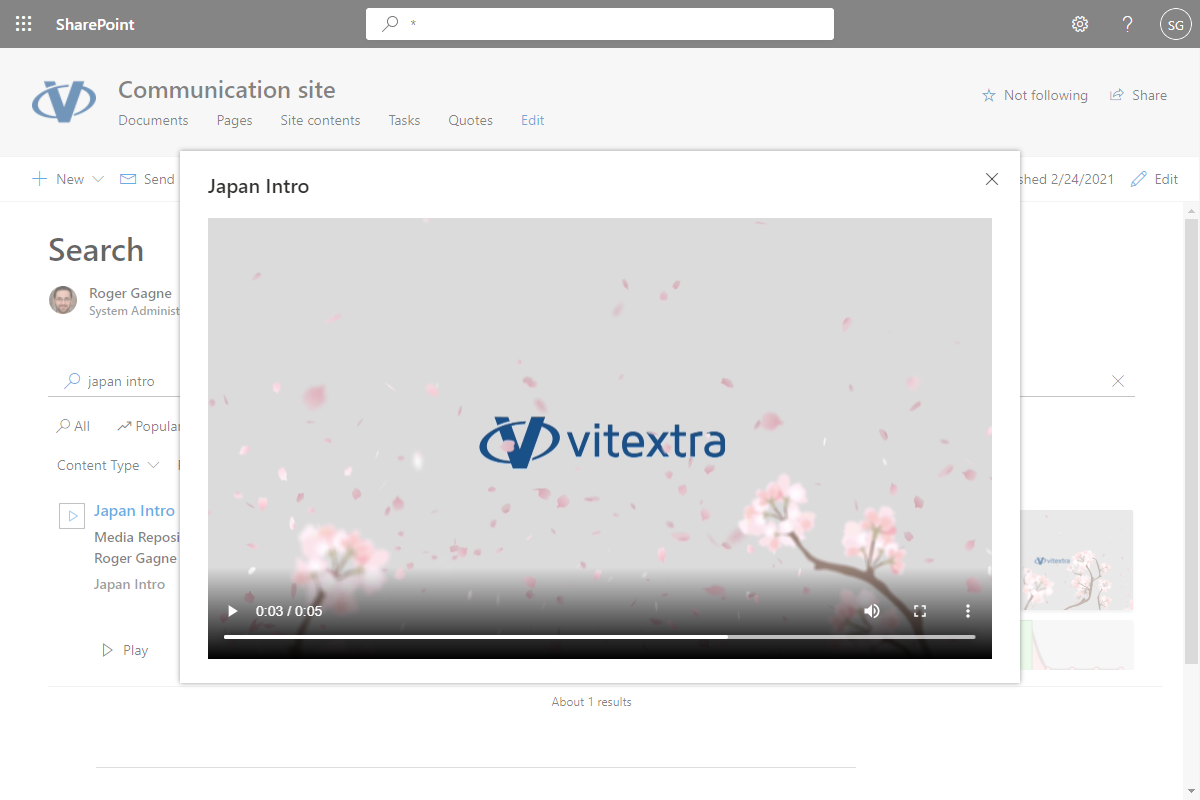
- Lire. Lire un fichier vidéo dans une boîte de dialogue
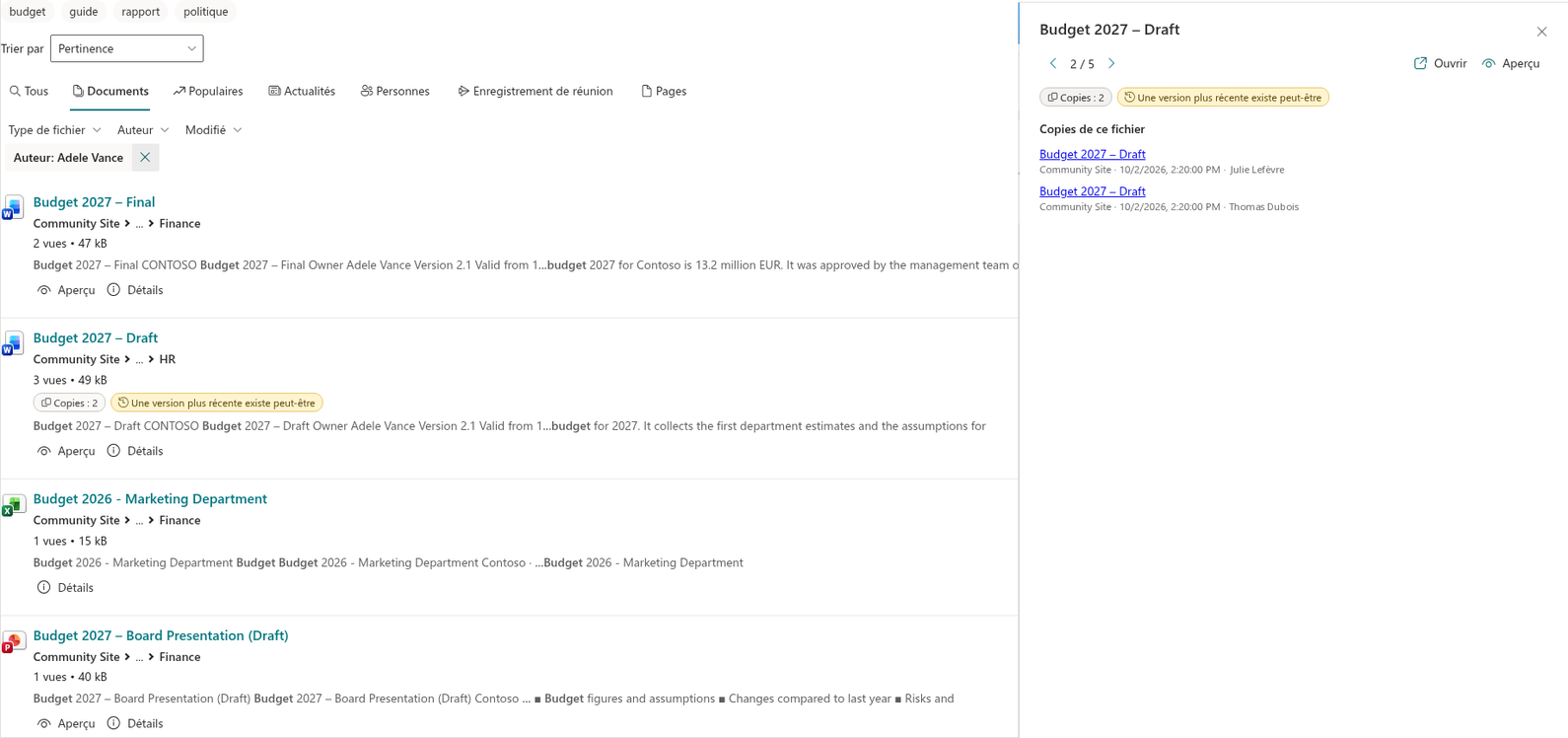
- Détails. Ouvrir le volet de détails du résultat
Les boutons d'action permettent d'agir sur un résultat tout en conservant le contexte de recherche — sans ouvrir de nouveaux onglets de navigateur.
Volet de détails
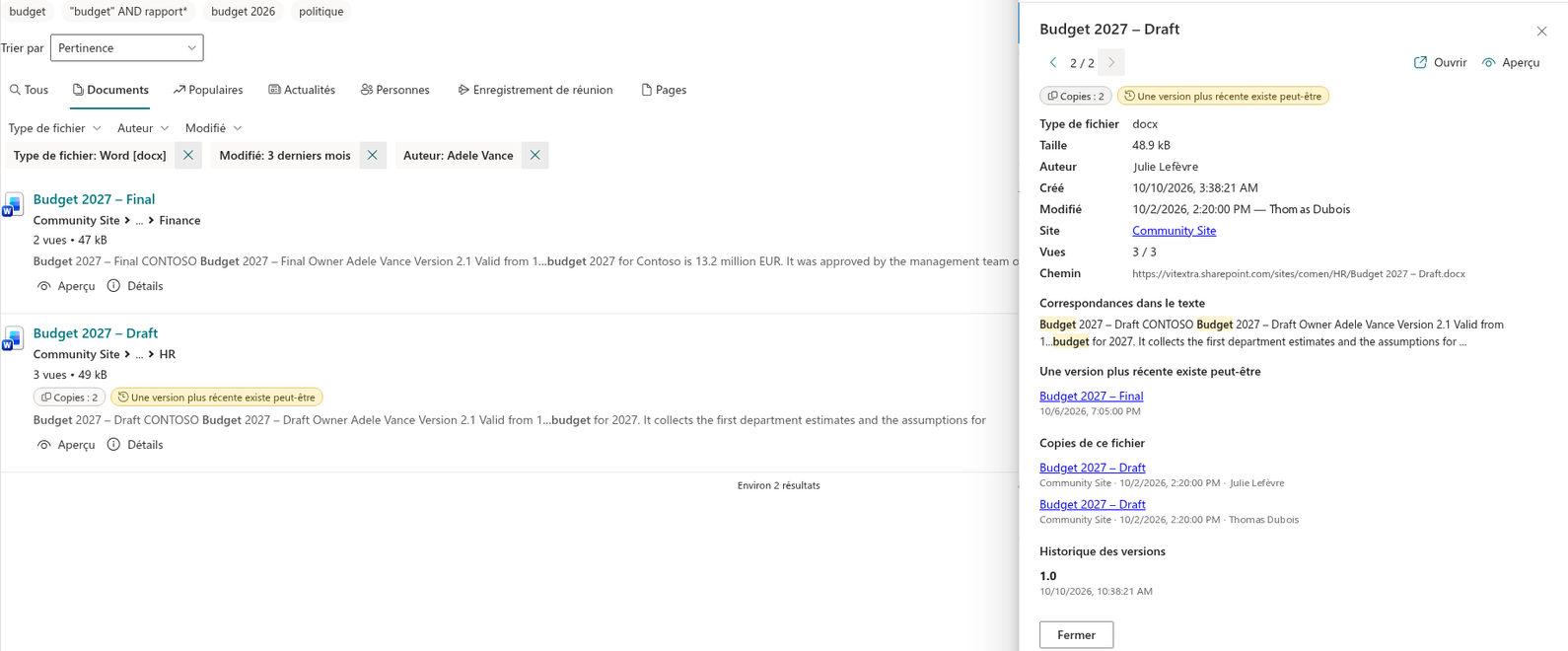
Comprenez un résultat sans l'ouvrir. L'action « Détails » ouvre un volet latéral avec l'aperçu du document, ses propriétés, les correspondances trouvées dans le texte, les copies du fichier et l'historique des versions. Utilisez les boutons fléchés ou les touches ← / → pour passer d'un résultat à l'autre sans fermer le volet.
Copies et qualité du contenu
Gardez votre contenu propre :
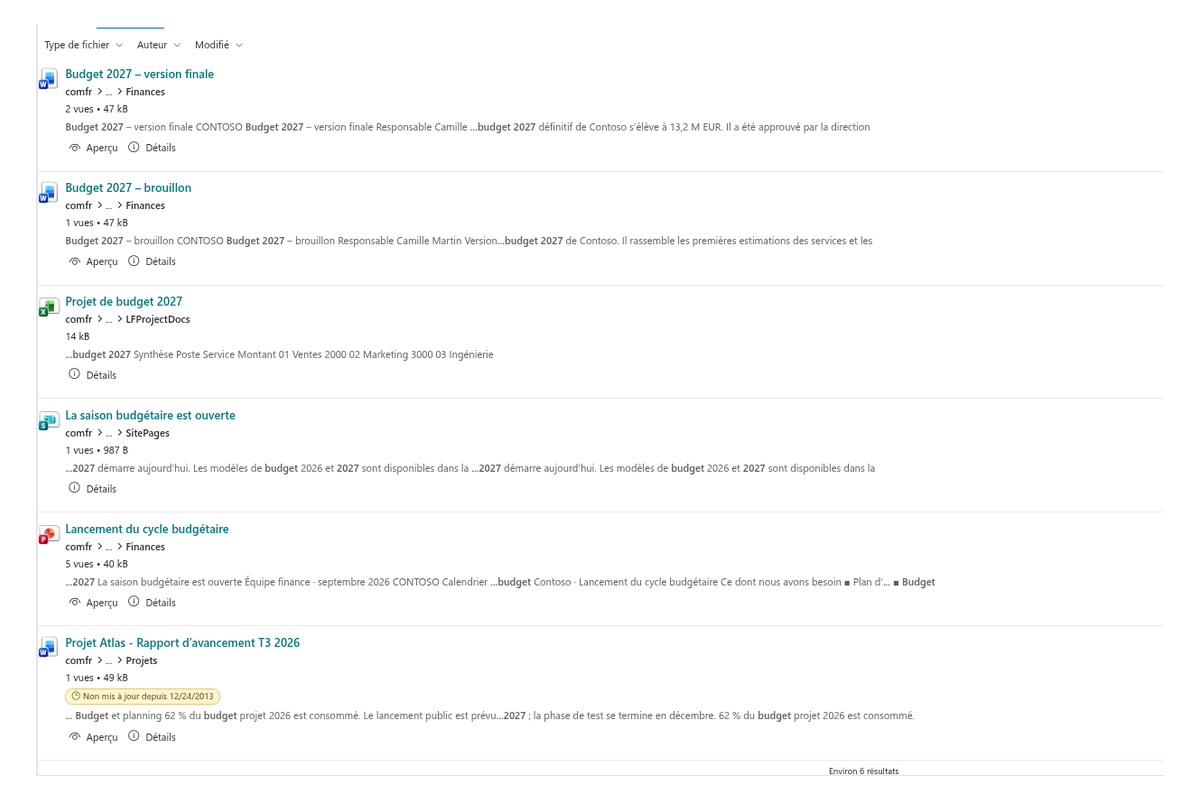
- Copies d'un même fichier. Les résultats affichent « Copies : N » lorsqu'il existe d'autres copies du même contenu ; le volet de détails indique où elles se trouvent.
- Indicateurs de qualité. Des badges signalent le contenu non mis à jour depuis longtemps (24 mois par défaut, configurable), sans propriétaire, ou portant une étiquette de confidentialité. Un badge distinct avertit lorsqu'une version plus récente dont le nom de fichier est similaire (« Plan_v1 » / « Plan_v2 ») figure sur la même page de résultats.
Recherches enregistrées et liens partageables
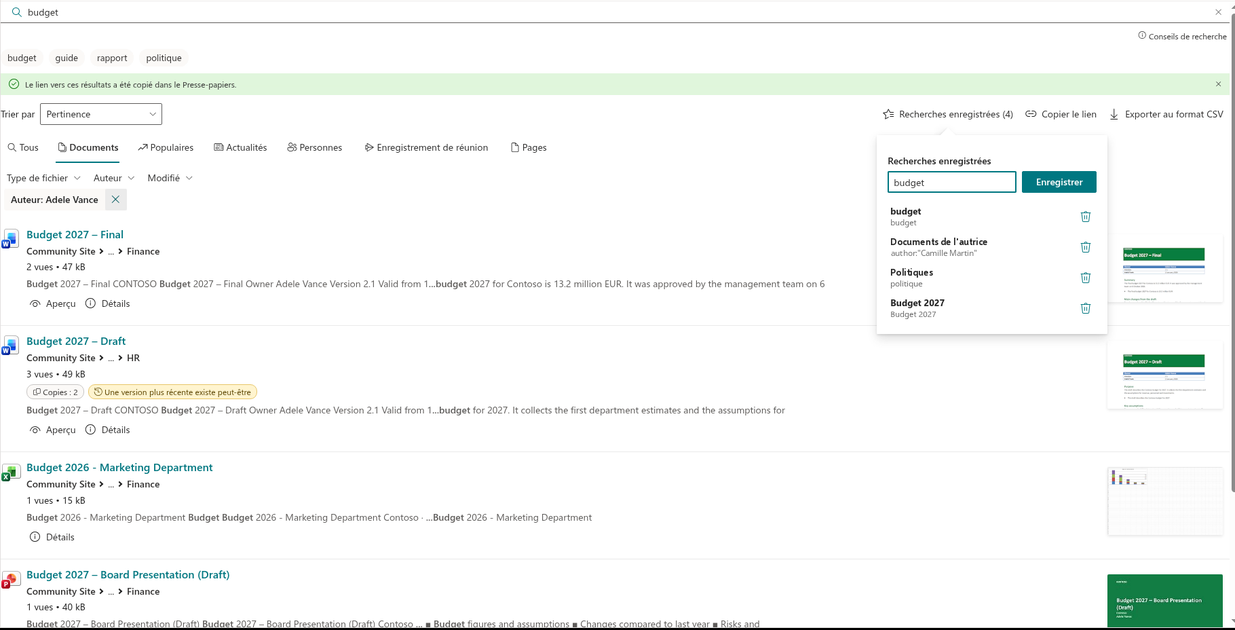
- Liens partageables. La requête, l'onglet, les filtres, l'ordre de tri et la page sont enregistrés dans l'adresse de la page. « Copier le lien » place l'adresse dans le presse-papiers, et l'ouverture d'un tel lien restaure exactement la même liste de résultats.
- Recherches enregistrées. Enregistrez la requête actuelle avec son onglet, ses filtres et son tri sous un nom, et réappliquez-la en un clic (jusqu'à 30 par utilisateur). Les recherches enregistrées sont stockées dans le navigateur de l'utilisateur et ne sont pas synchronisées entre les appareils.
Export au format CSV
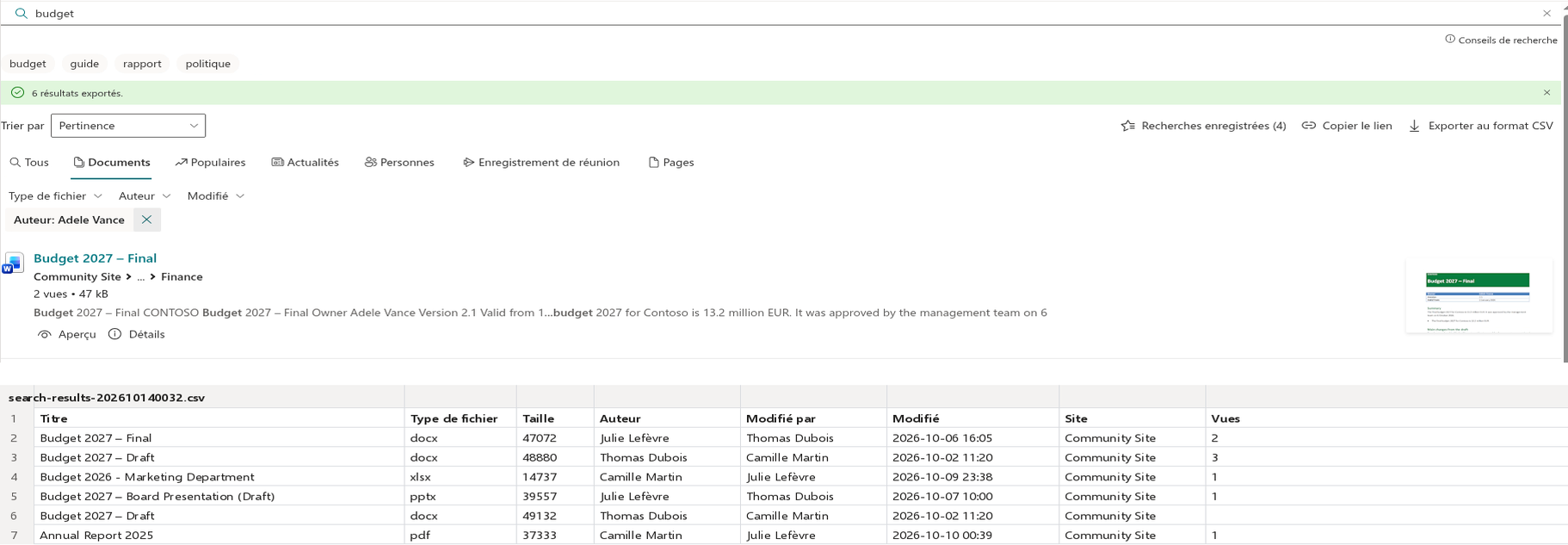
Téléchargez tous les résultats de la requête actuelle avec les filtres actifs (jusqu'à 1 000 lignes) : titre, lien, type, taille, auteur, éditeur, dates, site, consultations, balises et résumé. Le fichier s'ouvre correctement dans Excel, y compris dans les versions localisées.
Simple à administrer
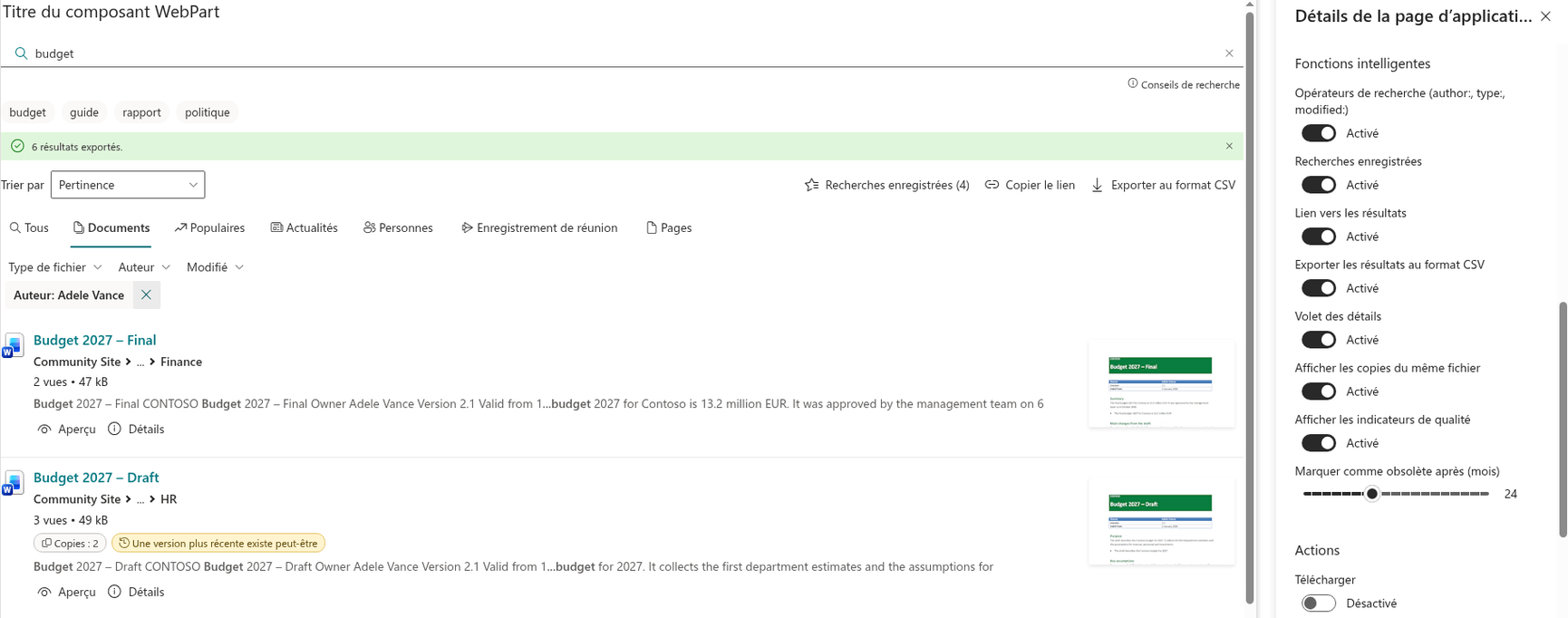
Toutes les nouvelles fonctionnalités sont regroupées dans la section « Fonctionnalités intelligentes » du volet des propriétés : chacune peut être activée ou désactivée, et la durée au-delà de laquelle un contenu est considéré comme obsolète est réglable. Tout est activé par défaut.
Smart Search reprend les couleurs et les polices du thème du site, prend en charge les variantes de thème et le SharePoint Brand Center, fonctionne dans les pages SharePoint et dans Microsoft Teams (application personnelle et onglet), et l'interface est localisée dans plus de 40 langues.
Base de connaissances
Lisez les articles liés à Smart Search



Questions des clients
Quelques questions fréquentes sur Smart Search
Qu'est-ce que Smart Search et en quoi diffère-t-il de la recherche SharePoint intégrée ?
Smart Search est un composant WebPart pour SharePoint Online et Microsoft Teams qui améliore la recherche de documents et d'informations grâce à plus de 30 paramètres configurables : plusieurs sources de recherche affichées sous forme d'onglets, un volet d'affinement, le tri, des mises en page de résultats enrichies avec miniatures et statistiques, ainsi que des actions Télécharger/Aperçu/Lire. Il utilise le service de recherche SharePoint intégré ; les résultats sont donc toujours filtrés selon les autorisations de chaque utilisateur. Consultez la page du produit et le guide de l'administrateur.
Puis-je remplacer la page de résultats de recherche SharePoint par défaut ?
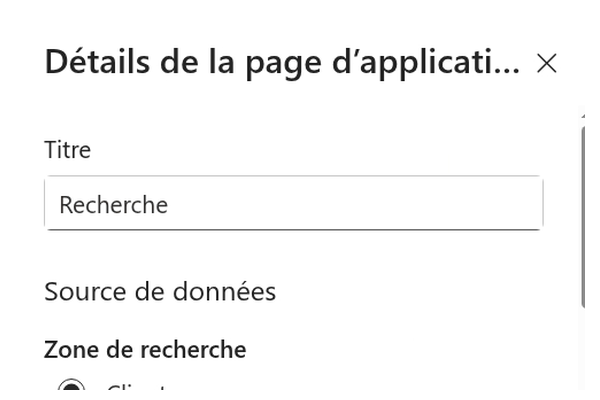
Oui. Créez une page contenant le composant WebPart Smart Search, définissez * comme requête de recherche par défaut, puis faites pointer la page de résultats de recherche du site vers celle-ci dans Paramètres du site → Paramètres de recherche. Smart Search récupère alors la requête saisie dans la zone de recherche de l'en-tête SharePoint. Notez que la modification peut prendre jusqu'à cinq minutes pour être appliquée et que Smart Search prend en charge une seule page d'application. La procédure complète figure dans Créer une page de résultats de recherche personnalisée avec Smart Search.
Quelles sources de recherche sont disponibles ?
Smart Search est livré avec neuf sources intégrées — par exemple Enregistrements de réunion, Éléments populaires et Éléments récemment modifiés — et peut fonctionner en mode Source unique ou en mode Sources multiples, où les sources apparaissent sous forme d'onglets dans l'ordre que vous définissez. Les sources de recherche personnalisées ne sont pas prises en charge, et le tri ne s'applique pas aux sources Éléments populaires et Éléments récemment modifiés.
Puis-je rechercher des réunions Teams enregistrées ?
Oui. Configurez le composant WebPart en mode Source unique avec Enregistrement de réunion comme source et * comme requête par défaut ; les utilisateurs peuvent alors retrouver les enregistrements stockés dans OneDrive ou SharePoint et les filtrer par auteur et par date d'enregistrement. Consultez Rechercher des réunions Teams enregistrées avec Smart Search.
Comment personnaliser l'apparence des résultats ?
Chaque résultat peut afficher jusqu'à 12 champs — titre, fil d'Ariane, miniature, statistiques de consultation, résumé pour le lecteur (de 100 à 300 caractères), balises de taxonomie, taille du fichier et plus encore — et tous, à l'exception du titre, peuvent être masqués pour obtenir une vue compacte limitée aux titres. Le composant WebPart prend en charge le Brand Center de SharePoint et hérite du thème du site.
Évaluations
Pas encore d’avis
Langues prises en charge
Langues prises en charge
Plateformes
Plateformes prises en charge
Modifications récentes
- v26.10.9 #
🚀 Nouvelles fonctionnalités
- Opérateurs de recherche — saisissez
author:john,editor:"Anna Smith",type:docx,pdf,modified:30d,modified:>1y,created:2024,site:marketing,title:budget,-draftou"expression exacte"directement dans la zone de recherche ; les opérateurs reconnus apparaissent sous forme de puces supprimables, et le lien Conseils de recherche les énumère tous. Le KQL natif continue de fonctionner. - Sélecteur de tri — triez par Pertinence, Plus récents d'abord, Plus anciens d'abord, Les plus consultés, Titre (A–Z / Z–A), Plus volumineux ou Plus petits d'abord ; le choix fait partie du lien de la page, et les onglets sans prise en charge du tri masquent le sélecteur.
- Liens partageables — la requête, l'onglet, les filtres, le tri et la page sont enregistrés dans l'adresse de la page ; Copier le lien restaure exactement la même liste de résultats pour toute personne qui l'ouvre.
- Recherches enregistrées — enregistrez la recherche en cours avec son onglet, ses filtres et son tri sous un nom de votre choix, puis réappliquez-la d'un clic (jusqu'à 30 par utilisateur ; stockées dans le navigateur, donc non synchronisées entre les appareils).
- Export au format CSV — téléchargez tous les résultats de la recherche en cours avec les filtres actifs (jusqu'à 1 000 lignes) : titre, lien, type, taille, auteur, éditeur, dates, site, consultations, balises et résumé ; le fichier s'ouvre correctement dans Excel, y compris dans les versions localisées.
- Volet de détails — la nouvelle action Détails ouvre un volet latéral avec l'aperçu, les propriétés, les correspondances dans le texte, les copies du fichier et l'historique des versions ; passez d'un résultat à l'autre avec les boutons fléchés ou les touches ← / →.
- Copies d'un même fichier — les résultats affichent Copies : N lorsque le même contenu existe ailleurs, et le volet de détails indique où (repose sur la propriété gérée
DocumentSignature; si elle ne peut pas être interrogée dans votre locataire, les copies ne sont simplement pas affichées). - Indicateurs de qualité — des pastilles signalent les contenus non mis à jour depuis longtemps (24 mois par défaut), sans propriétaire, portant une étiquette de confidentialité (
InformationProtectionLabelId) ou ayant peut-être une version plus récente avec un nom de fichier similaire sur la même page. - Fonctionnalités intelligentes — un nouveau groupe dans le volet des propriétés active ou désactive chaque fonctionnalité et définit le délai d'obsolescence ; tout est activé par défaut, et le tri est désormais activé par défaut pour les nouveaux composants WebPart.
- Opérateurs de recherche — saisissez
Rechercher d'autres applications
Applications suggérées
Partager
Envoyer des commentaires
Nous aimerions avoir de vos nouvelles ! Parlez-nous de votre expérience.