Ce contenu n’est pas disponible dans votre langue.

Set the starting folder

Use a starting folder to show a department or project branch immediately, instead of opening the whole library.

  1. Edit the page and open Settings → Source.
  2. Select the site and Document library first.
  3. In Starting folder (server-relative path), enter the existing server-relative path, for example /sites/hr/Shared Documents/Policies.
  4. Enter spaces, % and # literally. Do not paste a full URL or pre-encode the path.
  5. Save or republish the page and verify that the intended folder opens.

Choose the navigation boundary

Enable Restrict navigation to the starting folder to make the starting folder the top of the visible branch. The tree, breadcrumbs and folder links cannot navigate above it inside this web part. When this setting is off, the starting folder still opens first, but the library root is available for navigation. An empty starting-folder setting uses the library root.

❗ Important
The navigation boundary is not a security boundary. Users retain their SharePoint permissions. Open in library opens the full library interface; disable that action if you do not want to offer this route from the web part.

Check an invalid location

The starting folder must belong to the selected library. If the folder has been renamed, deleted or made inaccessible, correct its path or permissions. A deep link outside the allowed branch does not override the configured navigation root.

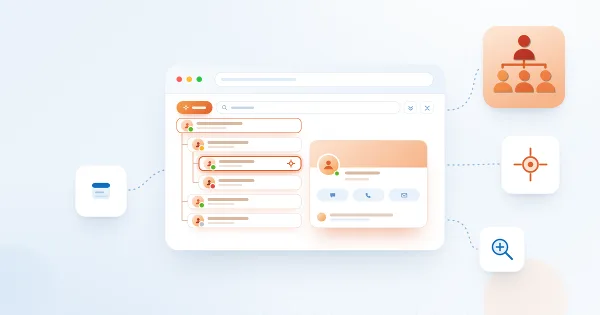
A starting folder used as the navigation root

A starting folder used as the navigation root

Questions et réponses

Posez une question sur cet article et obtenez une réponse officielle de notre équipe.

Aucune question pour le moment. Posez la première !

Articles à la une

Organizational Chart : guide rapide pour les utilisateurs finaux

Comment utiliser Vitextra Organizational Chart sur une page SharePoint ou dans Microsoft Teams : développer et réduire les branches, zoomer et déplacer l'organigramme, vous situer dans la hiérarchie, rechercher des collègues, lire les indicateurs de présence, ouvrir la carte de profil, actualiser les données et exporter l'organigramme en PDF ou en JPEG.

102 7 min
My Tasks : autorisations requises, confidentialité et sécurité

Quelles autorisations Microsoft Graph et Azure DevOps Vitextra My Tasks demande, comment un administrateur du locataire les approuve dans le centre d'administration SharePoint, avec quels droits les données sont lues, ce qui est stocké dans le navigateur et pourquoi le composant WebPart ne modifie pas les tâches Planner ni To Do.

99 6 min
Password Vault. Présentation de la solution

Présentation du composant WebPart Vitextra Password Vault pour SharePoint Online et Microsoft Teams : gestionnaire de mots de passe personnel protégé par un code PIN à 4 chiffres, entrées chiffrées dans le OneDrive de chaque utilisateur, générateur de mots de passe, indicateur de robustesse, dossiers, étiquettes, favoris, recherche, verrouillage automatique, onglet et application personnelle Teams, autorisations et configuration requise.

47 9 min

Partager