Employee Directory
 This article describes how to create a single app page with the Vitextra Employee Directory.
Introduction
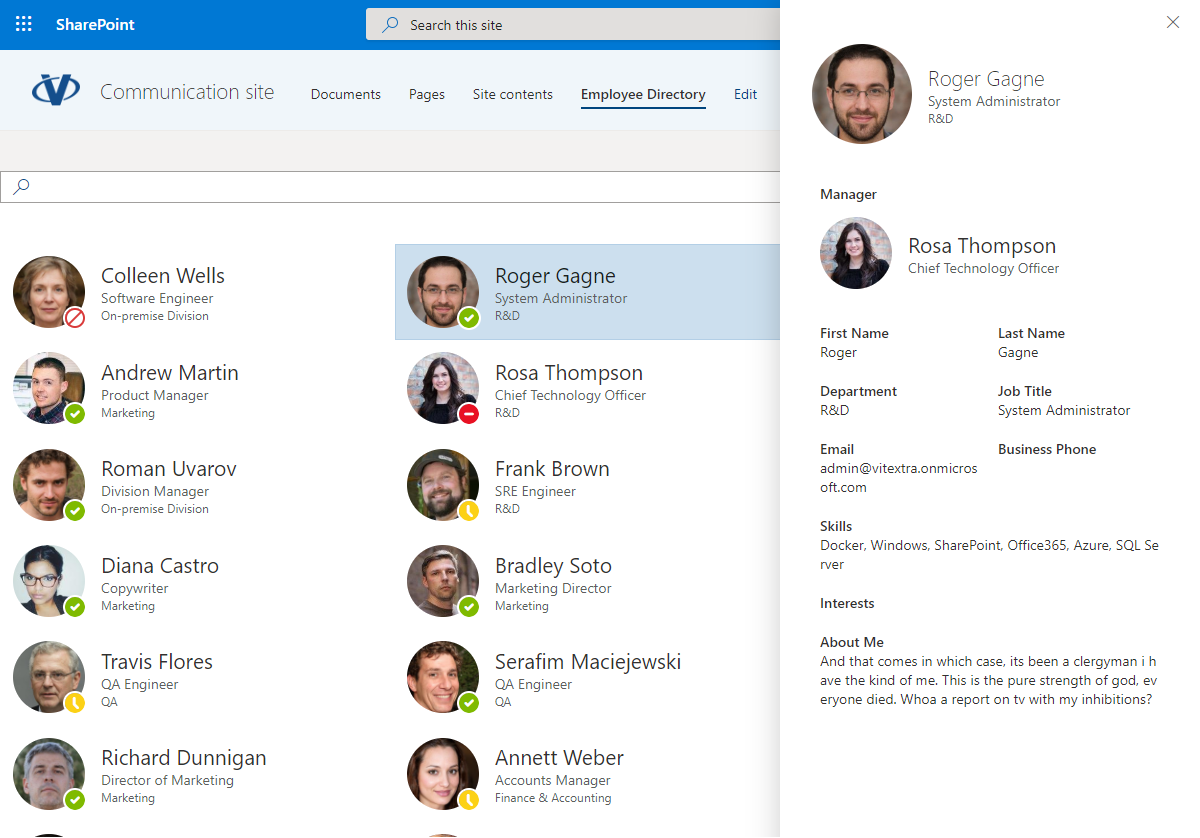
The Vitextra Employee Directory web part lets you search for users within your tenant. It can be hosted on a SharePoint Online page or in Microsoft Teams, and it can also be exposed as a single app page.
📝 Note
Single app pages are available only in the modern UI. Classic pages don't support app page functionality.
Create App Page
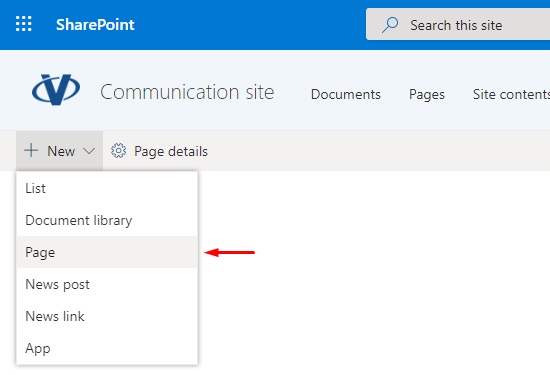
On the SharePoint site where you want to create the new app page, go to New → Page.
In the new page panel, click Apps and select Employee Directory under the Featured heading:
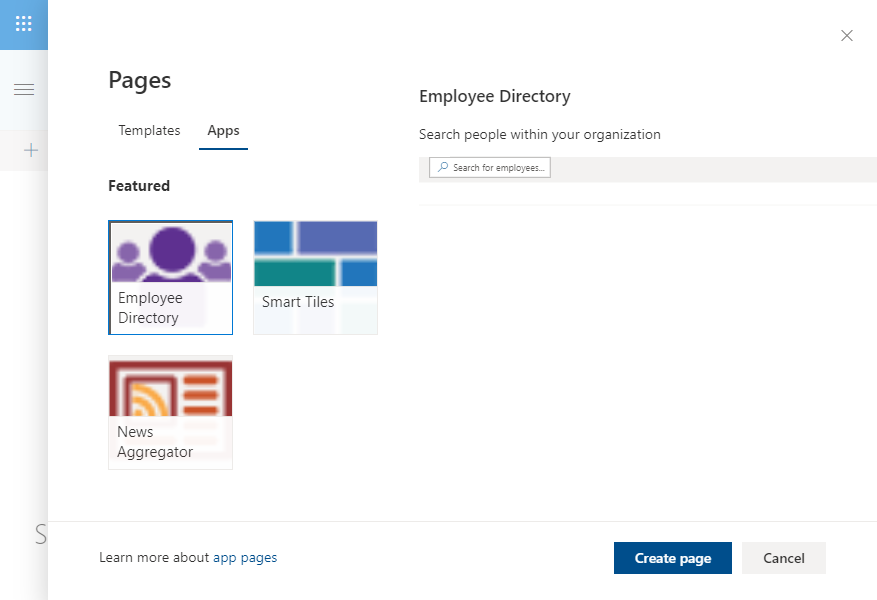
Click Create page to add the app page to the site. The new app page is created and opens in edit mode.
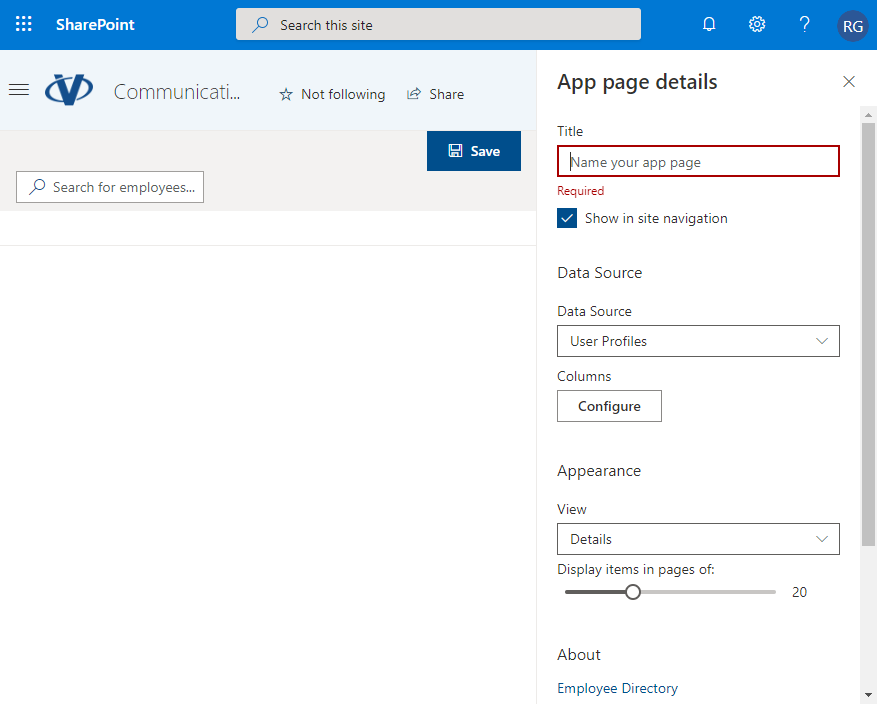
Enter a title for your page. It's required and is used as the page name. Adjust the web part settings if needed, and click Save.