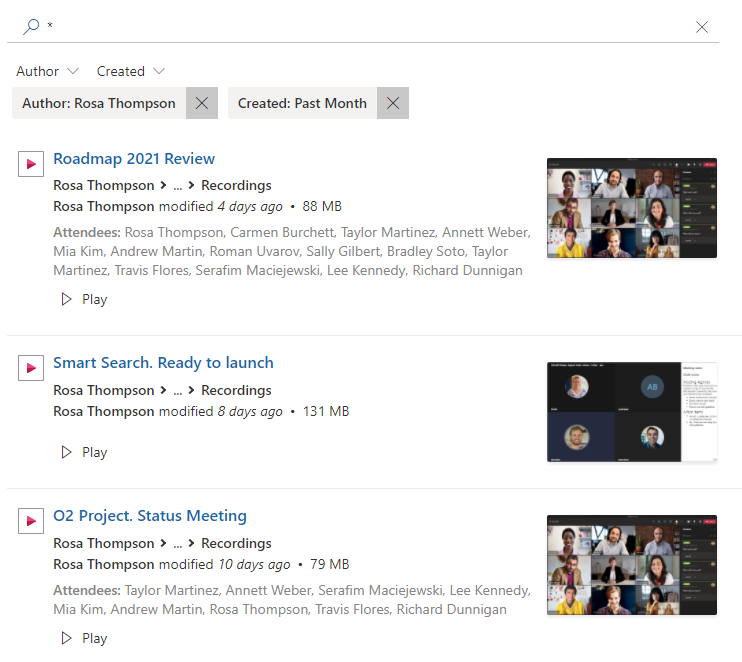
Smart Search
 This article describes how to set up Vitextra Smart Search to search recorded Teams meetings stored in OneDrive or SharePoint.
Add Web Part
Open the page where you want to add the web part in edit mode.
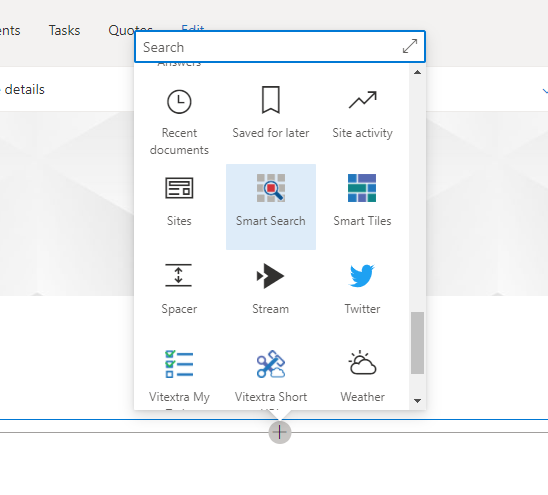
Click the circled + icon, scroll down, and select Smart Search from the list of available web parts.
Configuration
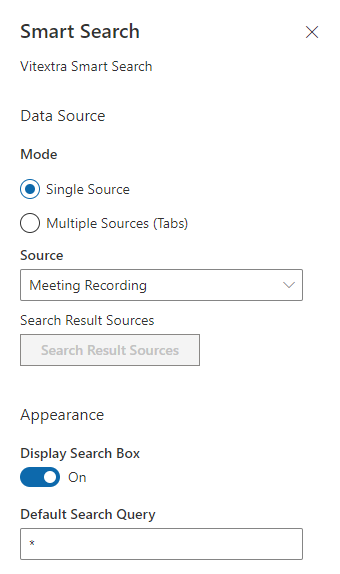
Open the Smart Search web part configuration page and apply the following settings:
- Mode -
Single Source - Source -
Meeting Recording - Default Search Query -
* - Sort By -
Last Modified - Sort Direction -
Descending
The asterisk in Default Search Query makes the web part show results as soon as it loads, so the user doesn't have to run a search first.
💡 Tip
The last two settings (Sort By and Sort Direction) are optional. Use them when you want the most recently modified videos to appear at the top.
Publish the page to save your changes.
Using It
With the Smart Search web part, users can search recorded Teams meetings and filter the results by author and recording date.