Employee Directory
 The Vitextra Employee Directory lets you export search results - the list of employees - to a Microsoft Excel spreadsheet.
This article describes how to enable and set up this feature.
❗ Important
The export to Microsoft Excel feature is available only in Employee Directory version 4.0.0 and higher.
Web Part Settings
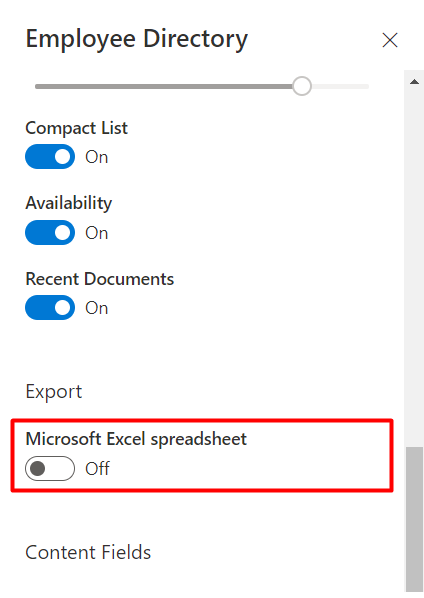
Open the Employee Directory web part settings, scroll down to the Export section, and turn on the Microsoft Excel toggle:
📝 Note
Both the Employee Directory and Employee Directory (Entra ID) web parts have similar settings for custom user properties.
Columns
To choose which attributes appear in the exported spreadsheet, open the Columns options and mark the attributes as visible:
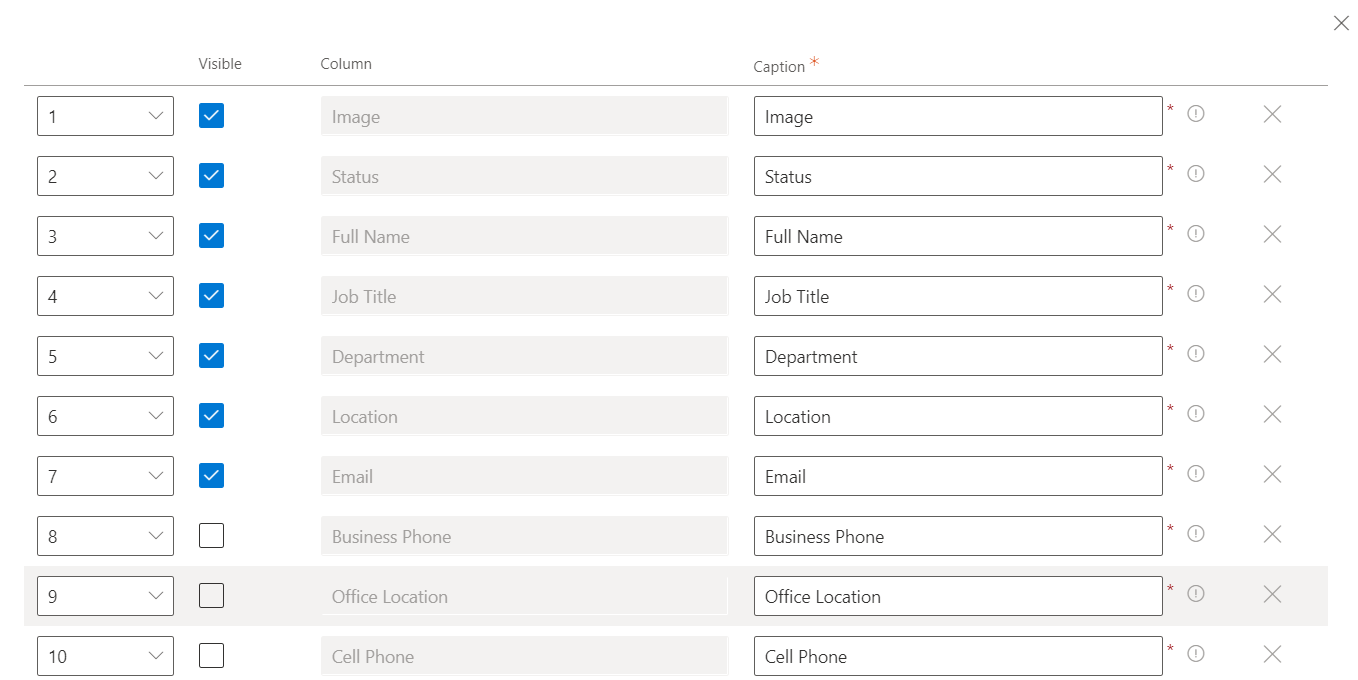
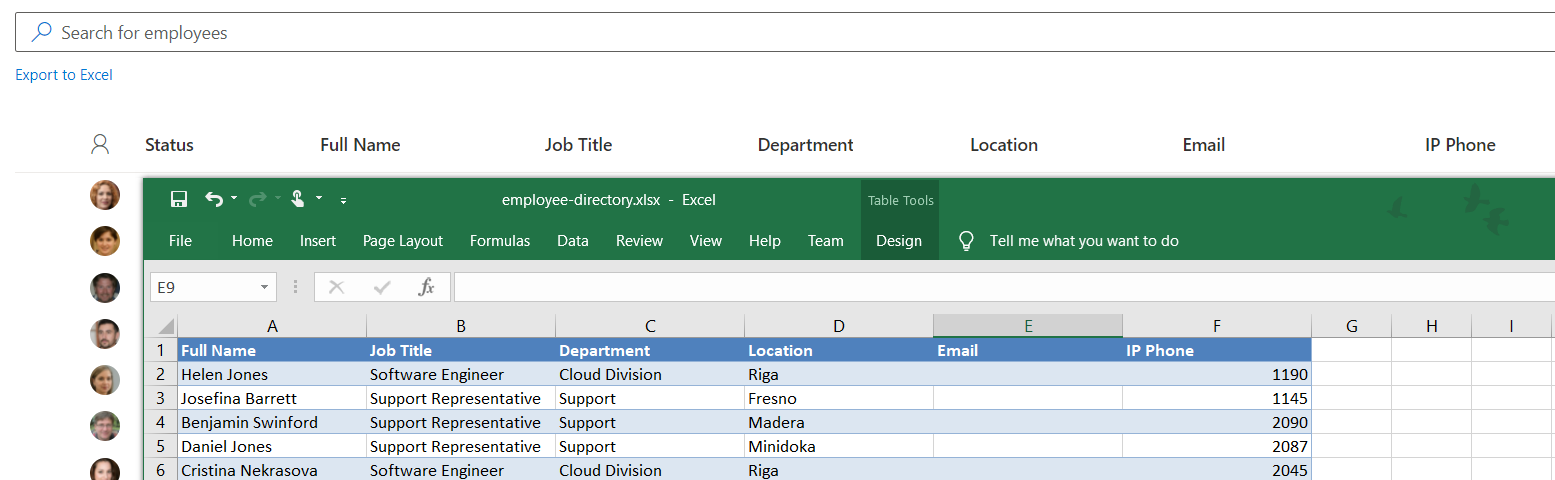
The column order in the exported Excel file matches the column order specified in the web part settings. Custom attributes are also supported and appear after the built-in attributes.
📝 Note
The columns in the exported spreadsheet are the same as those shown in the details view, except for User Picture and Presence Status, which are ignored during export.
Close the web part configuration pane and save your changes.
Export to Excel
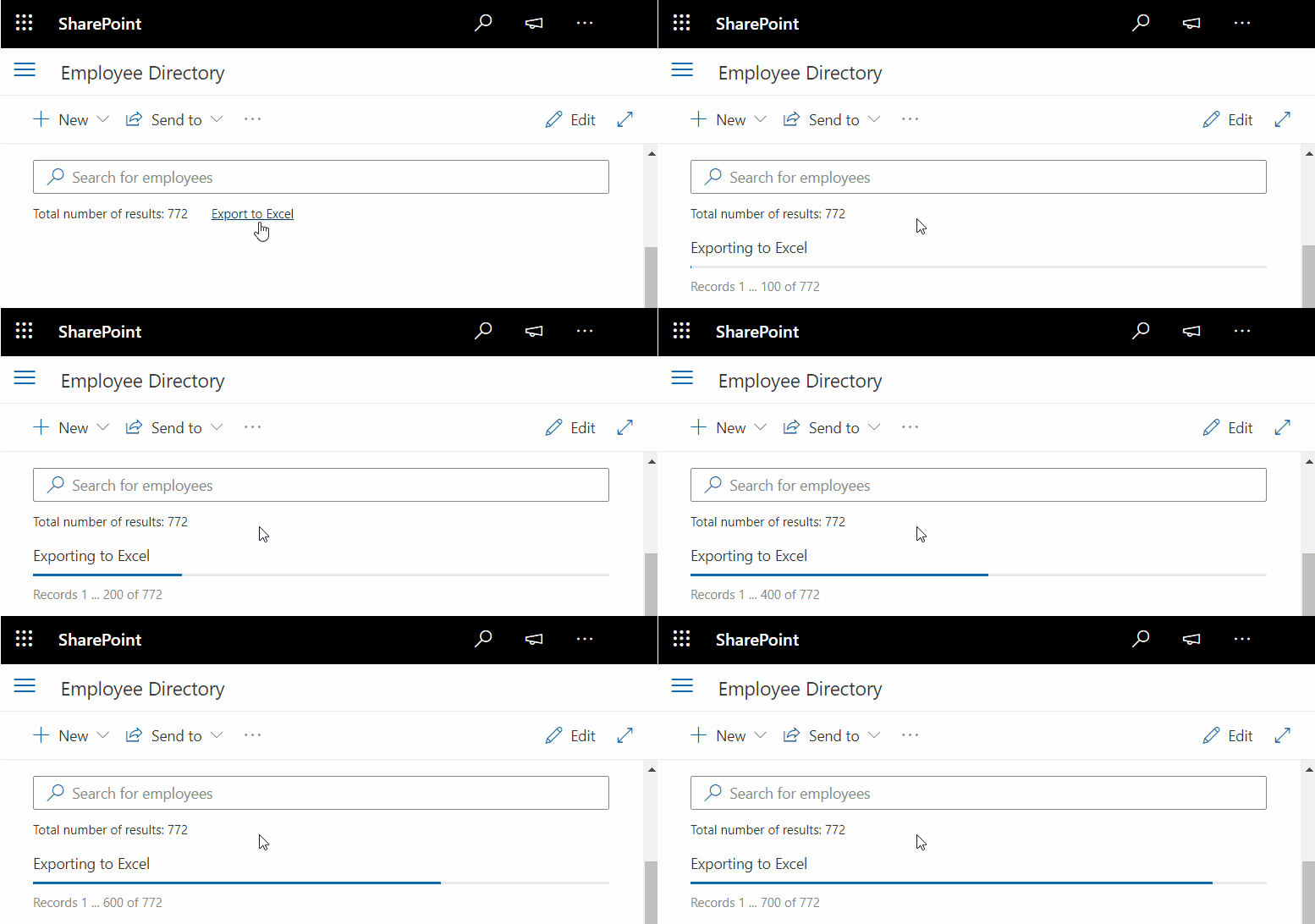
The export action link appears under the search box:

The Employee Directory can export data to Excel from both the User Profiles and Entra ID data sources.
For large result sets, the Employee Directory retrieves all records page by page and then generates the Excel file.
The exported Excel file contains plain data, with no links back to the original data source.
📝 Note
The export has a few limitations:
- The column widths in the exported spreadsheet are fixed.
- The table style is always Blue, Table Style Medium 2 and cannot be changed.