Quick Poll
 Quick Poll is an SPFx-based web part that lets you publish instant polls in seconds. This article describes how to set up permissions so that users with read-only access to the host site can still participate in polls and surveys.
Securable Objects
The web part's data structure has two securable objects:
- The list of polls.
- The list of responses.
📝 Note
Quick Poll automatically creates its lists once the web part is added to a page or Teams tab.
Required Permissions
End users don't need edit permissions on the list of polls. Only content managers and others who create new polls need edit access to that list.
To let users participate in polls, grant them Contribute permissions on the Responses list.
Responses List
The Quick Poll web part creates hidden lists as soon as it's added to a page or Teams tab. This article deals only with the list of user responses.
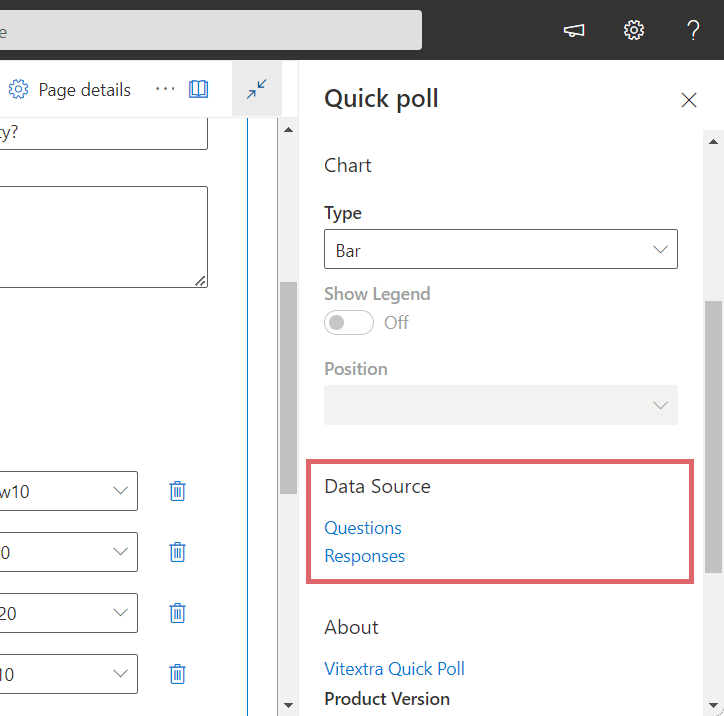
To open it, open the web part details pane, scroll down to the Data Source section, and select Responses.
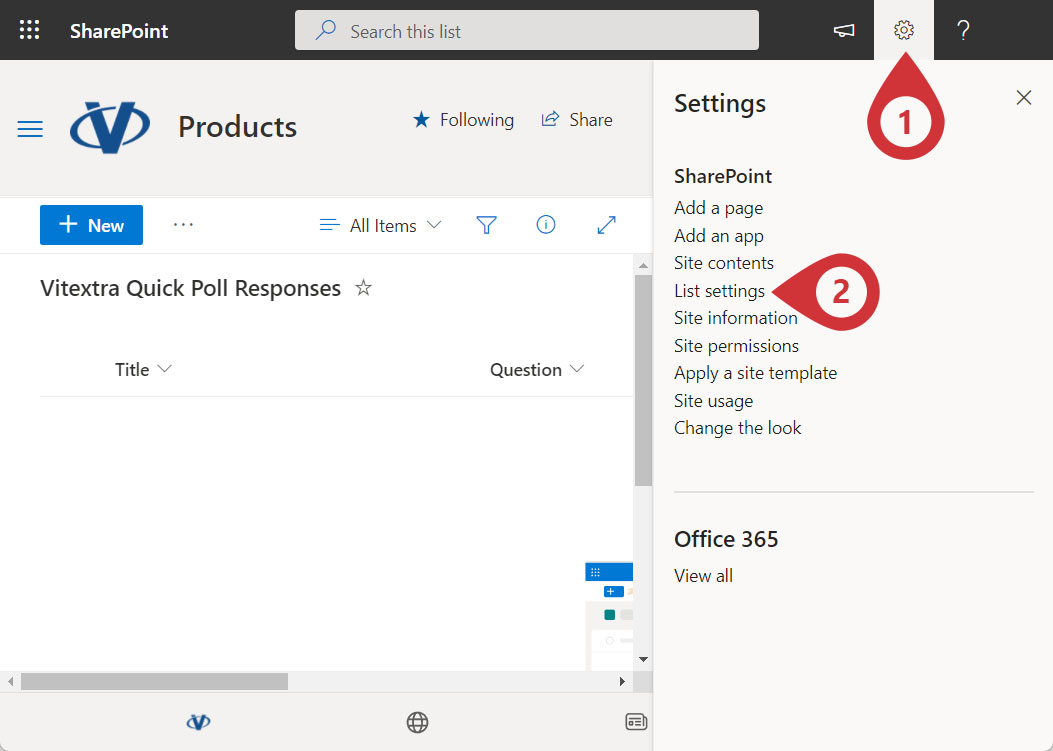
In the list, go to Settings and select List settings:
💡 Tip
You can rename the responses list or create new views if needed; this does not affect Quick Poll functionality.
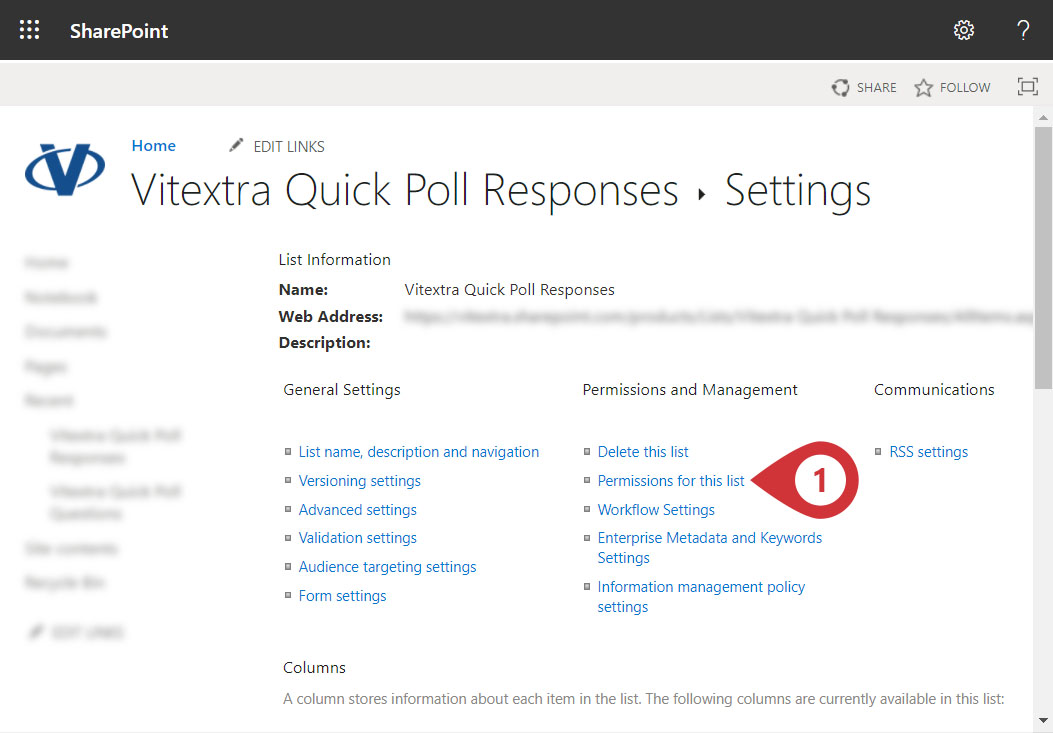
Select Permissions for this list under Permissions and Management:
📝 Note
By default, the lists created by the Quick Poll web part inherit permissions from the site where they are stored.
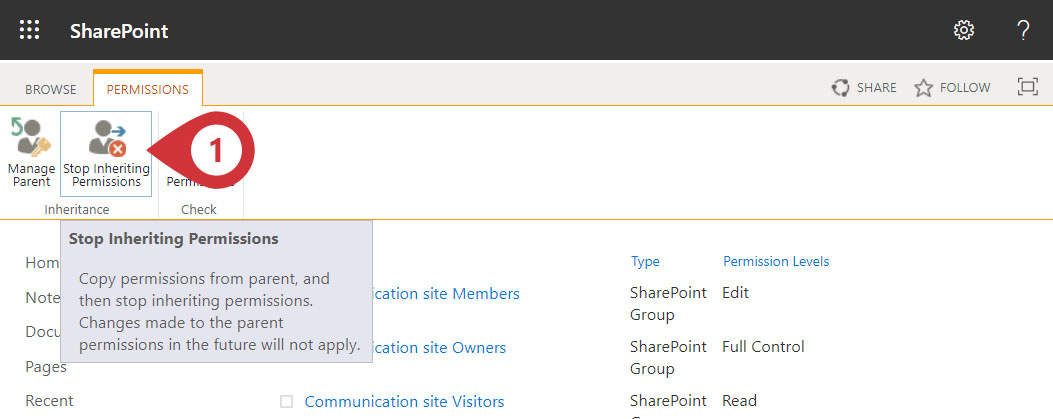
To change the access level for a specific list, you first need to stop inheriting permissions. Click Stop Inheriting Permissions on the ribbon and confirm.
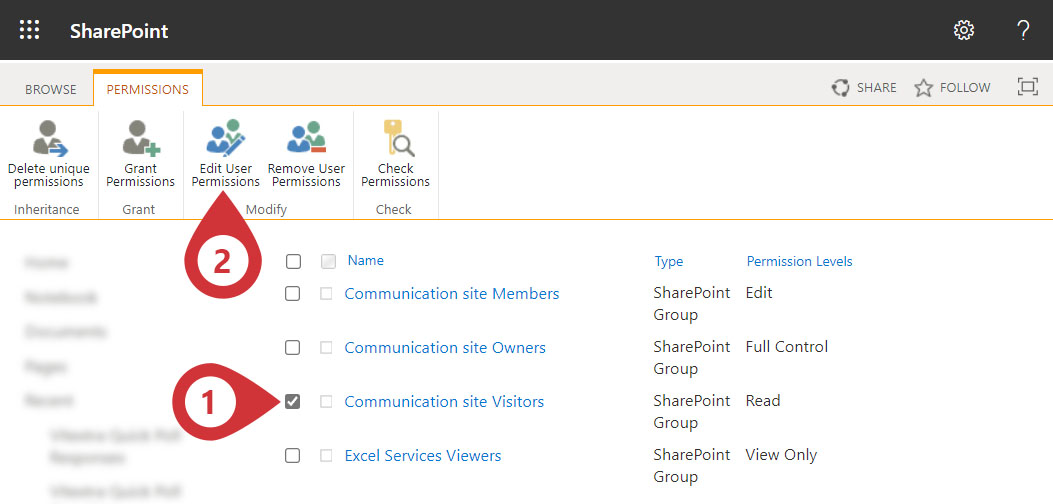
After you break permission inheritance, you can set the access level for a specific user or group. This article shows how to change the permissions of an existing user group: select it in the list and click Edit User Permissions on the ribbon.
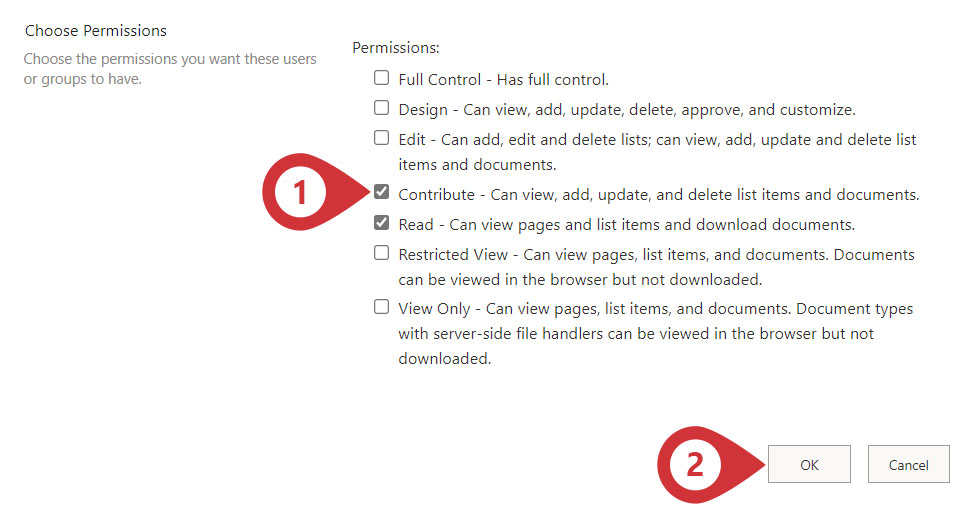
Under Permissions, select the Contribute checkbox and click Save.
💡 Tip
For more about permission management, see the Customize permissions for a SharePoint list or library article.
Teams Tab
If the web part is hosted in a Teams channel tab, no permission changes are needed - all channel members already have the necessary permissions.