Employee Directory
The quick-filter bar in the Vitextra Employee Directory web part lets you narrow the directory to a relevant group of people in a single click - no query required. This article explains what each quick filter shows, what data it relies on, and when to use it.
The quick-filter bar
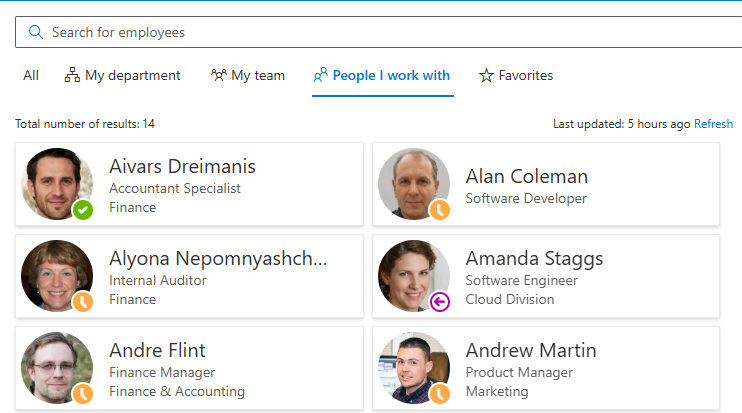
The quick-filter bar is a row of tabs above the results list: All, My department, My team, People I work with, and Favorites. Select a tab to apply that filter; select All to return to the full directory. The Favorites tab shows the number of people you have starred in parentheses.

Quick filters work together with the rest of the directory. You can type in the search box to narrow the selected group further, and the administrator's Group by setting and column sorting still apply to the filtered results - for example, My department grouped by job title.
My department narrows the main directory results, so the refinement panel and A–Z navigation remain available where supported. My team, People I work with and Favorites use separate lists; while one is selected, the refinement panel and A–Z navigation are hidden. Employee Directory builds these lists independently of the directory query. Employee Directory (Entra ID) instead intersects them with the loaded directory after the administrator’s exclusions and predefined filter. A person outside that filtered directory will not appear, even if stored in favorites.
📝 Note
An administrator chooses which quick filters the web part offers - each one has its own toggle in the Quick Filters group of the web part settings, and the bar disappears when all of them are off. In addition, a tab is hidden automatically when its data isn't available for you: My department when your profile has no department, My team when no manager or reports are found, and People I work with when the permission is missing or there is no data. For the settings, see KB10309. How to Add and Configure the Employee Directory Web Part.
My department
My department shows the colleagues who are in the same department as you. The filter reads the Department value from your own Microsoft Entra ID profile and shows everyone in the directory whose department has exactly the same value (letter case is ignored).
Use it to quickly reach the people you work alongside day to day, or to get a roster of your department without typing its name.
📝 Note
My department depends on the Department field in your profile being filled in, and on your colleagues' department being spelled the same way. If your profile has no department, the My department tab is not shown at all.
My team
My team shows your immediate team, built from the manager relationships in Microsoft Entra ID:
- your manager;
- the people who report to the same manager as you (your peers - the list includes you as well);
- the people who report directly to you, if any.
Disabled accounts are left out. Use this filter when you want everyone in your own team in one view, including your manager, without searching for each person by name.
People I work with
People I work with shows the colleagues you interact with most often, even when they are in other departments or teams. Instead of your profile's organizational fields, this filter uses the Microsoft Graph People API, which ranks your most relevant contacts from Microsoft 365 signals such as email, chats, and meetings. The filter shows up to 20 people from your organization; external contacts are not included.
Use it to jump straight to the people you actually collaborate with across the organization - project partners, cross-team contacts, and frequent correspondents who wouldn't show up under My department or My team.
📝 Note
People I work with requires the People.Read Microsoft Graph permission to be granted for your organization. If it hasn't been granted, or if Microsoft 365 has no interaction data for you yet, the tab is not shown. Frequent-contact data is maintained by Microsoft 365 and can take time to build up for new accounts.
Favorites
Favorites shows the people you have starred. Unlike the other three filters, it isn't derived from your profile or Microsoft 365 signals - you decide who appears here.
To add someone, select the star (Add to favorites) on their card, in the row menu, or in the details pane; to remove them, select the star again (Remove from favorites). The star is available only when the administrator has turned on the Favorites quick filter. When you haven't starred anyone yet, the tab shows the message "No favorites yet. Use the star on a colleague's card to add them here."
Use Favorites as your personal shortlist - the handful of people you reach out to regularly, regardless of which department or team they belong to.
❗ Important
Favorites are stored in your browser's local storage, not in your Microsoft 365 profile. They stay in place between sessions in the same browser and are shared by the Employee Directory web parts you open there, but they are tied to that browser and device: they don't follow you to another computer, another browser or browser profile, or a different Microsoft Teams client (the Teams desktop app and Teams on the web may keep their own separate storage). Clearing your browser data removes your favorites.
💡 Tip
For the star and the other per-person actions, see KB10315. Employee Actions in Employee Directory: Chat, Call, Email, Copy Email, Schedule a Meeting and vCard.
When a filter tab is missing or empty
Most quick filters rely on data outside your control, so it's worth knowing what to check when a tab is missing or shows no one:
- My department relies on the Department field in your own profile. If it's blank, the tab is hidden - ask your administrator to complete your profile.
- My team relies on the manager relationships in Microsoft Entra ID. If you have no manager and no direct reports, the tab is hidden.
- People I work with relies on the People.Read Microsoft Graph permission and on your Microsoft 365 interaction history. If the permission isn't granted, or your account is new, the tab is hidden.
- Favorites is always shown when enabled and simply reflects the people you've starred in this browser. In Employee Directory (Entra ID), only starred people that also pass the directory exclusions and predefined filter are shown.
If a tab is missing for everyone, the administrator has probably turned that quick filter off in the web part settings.
📝 Note
Quick filters degrade gracefully: when the underlying data or permission isn't available, the tab is simply not shown rather than breaking the directory. The rest of the web part - search, views, and the other filters - keeps working.
Next steps
- KB10213. Employee Directory Quick Start Guide for End Users - the essentials of searching and browsing the directory.
- KB10315. Employee Actions in Employee Directory: Chat, Call, Email, Copy Email, Schedule a Meeting and vCard - the star and the other actions on a person.
- KB10316. How to Search Employees by Skills in Employee Directory - finding people by the skills in their profile.
- KB10309. How to Add and Configure the Employee Directory Web Part - for administrators: turning quick filters on and off.