Deze content is niet beschikbaar in jouw taal.

This article describes how to automatically populate the Title column with the file name when a document is uploaded or edited.

Introduction

The Vitextra Document Auto Title product automatically populates the Title field in a SharePoint document library.

📝 Note
Auto-population can be enabled only for a document library.

Prerequisites

To use auto-population in a document library, activate the Vitextra: Document Auto Title site feature. Go to Site Settings → Manage site features and click Activate next to the feature:

Document Auto Title site feature

Document Auto Title site feature

Activate Auto-Population

Open the document library and go to Library → Settings:
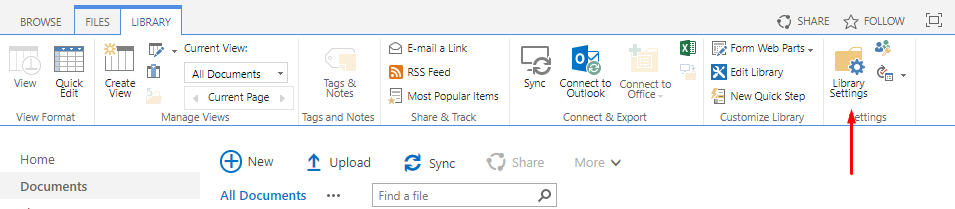
Library Settings

Library Settings

Click Document Auto Title under the General Settings heading:
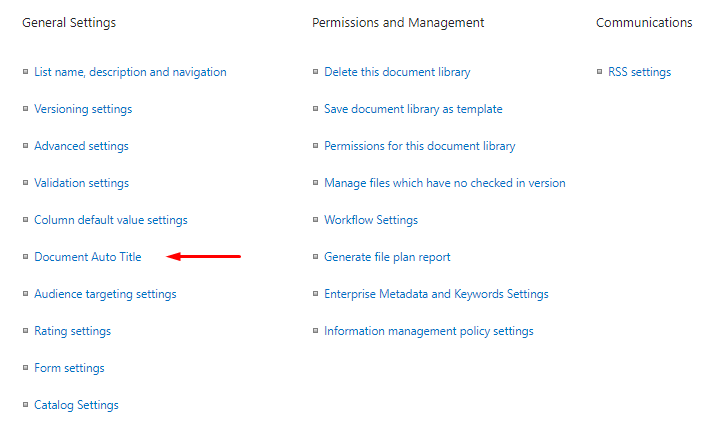
Document Auto Title menu item

Document Auto Title menu item

Settings

Select Enable to turn on auto-population. You can also choose additional options, such as excluding the file extension and updating the Title column when a document is edited:
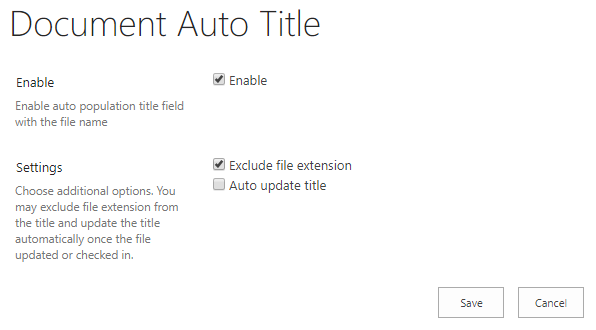
Document Auto Title Settings

Document Auto Title Settings

📝 Note
Document Auto Title is based on SharePoint event receivers and doesn't rely on the workflow engine. This improves performance and avoids creating unnecessary artifacts such as workflow tasks and history list items.

When Document Auto Title is enabled, the Title column is populated automatically as soon as a document is uploaded:
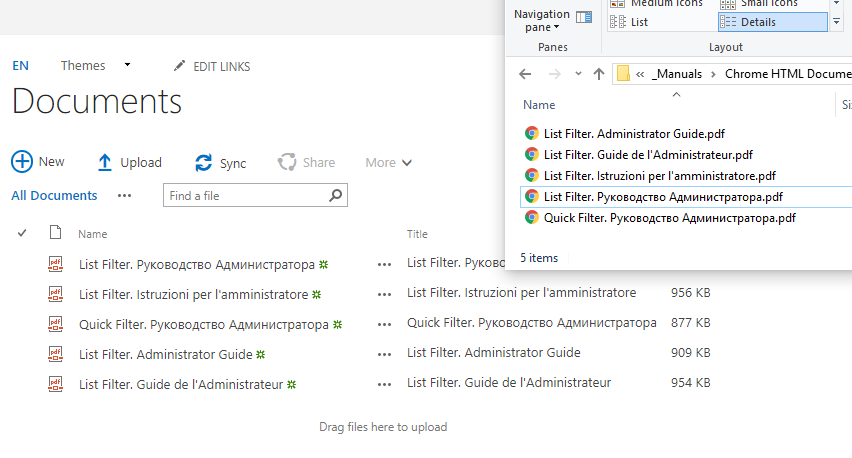

Document Auto Title

Document Auto Title

Vragen en antwoorden

Stel een vraag over dit artikel en ontvang een officieel antwoord van ons team.

Er zijn nog geen vragen. Stel de eerste vraag.

Uitgelichte artikelen

Weergaven, paginering, zoeken en tellers: weergave-instellingen van het webonderdeel Discussions

De weergave van Vitextra Discussions aanpassen: Standaardweergave (Recent, Onbeantwoord, Beantwoord, Uitgelicht, Mijn onderwerpen), Onderwerpen per pagina en Meer laden, zoeken op titel, categoriefilter, antwoord- en weergavetellers en titel. Vind elke instelling, het effect en de standaardwaarde, plus aanbevolen combinaties voor een vraag-en-antwoordforum, communitybord en klein teambord.

6 min
Microsoft Graph-machtiging Files.ReadWrite.AppFolder: waarom Password Vault deze nodig heeft en hoe u deze goedkeurt

Waarom Vitextra Password Vault de gedelegeerde Microsoft Graph-machtiging Files.ReadWrite.AppFolder aanvraagt, wat deze toestaat en uitsluit, hoe een globale beheerder deze goedkeurt in het SharePoint-beheercentrum en wat gebruikers vóór de goedkeuring zien.

2 4 min
Wie uw wachtwoorden in Password Vault kan zien

Antwoorden op privacyvragen over Password Vault voor SharePoint Online en Microsoft Teams: toegang door collega’s, pagina-eigenaren, sitebeheerders, Microsoft 365- en OneDrive-beheerders, kanaalleden, Vitextra en iemand achter uw ontgrendelde computer.

2 6 min

Delen