Policy Acknowledgement
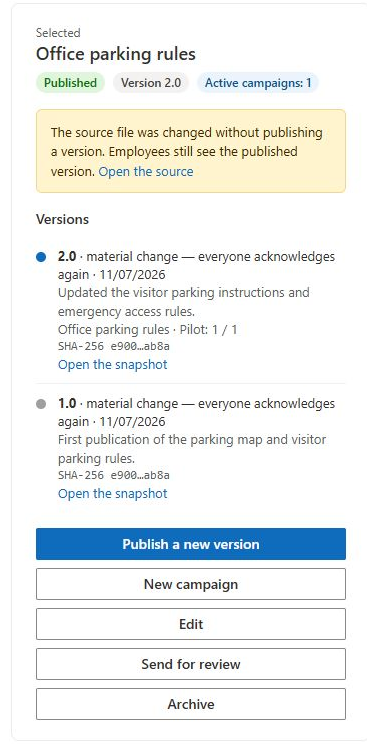
A source-change warning means the current source content no longer matches the fingerprint stored on the policy card. This can happen when someone edits a document in its library without publishing a corresponding policy version. Treat it as a signal to reconcile the source and publication history before collecting further confirmations.
Identify the affected content
- Open Policy Manager and select the policy.
- Note its current version, source URL and the warning in the details panel.
- Use Open the source to inspect the live content.
- Open the relevant version snapshot where available and compare it with the live source.
- Ask the owner to identify the intended change and whether it is material or editorial.
Do not use the source-change warning as a substitute for reading the content. A byte-level fingerprint difference does not explain the business meaning of an edit; it can also reflect file changes that are not obvious from a quick visual review.
Understand the detection limits
The check compares the current source hash with the card's stored hash when the selected policy details are loaded. Draft policies and policies without a stored hash do not produce this warning. External URLs do not receive a content hash and therefore are not monitored by this comparison.
If the source cannot be read or hashing fails, the drift check catches the error and returns no mismatch indication. The absence of a warning is therefore not proof that the source is unchanged. Check access and source type separately, particularly after moving a file or changing permissions.
Resolve an intended change
If the revision is intentional, choose Publish a new version. Use a new number and explain what changed. Select the material option when a fresh acknowledgement is required; review the resulting campaign wizard and launch it explicitly. Select the editorial option only when carrying earlier acknowledgements forward is appropriate. See KB10514. How to Publish a New Policy Version and Request Acknowledgement Again.
After publication, reload the card and verify its new version, fingerprint and retained document. Check the source again if the warning remains: the source may have changed during publication, the URL may point elsewhere, or part of the operation may have failed.
Resolve an unintended change
If the source was modified in error, have the content owner restore the intended content using the organization's document-management procedure. Then reload the policy details and verify the comparison. Do not manually replace the policy fingerprint merely to remove the warning: that would obscure the relationship between the published release and its recorded evidence.
❗ Important
Existing assignments can remain open after the source changes. The reader uses the live configured source, while an old assignment can still name an earlier version. Review this mismatch before asking employees to confirm. A later publication does not retroactively prove which bytes a previous employee actually saw.
Verify and escalate
Record the policy ID, version, source URL, warning time and actions taken. Verify a pilot reader and the version history after the fix. If the fingerprint or snapshot relationship is still unclear, preserve the records and contact support with those identifiers and error details. Do not delete earlier evidence or repeatedly publish the same version number as a repair attempt.