Discussions
Overview
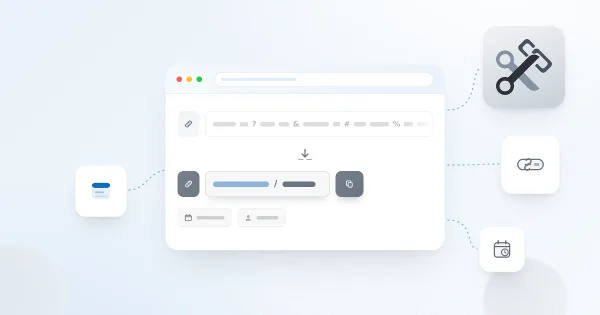
A board in Discussions lives on a SharePoint page, and every topic on that board can be addressed by a URL of its own. When you open a topic, the web part adds the parameter ?topic=ID to the address of the page; whoever opens that address lands directly on the topic instead of the topic list. The same link format is used by the Discussions Activity web part and by notification emails, so a topic has one address wherever it is referenced. This article explains how the link is built, how to share it and what to expect when it is opened.
How the link is built
| Part | Value |
|---|---|
| Base | The address of the page that hosts the Discussions web part, for example https://contoso.sharepoint.com/sites/intranet/SitePages/Forum.aspx |
| Parameter | topic=ID, appended with ? — or with & when the address already has parameters |
ID | The item ID of the topic in the Discussions Topics list of the site, a whole number such as 42 |
A complete link looks like https://contoso.sharepoint.com/sites/intranet/SitePages/Forum.aspx?topic=42. The ID is the ordinary SharePoint item ID: you can see it in the ID column of the Discussions Topics list, and it never changes for the life of the topic — renaming the topic, pinning it or moving it to another category keeps the link valid.
Copying a link to a topic
- Open the board and click the topic.
- Look at the address bar of the browser: the web part has added
?topic=IDto the page address without reloading the page. - Copy the address and paste it in an email, a chat or a page.
When you click Back to topics, the parameter is removed again, so the address of the list is always the plain page address. The web part has no separate Copy link button in this version; the address bar is the link.

What happens when the link is opened
When the page loads with ?topic=ID in its address, the web part skips the topic list and opens the topic right away: its text, attachments, the reply thread and the reply editor, exactly as if the reader had clicked the topic in the list. A view is counted for the topic, once per browser session (see KB10405. Likes, Views and Reply Counters in Discussions). Back to topics takes the reader to the list of the board.
The reader needs the same permissions as for the board itself: anyone who can read the site can open the link; posting a reply requires the Add items permission. A person without access to the site gets the usual SharePoint access-request page before the web part even loads.
If the ID does not match a topic — the topic was deleted, or the number was mistyped — the web part shows an error message in place of the topic together with the Back to topics button; the board is still usable.
A deep link does not bypass the visibility rules of the board. If the topic is awaiting approval or was rejected and the reader is neither its author nor a moderator, the web part shows the message This topic is not available. It may be awaiting approval or may have been removed. instead of the topic, again with the Back to topics button. Moderators and the author open such a topic as usual; see KB10430. Why a Post Is Not Visible: Approval, Rejection and Visibility Rules.
📝 Note
The parameter is read from the page address, so it belongs to the page, not to a particular web part. Keep one Discussions board per page: if two Discussions web parts were placed on the same page, both would react to the same ?topic= parameter.
Links from the Discussions Activity web part
The Discussions Activity web part lists the latest topics of the site on any page — for example the home page of the intranet — and links every topic to its board with the same ?topic=ID format. For that, the web part needs to know where the board lives: enter the address of the page that hosts the Discussions web part in the Board page URL field of the Board group in its property pane. If the field is left empty, the titles in the feed are shown as plain text without links.
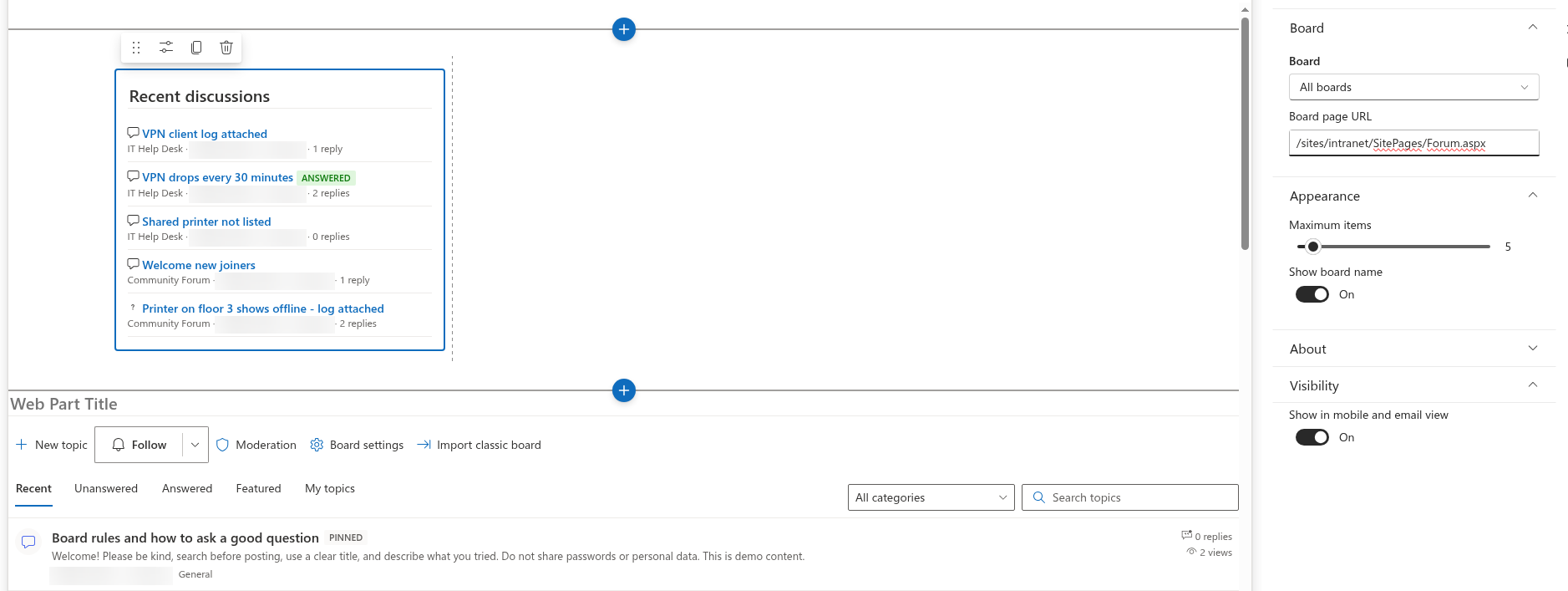
When the Activity web part shows All boards of the site, every topic is linked to the one page address you entered. If your site has several boards on several pages, add one Activity web part per board, each with its own Board and Board page URL; see KB10415. Showing Recent Discussions on Any Page with the Discussions Activity Web Part.
Links in notification emails
Email notifications for subscriptions and mentions are delivered by a Power Automate flow that works on the lists of the site. The link in such an email is built by the flow from the address of the board page, which is one of the flow's parameters, plus ?topic=ID of the topic that triggered the email — the web part does not store the page address anywhere. The contract is described in KB10414. How Notifications Work in Discussions: Subscriptions, Mentions and Power Automate.
Deep links in Microsoft Teams
In Microsoft Teams the board is a tab that shows the same web part. The ?topic= parameter belongs to the SharePoint page inside the tab, and Teams does not show that address, so there is no address bar to copy from inside the tab. To share a topic with colleagues who use Teams:
- open the board on its SharePoint page — the site of the team — and copy the address with
?topic=IDfrom there, or - use the link from a notification email or from the Discussions Activity web part.
A link of that form opens the SharePoint page in the browser, with the topic opened. The Discussions web part does not use Teams-specific deep links (a link that would switch Teams to the tab and open the topic inside it) in this version. See KB10393. How to Add Discussions to Microsoft Teams.
Deep links on a phone
The link works wherever the SharePoint page opens: in the browser of the phone and in the SharePoint mobile app. Copying the address from inside the mobile app is not always possible, so the practical way to share a topic from a phone is to use the Share function of the app on the page or to forward a notification email. See KB10416. Discussions in the SharePoint Mobile App and Teams Mobile.
Limits
- The link addresses a topic, not an individual reply. A reader who follows the link sees the whole thread from the top; there is no anchor for a particular reply in this version.
- The link depends on the page: if the page is renamed or moved, or the web part is moved to another page, existing links must be updated. The topic ID stays the same.
- The ID is site-wide: all boards of a site share one Discussions Topics list, and the web part does not check that the topic belongs to its board. An ID from board A pasted after the page address of board B opens that topic on board B's page.
- The link is not a share with permissions: it does not grant access to the site. Use the standard Share of the page or the site for people who do not have access yet.
💡 Tip
To give the board a short, stable address, keep it on a dedicated page with a simple name — Forum.aspx, Questions.aspx — and add that page to the site navigation. Every topic link then starts with an address that readers recognise.