Employee Directory
Introduction
"Anna started on Monday, why isn't she on the home page?" The New Employees web part of Employee Directory does not read any HR data and keeps no list of its own. Every time the page is opened, it asks Microsoft Graph for the member accounts of Microsoft Entra ID that were created within the configured period, applies the filter of the web part, sorts the result from the newest account to the oldest and shows the first few people. If a new hire is missing, one of these steps has left them out.
This article is a checklist, ordered from the most frequent cause to the rarest, followed by short answers to related questions.
📝 Note
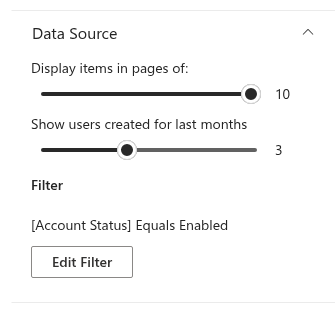
Most of the checks refer to the web part settings. To open them, edit the page, select the web part and click the Edit web part (pencil) icon; the settings discussed below are in the Data Source group. If you cannot edit the page, ask the page owner. The settings are described in KB10207. How to Showcase New Hires with the New Employees Web Part.
How the web part decides who is new
| Step | What happens | What can leave a person out |
|---|---|---|
| 1. Request | Microsoft Graph returns member accounts (userType = Member) whose creation date (createdDateTime) is within Show users created for last months. | Guest account; account created before the period; Retrieval limit reached (see step 6) |
| 2. Filter | The conditions of the Filter are applied in the browser. | A condition that does not match the person, including the default Account Status condition |
| 3. Sort and cut | People are sorted by creation date, newest first, and only the number set in Display items in pages of is kept. | More recent accounts push the person out of the list |
1. The account was created before the look-back period
"New" means "the Microsoft Entra ID account was created recently". The web part uses the createdDateTime attribute of the account; the hire date and the start date from your HR system are not read. As a result:
- An account created in advance - for example, four months before the start date - is shown from the day it is created and disappears from the web part when it becomes older than the period, possibly before the person has even started.
- For accounts synchronized from an on-premises Active Directory, the creation date is the date on which the synchronization created the account in Microsoft Entra ID, not the date on which it was created in Active Directory.
How to check. In the Microsoft Entra admin center, open the user and look at the Created date time on the Overview page. Compare it with Show users created for last months (1 to 6 months, default 3). With the value 3 on October 18, the web part shows accounts created on or after July 18.
How to fix. Increase Show users created for last months (up to 6). The web part cannot show accounts older than six months.
2. More recent accounts push the person out of the list
After the filter, the list is sorted from the newest account to the oldest and cut to the number set in Display items in pages of (1 to 10, default 10). If more people were created within the period than the web part shows, the oldest of them are not displayed, even though they meet every condition. This is typical after a wave of hiring, or when service and test accounts are created in the same period.
How to check. Count the accounts created after the missing person in the Microsoft Entra admin center (the All users list can be sorted and filtered by Created date time).
How to fix. Increase Display items in pages of (up to 10), or add filter conditions that remove the accounts that should not be shown, such as service accounts (see step 4).
3. The person is a guest
The web part requests only accounts whose userType is Member. Accounts with userType = Guest are excluded regardless of the filter. Check User type rather than relying on #EXT# in the user name.
How to check. In the Microsoft Entra admin center, look at User type on the user's Overview page.
4. The filter excludes the person
The Filter of the web part may limit the list to one department, office or employee type. A new hire whose profile does not match - for example, whose Department is still empty or reads Sales EMEA while the filter expects Sales - is not shown. Conditions on User Roles narrow the list the same way.
The filter also handles disabled accounts. A New Employees web part added to a page comes with one condition - Account Status Equals Enabled - so accounts that are created disabled and enabled on the first working day appear only after they are enabled. Disabled accounts are not excluded by the web part on its own: if this condition has been removed, disabled accounts are shown too.
How to check. Open the web part settings and look at the filter preview under Filter. If it shows conditions instead of No filter applied, compare them with the person's attributes in the Microsoft Entra admin center, including Account enabled.
How to fix. Complete or correct the person's attributes, enable the account, or click Edit Filter and adjust the conditions in the Advanced filtering panel, then click Save and republish the page.

💡 Tip
For the fields, operators and examples of the filter, see KB10312. Employee Directory (Entra ID): Filter Editor Reference.
5. The account is not new
The web part uses the original account creation date even after a rename, department change or reactivation. A reused account appears only if that date is still within the configured period and the account passes the other filters. For a returning employee with an older account, use another announcement method; recreating the account solely for this web part is unnecessary.
6. Very large tenants: the retrieval limit
The web part follows Microsoft Graph result pages (up to 999 accounts per page) and sorts the collected accounts by creation date. It stops requesting further pages once at least 10,000 accounts have been collected. At that limit, accounts on unread pages can be missing, including recent accounts.
Reduce the look-back period so that fewer accounts need to be retrieved.
7. The web part shows an error
The message Sorry, something went wrong. Please refresh the page and try again. followed by technical details indicates a loading failure. Check Microsoft Graph permissions, connectivity and the error details. Missing User.Read.All and Directory.Read.All can prevent user loading; a role filter also requires Directory.Read.All, and a role-membership request failure stops New Employees from loading.

Ask a Global Administrator to approve the required pending Microsoft Graph permissions. KB10463. Microsoft Graph Permissions Required by Employee Directory.
8. The web part shows a license message
If the web part shows We hope you enjoyed your free trial. Buy it now to keep it working. with a Buy It link instead of the cards, the trial or the subscription of Employee Directory has expired, and the web part does not show anyone. See KB10365. Why Does a Vitextra Web Part Show "We Hope You Enjoyed Your Free Trial"? License Messages and Fixes.
Frequently asked questions
The account was created a few minutes ago. When will it appear?
On the next page load. New Employees does not cache the list: it queries Microsoft Graph every time the page is opened, so changes made in Microsoft Entra ID - new accounts, enabled accounts, changed departments - are visible after the page is refreshed. Allow for a short replication delay in Microsoft Graph, and for accounts synchronized from an on-premises Active Directory, wait for the next synchronization cycle.
Does the person have to visit the SharePoint site first?
No. The web part reads the accounts from Microsoft Entra ID, not the users of the site, so a new hire appears whether or not they have ever opened the site.
Can the web part use the hire date instead of the creation date?
No. The web part always uses the creation date of the Microsoft Entra ID account. To get close to the hire date, create accounts as close to the start date as possible.
The new hire appears, but the card shows only the name. Why?
The person is shown even if their profile is incomplete, but the card lines show the attributes stored in Microsoft Entra ID. If Job Title or Department is empty, the corresponding line of the card is empty. Fill in the attributes in the directory, or in Active Directory for synchronized accounts. See KB10464. Preparing Microsoft Entra ID and User Profile Data for Employee Directory.
A person who left the company is still shown. Why?
Their account is still enabled, or the Account Status condition has been removed from the filter. Disable the account in Microsoft Entra ID, or add the condition Account Status Equals Enabled to the filter.
The web part is empty, but there is no error. Why?
Nobody passes all the steps: no member accounts were created within the period, or the filter excludes all of them. The web part shows no message in this case. Increase the period or review the filter.
❗ Important
The web part shows only what the signed-in user can read in Microsoft Entra ID through Microsoft Graph. It does not change anything in Microsoft 365, and the filter does not restrict anyone's access to directory data.
Summary
| Symptom | Most likely cause | Where to look |
|---|---|---|
| A new hire created long before the start date is missing | The account is older than the period | Step 1 |
| Some of the new hires are missing after a wave of hiring | Display items in pages of is too small | Step 2 |
| A new contractor is missing | Guest account | Step 3 |
| A new hire is missing on one page only | Filter of that page, or the account is still disabled | Step 4 |
| A rehired person is missing | Existing account reused | Step 5 |
| The newest people are missing in a very large tenant | Retrieval limit reached (see step 6) | Step 6 |
| Nobody is shown, with an error message | Microsoft Graph permissions | Step 7 |
| A license message instead of the cards | Expired trial or subscription | Step 8 |
Learn more about the product: https://vitextra.com/en/products/employee-directory